How to cull hundreds of photos fast: pick, reject, compare
A fast culling method: let the quality check flag blurry shots, keep the best of each burst, then pick and reject with two keys and compare the close calls.
On this page
Here's how to cull photos fast: let firelet.media Gallery make the first pass, rejecting blurry and badly exposed shots and keeping the best frame of every burst, then go through what's left in the viewer with two keys, P to pick and X to reject. Compare the close calls side by side with C, and delete the rejects only at the very end.
The method works because each pass is quick and none of them can lose anything. Every tool below only sets flags; nothing leaves your drive until you send it to the Recycle Bin yourself.
How to cull photos fast: let the machine do the first pass
The obvious failures (out of focus, far too dark, blown out) don't need your judgement. Let the quality check find them.
- Open the AI panel with Alt+3 and expand Quality & culling.
- Press Analyse quality. It measures sharpness, exposure and colours in every photograph, at about 60 ms each.
- Press Reject blurry and badly exposed.
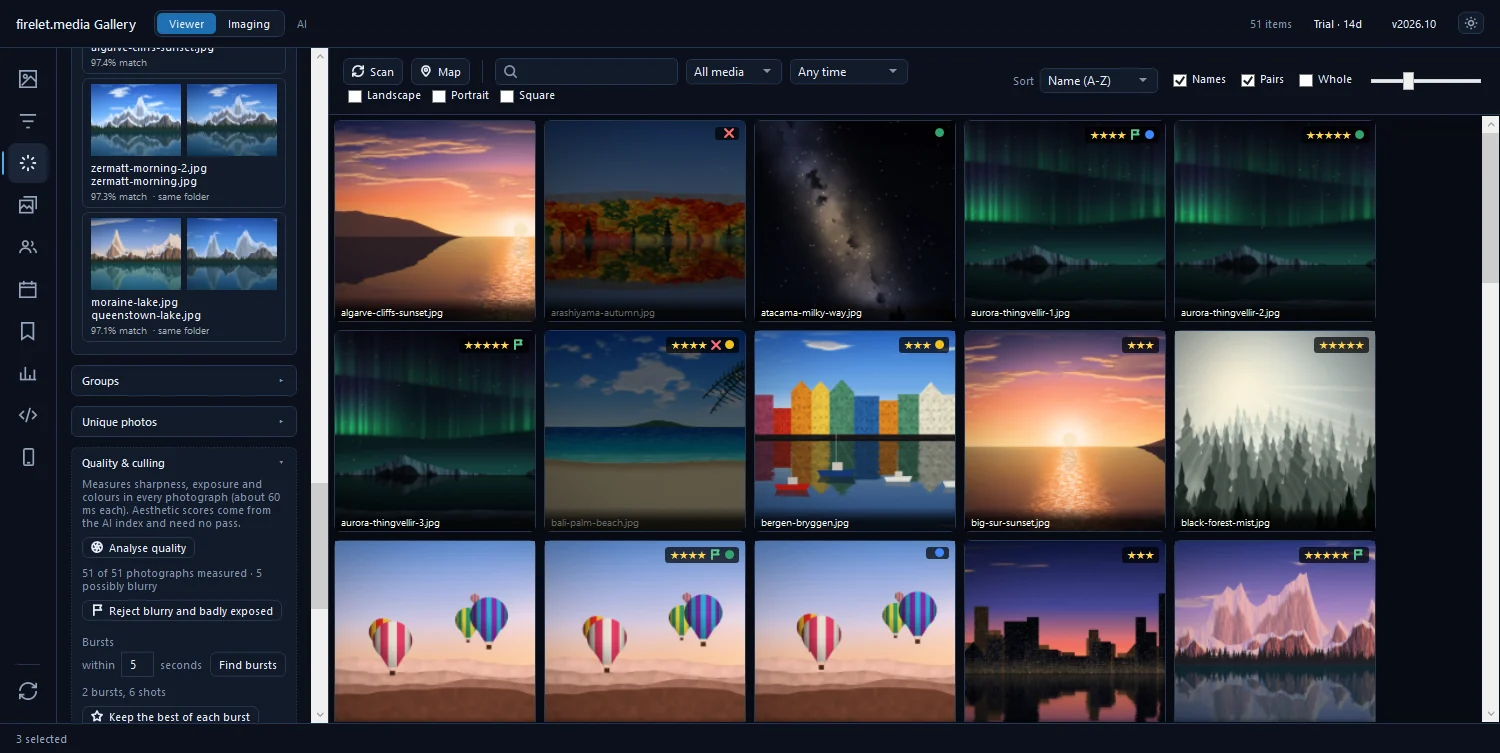
The button's own promise is "Flags only, and never over a flag you set." Rejected tiles are dimmed in the grid, so you can see at a glance what went.
Glance through the rejects before trusting them. A deliberately dark night scene or an arty motion blur can look like a mistake to a meter. Open Filters (Alt+2), set Rating & labels to Rejected, and press U on anything you want to keep. Quality & faces in the same panel also has Sharpness (Sharp, Possibly blurry) and Exposure (Well exposed, Underexposed, Overexposed) filters if you'd rather look before rejecting.
Bursts: keep the best
Bursts are where the pile really grows: ten frames of the same jump, eight of the same smile. In the same Quality & culling section:
- Leave the burst window at 2 seconds, or raise it if your bursts were slower.
- Press Find bursts.
- Press Keep the best of each burst.
A burst here means photos taken within that many seconds of each other, on the same camera, in the same orientation, and (if the library is indexed for AI search) looking alike. The gallery picks the sharpest, best-exposed, most aesthetic frame of each burst and rejects the rest. Again, it never overrides a flag you set.
Each burst is listed with its time and a few thumbnails. Click one to show and select it in the grid, then press C to compare its frames yourself.
P and X through the rest
What's left needs your eye, but it doesn't need your mouse. Set Filters → Rating & labels to Unflagged, so you only see what hasn't been decided, then:
- Double-click the first photo, or select it and press Enter, to open the viewer.
- Press A to turn on Advance after rating. Now every mark moves you to the next photo.
- Press P for a keeper or X for a reject. Don't hesitate; you'll review the close calls later.
- When you can't decide, press → to skip it. It stays unflagged for the next pass.
| Key | What it does |
|---|---|
| P / X / U | Pick / Reject / Clear the flag |
| 1 to 5, 0 | Stars, or clear them |
| 6 7 8 9 | Red, Yellow, Green, Blue colour label |
| A | Advance after rating, on or off |
| Z | Switch between fit and 100% to check focus |
| K | Focus peaking: highlights the sharpest edges |
| J | Clipping warnings: pure white in red, pure black in blue |
| ← / → | Previous / next photo |
Aim for a second or two per photo; at that pace, three hundred photos take about ten minutes. When a whole run of shots is plainly bad, it's quicker in the grid: Shift-click to select the run and press X once for all of them.
Focus peaking is the fastest focus check there is: if the eyes don't light up, the shot is soft. The full list is in keyboard shortcuts, and ratings, flags and colour labels explains how the three kinds of marks differ.
Compare the close calls with C
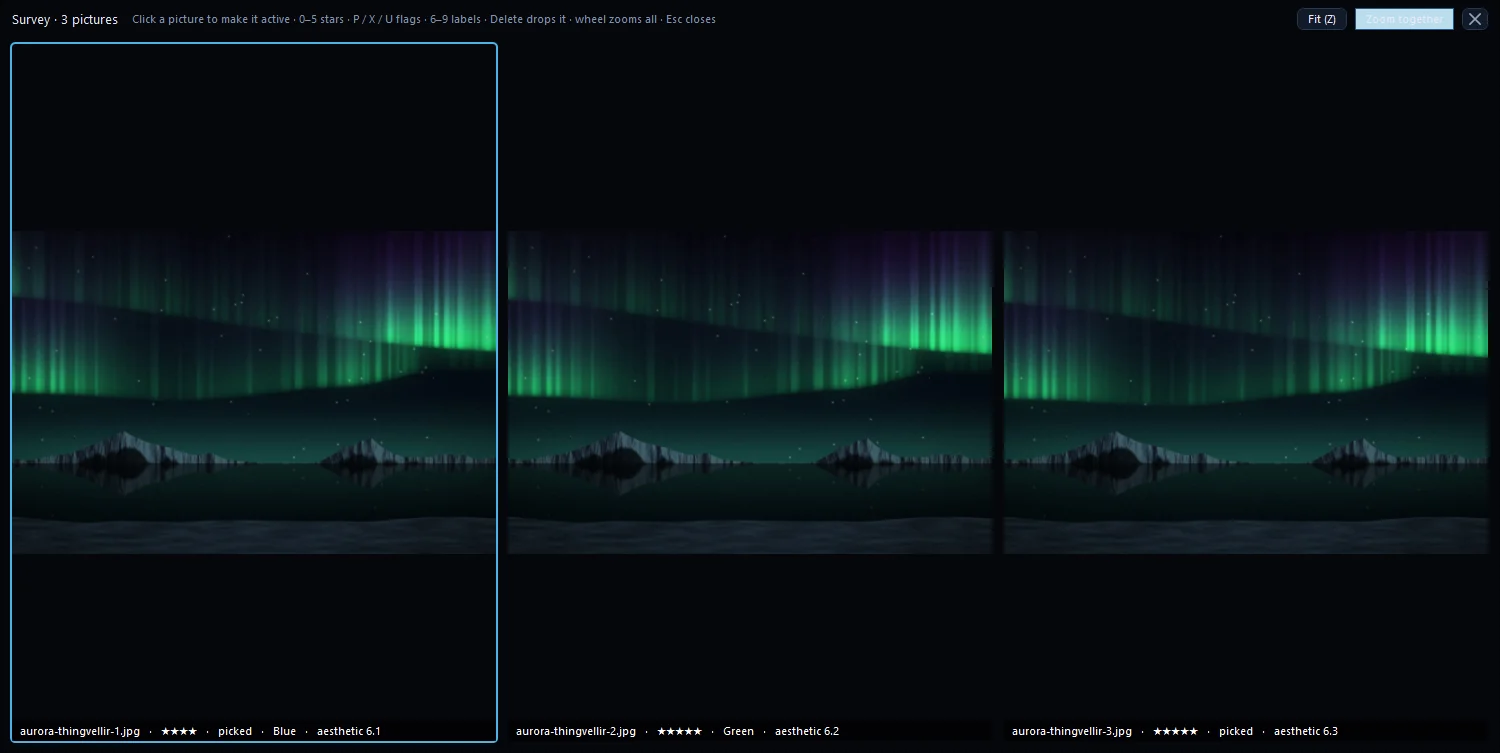
Some choices can't be made one photo at a time: three nearly identical portraits, or two versions of a view. Put them side by side.
- In the grid, Ctrl-click two to six photos.
- Press C (or right-click and choose Compare selected).
- Press L for Zoom together, then zoom in. Every pane follows, so you're comparing the same eye or the same sign in each.
- Move between panes with ← and → and mark the one in focus with P, X or a star.
- Press Del or Backspace to drop a pane you've ruled out. This only takes it out of the comparison; the file isn't touched.
- Press Esc to close.
With two photos the view is called Compare; with more it becomes a survey that you narrow down pane by pane until the winner is left.
Delete the rejects (to the Recycle Bin)
When the passes are done, decide what to do with the rejects. You don't have to delete them: set Rating & labels to Not rejected and they're out of sight. Save that filter in the Presets panel (Alt+7) with Save current filters so it's one click next time.
If you want the space back:
- Open Filters and set Rating & labels to Rejected.
- Scroll through once more. Press U on anything you've changed your mind about.
- Press Ctrl+A to select them all.
- Press Del and confirm.
The files go to the Recycle Bin, along with any XMP sidecars, so you can still restore them.
The same tools are in the macOS and Linux builds, which are being finished; there, deleted files go to the Trash and shortcuts accept Cmd as well as Ctrl. For duplicate copies rather than bursts, see too many duplicate photos? How to find and remove them safely, and for the full reference of every culling tool, how to pick your best photos.
Questions people ask
Will automatic culling override my picks?
No. Reject blurry and badly exposed and Keep the best of each burst only set flags, and never over a flag you set yourself.
How many photos can I compare at once?
Two to six. Select them in the grid and press C; with more selected, the first six are compared.
Was this post helpful?
Thank you — that is counted, and nothing else about you is. Still stuck? Ask a person.