Outgrown the Windows Photos app? When a photo manager helps
The built-in Photos app is fine for viewing. As a library grows you may want describe-to-find search, face groups, duplicate finding and a map. Signs it's time.
On this page
The Photos app that comes with Windows is fine for opening and quickly fixing pictures. If you are looking for a Windows Photos app alternative because your library has grown into tens of thousands of files, the job has changed: finding, de-duplicating and organising matter more than opening. firelet.media Gallery adds those on top of the same folders, without replacing Photos.
What the Photos app does well
It is worth being clear about what you already have. The Photos app is built into Windows, so there is nothing to install. It is usually what opens when you double-click a picture in File Explorer, and it is quick for looking through a folder, making a simple edit or sharing one picture. Its features change from one version of Windows to the next, so check what yours offers.
For a few hundred pictures, that may be all you ever need. The question is what happens at twenty thousand.
Signs you have outgrown it
These are about your library, not about any app. If several sound familiar, a dedicated photo manager will save you time:
- You know a picture exists, but scrolling by date does not find it. You remember what was in it, not when.
- The same photos exist two or three times, from phone backups, old laptops and "just in case" copies.
- Your pictures are spread out: a Pictures folder, two external drives, a OneDrive or Dropbox folder, a box of scans.
- You want to mark your best shots with stars, labels and keywords, and have that work readable by other software.
- You want to find people, places, or the words in a screenshot or a receipt.
- Sorting through a trip takes an evening, because there is no quick way to reject the blurry and repeated shots.
What a Windows Photos app alternative adds
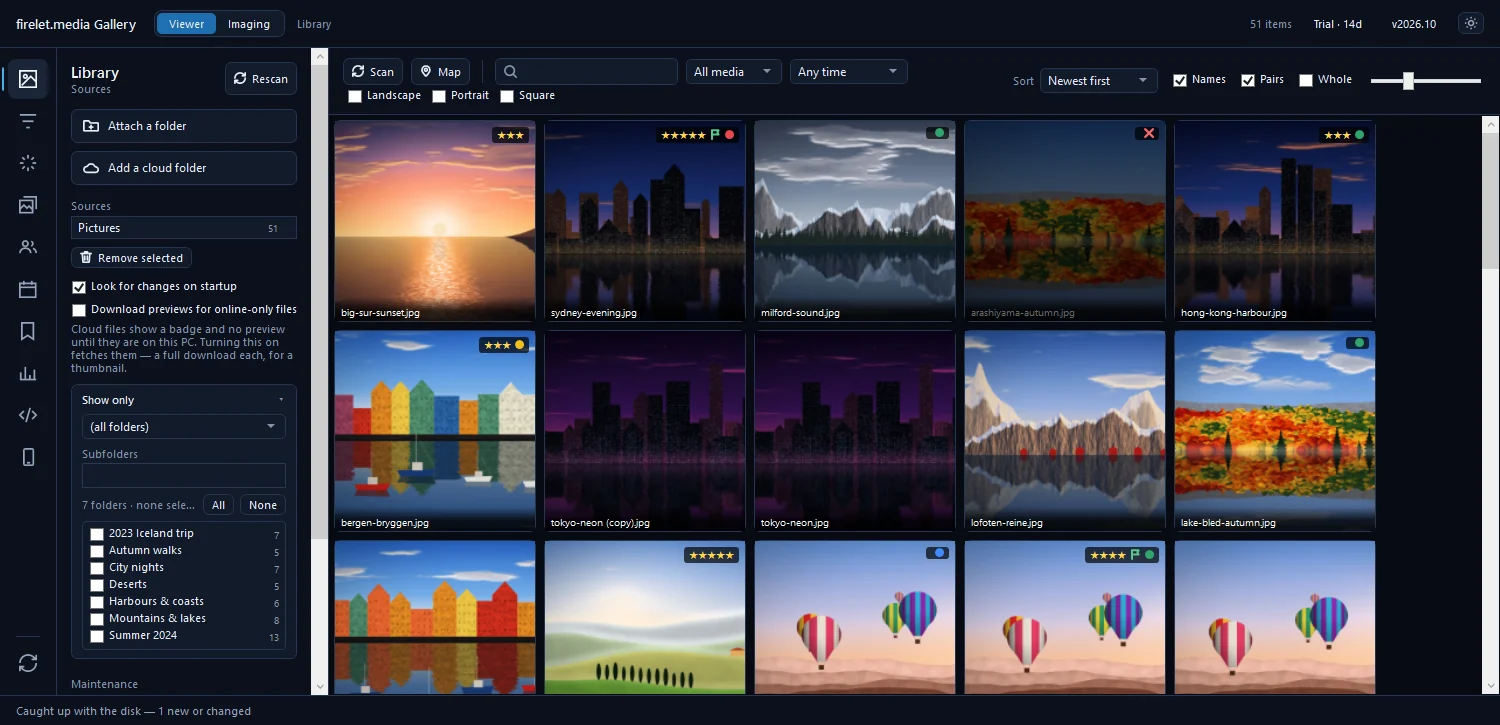
firelet.media Gallery indexes the folders you already have, wherever they are, and adds the tools a large library needs. Everything runs on your PC, and your photos never leave it.
| You want to | In firelet.media Gallery |
|---|---|
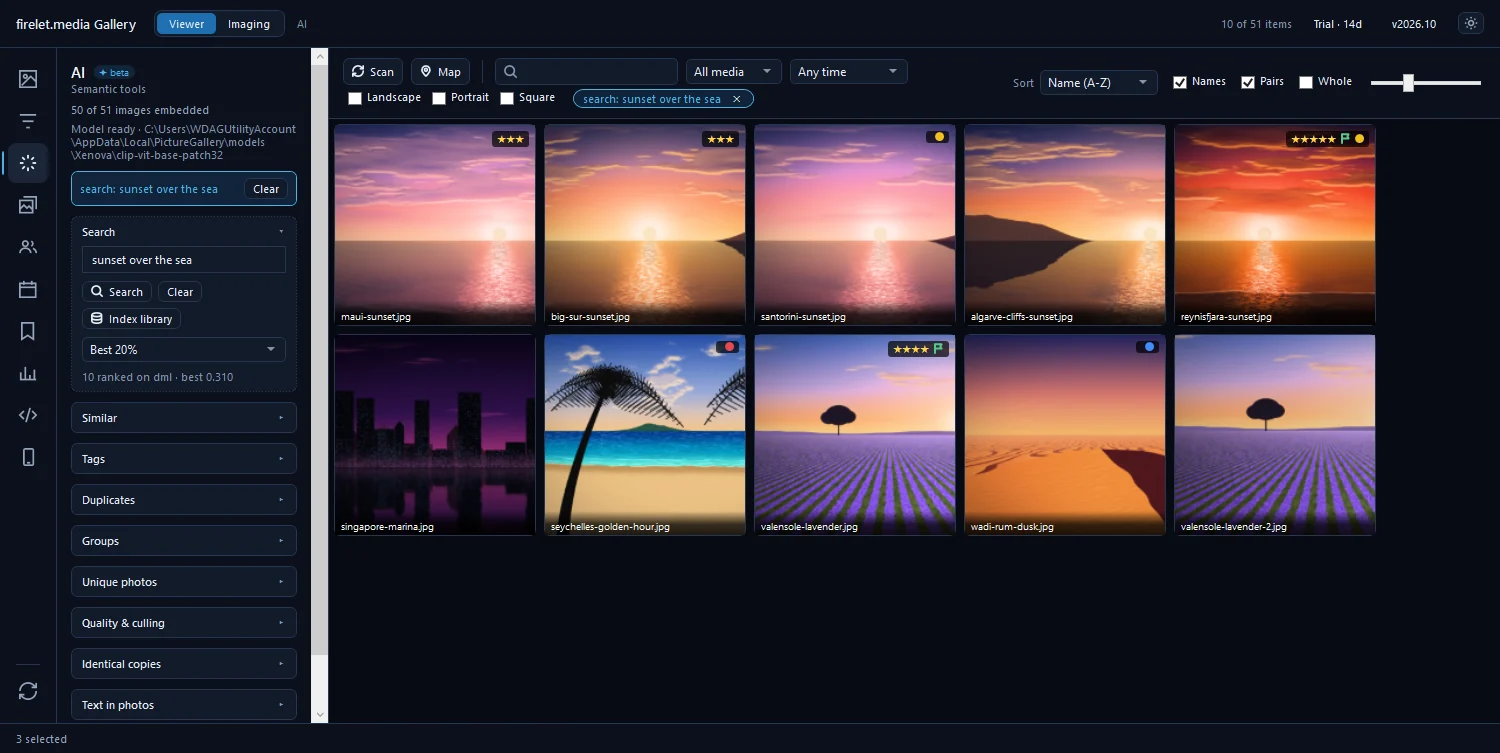
| Find a picture by what is in it | AI panel (Alt+3): type a description such as "red kayak on a lake". Needs a one-off 438 MB model download and Index library; English descriptions; marked beta |
| Find the words in pictures | Read text in the AI panel, then the ordinary search box |
| Find everyone in the family | People (Alt+5): faces found and grouped on your PC; name a group once |
| Remove duplicates | Find identical copies for exact copies, Scan for duplicates for resized ones. Both only flag; you decide what to delete |
| Pick the best shots | Analyse quality, bursts, and Compare (C) for two to six pictures side by side |
| Mark and organise | Stars (0–5), Pick/Reject, colour labels, albums, keywords with hierarchies, and XMP sidecars other programs read |
| Browse by time and place | Calendar with events and On this day; a Map of every picture with GPS |
| See everything in one place | Attach folders from any drive, plus your OneDrive, Dropbox, Google Drive or iCloud folders |
A few honest limits: camera RAW files are not supported yet (the JPEGs your camera writes alongside are), the map's background imagery and place names need a provider you choose, and there is no backup built in, so keep a real backup of your folders.
For the AI search in more depth, see how to find a photo by describing what's in it; for duplicates, how to find and remove duplicate photos.
Using both together
You do not have to choose. The two work side by side on the same folders:
- Double-click still opens Photos. firelet.media Gallery does not make itself the default photo app, so File Explorer keeps opening pictures in whatever you use today.
- Your files stay put. The gallery reads your folders where they are. Edits, stars, keywords and corrected dates are kept in its own library database; your originals are never altered. Files change on disk only when you rename, move or delete them from the gallery, or ask for XMP sidecars.
- Hand a picture over. In the gallery's viewer, Open externally opens the picture in whichever app Windows uses for that file type, and right-clicking the picture gives Open with… for any other. Show in folder opens its folder in File Explorer.
- Changes made elsewhere are picked up. The gallery does not watch folders live. It looks for changes each time it starts (Look for changes on startup, on by default), and the Scan button in the toolbar catches up at any time.
Trying it on your own library
The only real test is your own pictures. The trial lasts 14 days, has every feature and no limits, and needs no card, account or email.
- Download the installer from the download page. It is about 67 MB, for Windows 10 (version 2004 or later) or Windows 11, 64-bit, and installs for your user account without an admin prompt.
- Run it, then open firelet.media Gallery. The trial starts on first launch.
- Open Library (Alt+1) and press Attach a folder. Add your Pictures folder and any others; the scan starts by itself.
- Open AI (Alt+3), press Download model, then Index library.
- Try a description of a photo you have been hunting for, then Find identical copies to see how many duplicates you have.
The 10-minute tour shows the rest of the window. If you decide to keep it, it is $160 per computer, paid once, with no subscription; see the pricing page. If you do not, nothing is deleted when the trial ends: your library stays browsable and searchable, and your folders are exactly as they were. More on the trial is in how the 14-day free trial works, and on why a local library matters in why an offline photo manager?
Questions people ask
Do I have to stop using the Photos app?
No. Both can read the same folders, and firelet.media Gallery never moves, renames or changes your files unless you ask it to.
Is there a free way to try?
Yes. The 14-day trial has every feature and no limits, and needs no card or account.
Was this post helpful?
Thank you — that is counted, and nothing else about you is. Still stuck? Ask a person.