A 15-minute weekly routine that keeps photos organized
Organising photos is easy in small doses. A weekly routine: import new photos, cull with a few keys, add an album or a keyword, and check the backup.
On this page
A weekly photo organising routine takes about 15 minutes. Import what's new, pick and reject with two keys, put the keepers in an album or give them a keyword, then check the backup. In firelet.media Gallery each step is a few clicks or keystrokes, and nothing is lost if you skip a week, because the next import simply catches up.
Why a weekly photo organising routine beats a yearly one
Most photo collections get organised the way attics do: once in a blue moon, in a weekend-long marathon that everyone dreads. By then there are thousands of pictures, the memories behind them have faded, and deciding which of eight near-identical sunsets to keep feels like homework.
A weekly session flips all of that:
- The batch is small. A week is usually a few dozen to a few hundred pictures, which is easy to get through.
- Your memory is fresh. You know why you took the photo and who's in it, so an album name or a keyword takes seconds.
- It becomes a habit. Fifteen minutes on a Sunday evening is easier to keep up than a day every January.
Here's the routine, minute by minute.
Minute 0–3: import new photos
Start by getting the week's photos onto the PC.
- Put your camera's memory card in a reader, or connect your phone by USB.
- Press Ctrl+2 to open Imaging, then choose the Import tab.
- Under Where from, pick the card or phone. Click Look again if it doesn't show yet.
- Click See what is new to see how many pictures are new and how much space they need.
- Click Import.
The gallery remembers your Import into folder, files each picture into a dated folder, verifies every copy and skips anything already in your library. It never deletes anything from the card or phone. A phone connected by USB should appear as a source, although USB phone import hasn't been verified on real hardware yet. The memory card route is dependable.
If new pictures also land straight in your library folders (downloads, scans or screenshots), click Scan on the toolbar. It looks for files added or removed since the last scan.
When the free Android companion is available, this step can happen by itself. The Windows app already includes the PC side of the Wi-Fi link, and its auto-sync copies new phone photos whenever the phone is on your home Wi-Fi. See how to copy new phone photos to your PC automatically and back up phone photos to your PC without the cloud.
Minute 3–8: pick and reject with P and X
Now look at the week's pictures and make quick decisions. Speed matters more than perfection here.
- Set the date range on the toolbar to Last 7 days.
- Set the sort order to Oldest first, so the week plays out in order.
- Double-click the first picture to open the viewer.
- Press A to turn on Advance after rating, so every mark moves you to the next picture.
- Press P for the keepers and X for the misses. Leave the in-between ones unmarked.
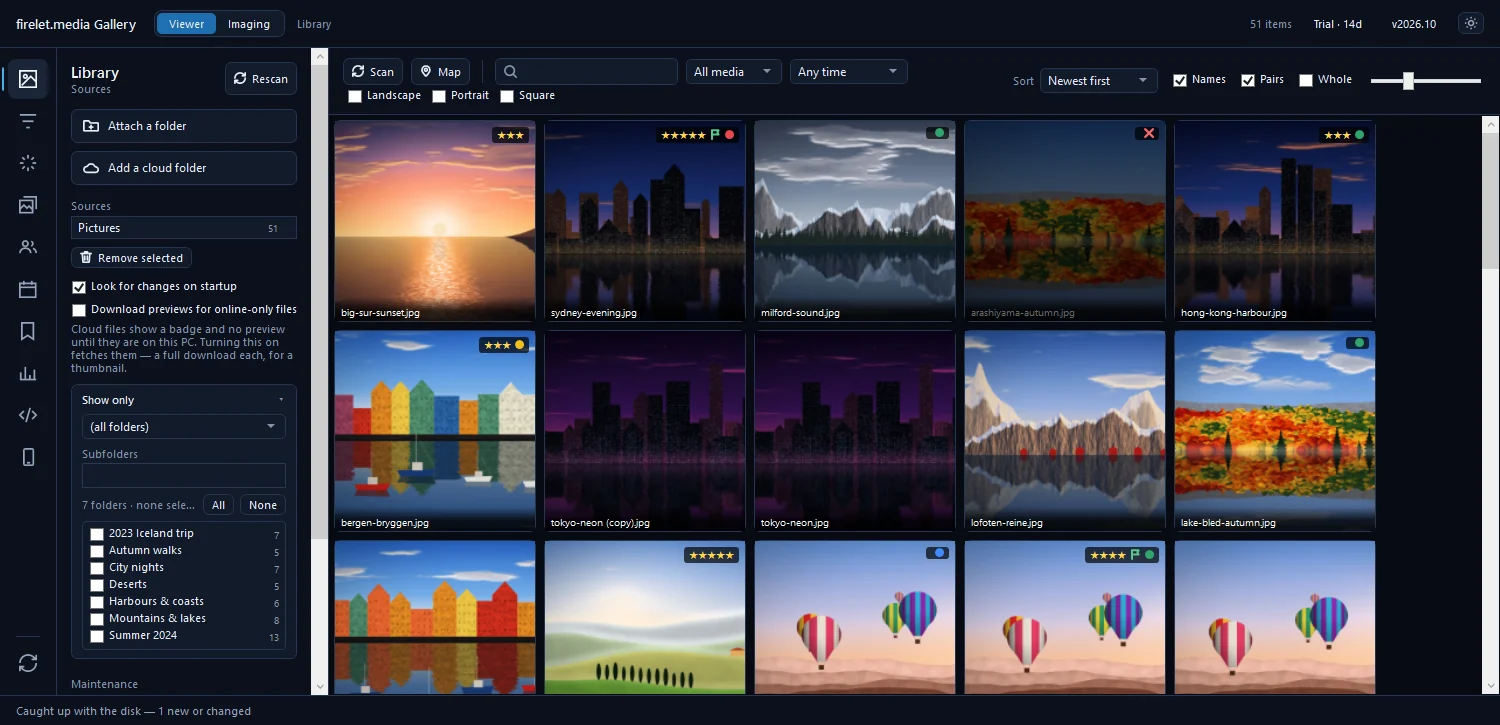
These keys cover almost everything:
| Key | What it does |
|---|---|
| P / X / U | Pick / reject / clear the flag |
| 1 to 5 | Stars (0 clears them) |
| 6 to 9 | Red, yellow, green or blue label |
| C | Compare 2–6 selected pictures side by side (from the grid) |
| Esc | Close the viewer |
For a run of similar shots, go back to the grid, select them and press C. The Compare view puts them side by side, and you can mark each one right there. The full list is in firelet.media Gallery keyboard shortcuts.
Rejected pictures are dimmed, not deleted. When you're ready, open Filters (Alt+2), set Rating & labels to Rejected, press Ctrl+A, then Del. They go to the Recycle Bin after a confirmation. Some people do this weekly; others leave the rejects for the monthly session.
Minute 8–12: albums and keywords
Four minutes is plenty to file the week's keepers.
- In Filters, switch Rating & labels to Picked, so only your keepers show.
- Select the pictures that belong together.
- Press Ctrl+B and choose an album, or New album… to start one.
- Press Ctrl+K, type a keyword such as
Family > KidsorGarden, and press Enter.
Albums are lists inside the library, so no files are copied, and a picture can live in several albums. Keywords work well for things that recur across albums: people's hobbies, places, projects. A Parent > Child keyword builds a tidy hierarchy as you go.
If one picture of the week deserves its story, open it, press I for the info panel, and write a line in Caption. It's searchable forever after.
Minute 12–15: back up
The last three minutes protect everything you just did.
- Run your backup to an external drive, with File History or whichever backup tool you use.
- In Albums & keywords (Alt+4), open XMP sidecars and click Write changed pictures. This week's stars, labels, keywords and captions are then saved in small
.xmpfiles beside the photos, where your backup picks them up too. - Once a month, close the gallery and copy its library file,
%LOCALAPPDATA%\PictureGallery\gallery.db, to the backup drive. It holds your albums, people and edits.
Sidecars carry most of your work, but not everything. Albums, for example, live only in the library file, which is why step 3 matters. How to back up your photos and your firelet.media library covers it all.
The monthly extras
Once a month, give the library ten more minutes for the jobs that run in the background:
- Index library in the AI panel, so the month's photos can be found by description. It only processes what's new.
- Find faces in the People panel, then name any new groups under Who are these?.
- Read text under Text in photos, so receipts, signs and screenshots become searchable.
- Analyse quality, then Reject blurry and badly exposed, to catch the misses you didn't mark. It only sets flags, never over a flag you set yourself.
- Find identical copies, in case anything was copied twice.
- Compact database in the Library panel, after you've removed folders or done a big clean-up.
- A look at On this day in the Calendar panel, just for fun.
Fifteen minutes a week, ten more once a month, and the collection never gets away from you again. For bigger catch-up sessions, how to cull hundreds of photos fast shows the same keys at scale. All of this works in the Windows app today, and in the macOS and Linux builds, which are being finished.
Questions people ask
What if I miss a week?
Nothing is lost. Import skips what you already have and Scan catches up with whatever arrived in your folders since, so the next session simply covers two weeks.
Which keys matter most?
P to pick, X to reject, 1 to 5 for stars and Ctrl+K for keywords. They work in the grid and, apart from Ctrl+K, in the viewer too.
Was this post helpful?
Thank you — that is counted, and nothing else about you is. Still stuck? Ask a person.