Too many duplicate photos? How to find and remove them safely
Duplicates pile up from backups, exports and phone copies. Find exact copies and near-duplicates, keep the best with its tags, and delete nothing by accident.

On this page
If you have too many duplicate photos, clean them up in two passes: first remove the exact copies, then the resized and re-saved ones. firelet.media Gallery finds both kinds, keeps the best copy with all its stars, keywords and albums, and only flags the rest. Nothing is deleted until you have looked and pressed Delete yourself, so a mistake costs nothing.
Why you have too many duplicate photos
Duplicates are a side effect of being careful. You copied the phone to the laptop, and then to a backup drive. You exported a smaller version to email. A cloud app downloaded everything again after a reinstall. Each step made sense at the time, and each one left another copy behind.
They come in a few familiar shapes:
- Backup copies: the same files in "Photos" and "Photos - Copy", or on two drives.
- Renamed copies:
IMG_2041.jpgandIMG_2041 (1).jpg. - Resized copies: the 1080-pixel version you sent to family.
- Re-saved copies: the same picture after an app compressed it or edited it slightly.
The first two are identical, byte for byte. The last two only look the same. They need different tools.
Exact copies vs near-duplicates
An exact copy is the same file under another name or in another folder. A checksum proves it beyond doubt, so it's safe to handle in bulk.
A near-duplicate is a different file showing the same picture: smaller, re-compressed or slightly changed. No checksum will match it. The gallery finds these by comparing what the pictures look like, using its AI index, and gives you a similarity score.
| Identical copies | Duplicates | |
|---|---|---|
| Finds | Byte-for-byte copies | Resized and re-saved copies |
| How | File size, then the first 64 KiB, then a full SHA-256 | AI similarity score |
| Needs | Nothing extra | The AI model and Index library |
| One-click keep | Keep one of each, reject the rest | You choose, pair by pair |
Both tools live in the AI panel (Alt+3), and neither deletes anything.
Find identical copies and keep one
Start here. It's fast, it needs no AI model, and it usually clears the biggest pile.
- Open the AI panel and expand Identical copies.
- Click Find identical copies.
- Look through the groups it lists. Click one to see its copies in the grid.
- Click Keep one of each, reject the rest.
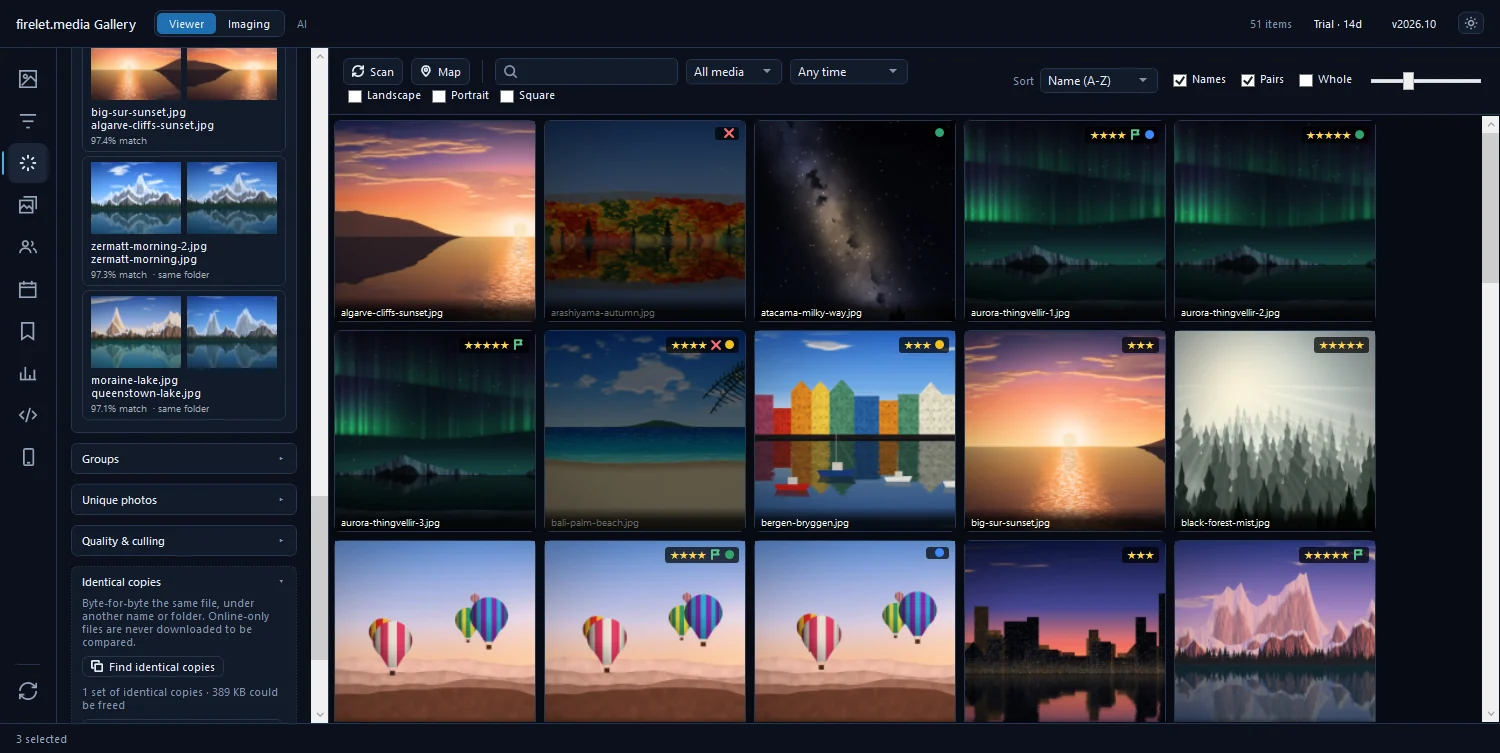
The gallery picks the copy you've clearly been working with. That's the one with the higher star rating, then more keywords and albums, then one whose name doesn't look like a copy ("- Copy", "(1)", a "Backup" folder), then the one nearest the top of its folder tree. Before the others are flagged, the kept copy takes their highest rating and all of their keywords and albums, so no work is lost.
Online-only cloud files are never downloaded just to be compared. If some of your copies live in a OneDrive or Dropbox folder that isn't fully on the PC, those files are left out of the comparison.
Find resized and re-saved copies
Next, the look-alikes. This pass uses the AI index, so if you haven't set it up yet, click Download model (438 MB, once) and then Index library in the AI panel. How to index your library for AI search covers it step by step.
- In the AI panel, expand Duplicates.
- Choose a threshold. Near-identical (0.97) is the default and a good start. Identical (0.99) is stricter; Very similar (0.95) and Similar (0.90) cast a wider net.
- Click Scan for duplicates.
- Click each pair in the list to open it in the viewer.
- Press X on the copy you don't want, to reject it.
Each pair is listed with its match percentage, and whether both files are in the same folder. The grid narrows to the pictures involved, with a chip on the toolbar showing the scan. Click its ✕ to go back to the whole library.
To compare more than two at once, select up to six pictures and press C. The Compare view shows them side by side with Zoom together (L), and you can press P to pick or X to reject right there.
Review before deleting
At this point nothing has been deleted. The extra copies are simply flagged as rejected, and rejected tiles are dimmed in the grid. Now you check, and then you decide.
- Open Filters with Alt+2.
- Under Rating & labels, set the flag filter to Rejected.
- Scroll through what's shown. If something shouldn't be there, press U to clear its flag.
- Press Ctrl+A to select everything that's left.
- Press Del and confirm.
The files go to the Windows Recycle Bin, along with any XMP sidecar beside them. If you change your mind, restore them from there.
The help guide to finding and removing duplicates has every option in one place.
Stop duplicates coming back
Cleaning up once is satisfying. Staying clean takes a few habits:
- Import instead of copying by hand. Imaging → Import always skips files you already have, so running it twice never makes a second copy.
- Attach folders; don't copy them in. Attaching a folder indexes it where it is. There's no need to pull files onto the main drive just to see them. My photos are scattered across drives shows how.
- Keep backup drives out of the library. A backup is supposed to be a copy of everything. Attach it, and every photo shows up twice.
- Export outside your library folders. Export writes to
Pictures\Exportedby default. If that sits inside a folder you've attached, every export turns up as a new near-duplicate. Choose a folder outside the library instead. - Check now and then. Run Find identical copies again after a big import or a new drive. It only takes a moment.
For the next step after de-duplicating (choosing the keepers among many similar shots), read how to cull hundreds of photos fast. These tools are in the Windows app today, and the macOS and Linux builds, which are being finished, have them too.
Questions people ask
Is anything deleted automatically?
No. The extra copies are only flagged as rejected; you review them and move them to the Recycle Bin yourself.
Do I lose ratings on the removed copies?
No. The copy that is kept takes the others' stars, keywords and albums before the rest are flagged.
Was this post helpful?
Thank you — that is counted, and nothing else about you is. Still stuck? Ask a person.