How to pick the best shots: quality check, bursts and compare
Run AI → Quality & culling → Analyse quality, reject blurry shots, keep the best of each burst and compare the rest with C. Rejects are flagged, not deleted.
On this page
To cull photos fast in firelet.media Gallery, open AI → Quality & culling, press Analyse quality and then Reject blurry and badly exposed. Next, press Find bursts and Keep the best of each burst. Finally, compare what's left side by side by selecting two to six photos and pressing C. Every tool only sets Pick and Reject flags, so nothing is deleted until you decide.
What Analyse quality measures
Analyse quality looks at every photograph on your own PC, at about 60 ms each, and records three things:
- Sharpness, from 0 to 100, which catches shake and missed focus.
- Exposure clipping: how much of the picture is blown to white or crushed to black.
- A colour signature, which also powers Similar colours.
If you've indexed the library for AI search, each photo also has an aesthetic score of roughly 1 to 10, with no extra pass needed. Once measured, you can filter by sharpness and exposure in Filters → Quality & faces, and sort the grid by Sharpest first or Most aesthetic.
Steps: Analyse quality, then reject the misses
- Press Alt+3 for the AI panel and open Quality & culling.
- Press Analyse quality. The line below counts "Measuring… n of m". You can press Stop at any time and what was measured is kept; next time only new photos are measured.
- Press Reject blurry and badly exposed. Photos the pass judges possibly blurry, or under- or over-exposed, get a Reject flag.
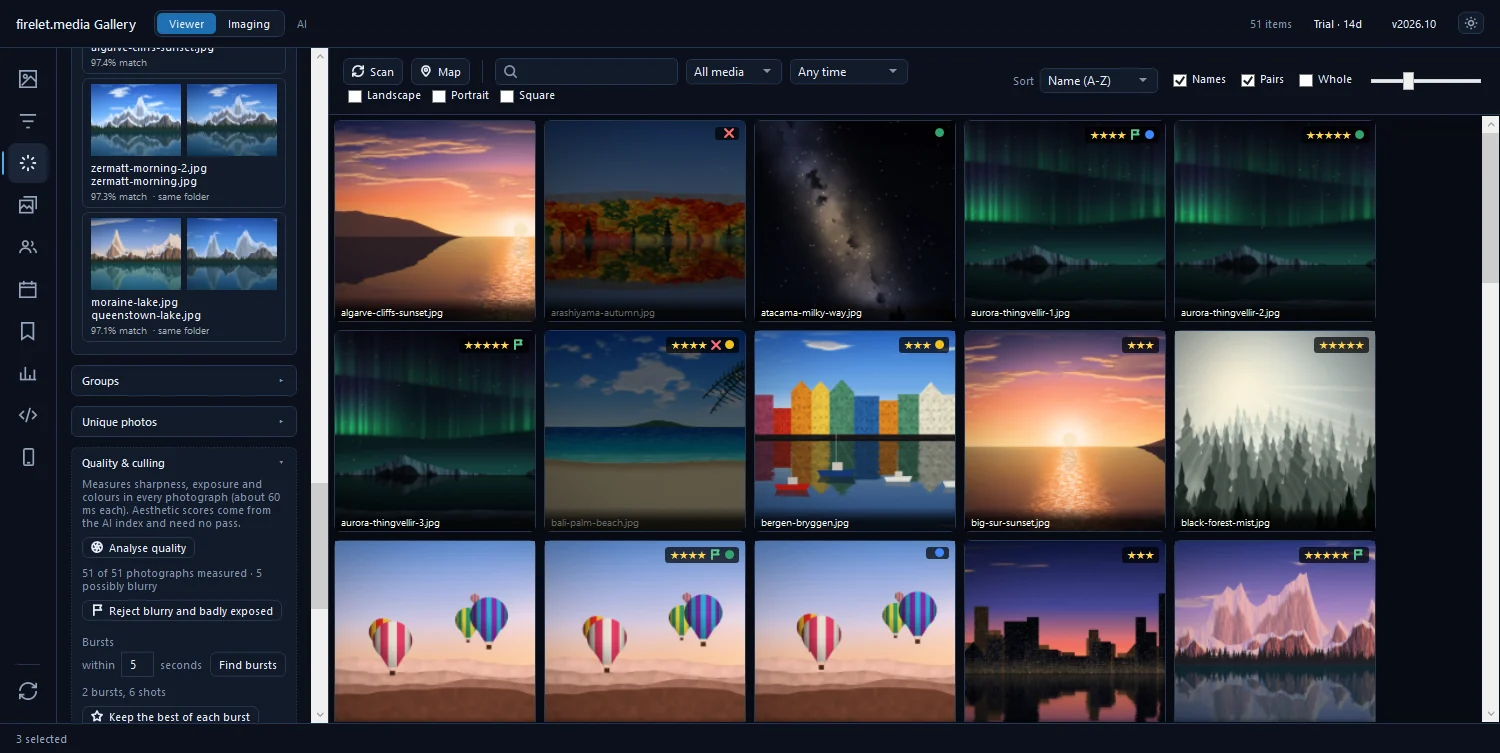
The rejects are flags only, and they are never set over a flag you chose yourself. A photo you picked stays picked.
Steps: find bursts and keep the best
A burst is a run of near-identical frames: a child blowing out candles, a bird taking off. Keeping one from each is where most of the time goes, and the gallery can do the first pass.
- Set the window under Bursts: "within 2 seconds" is the default, and you can use anything from 0.5 to 60.
- Press Find bursts. Photos from the same camera, in the same orientation, taken within that window of each other (and, if indexed, looking alike) are grouped, one row per burst.
- Click a row to show and select that burst. Press C to compare it if you want to choose by eye.
- Press Keep the best of each burst. The sharpest, best-exposed and most aesthetic frame of each burst is picked, and the rest are rejected, again never over a flag you set.
The status line sums it up, for example "Picked 42, rejected 131 — filter by “Rejected” to review them".
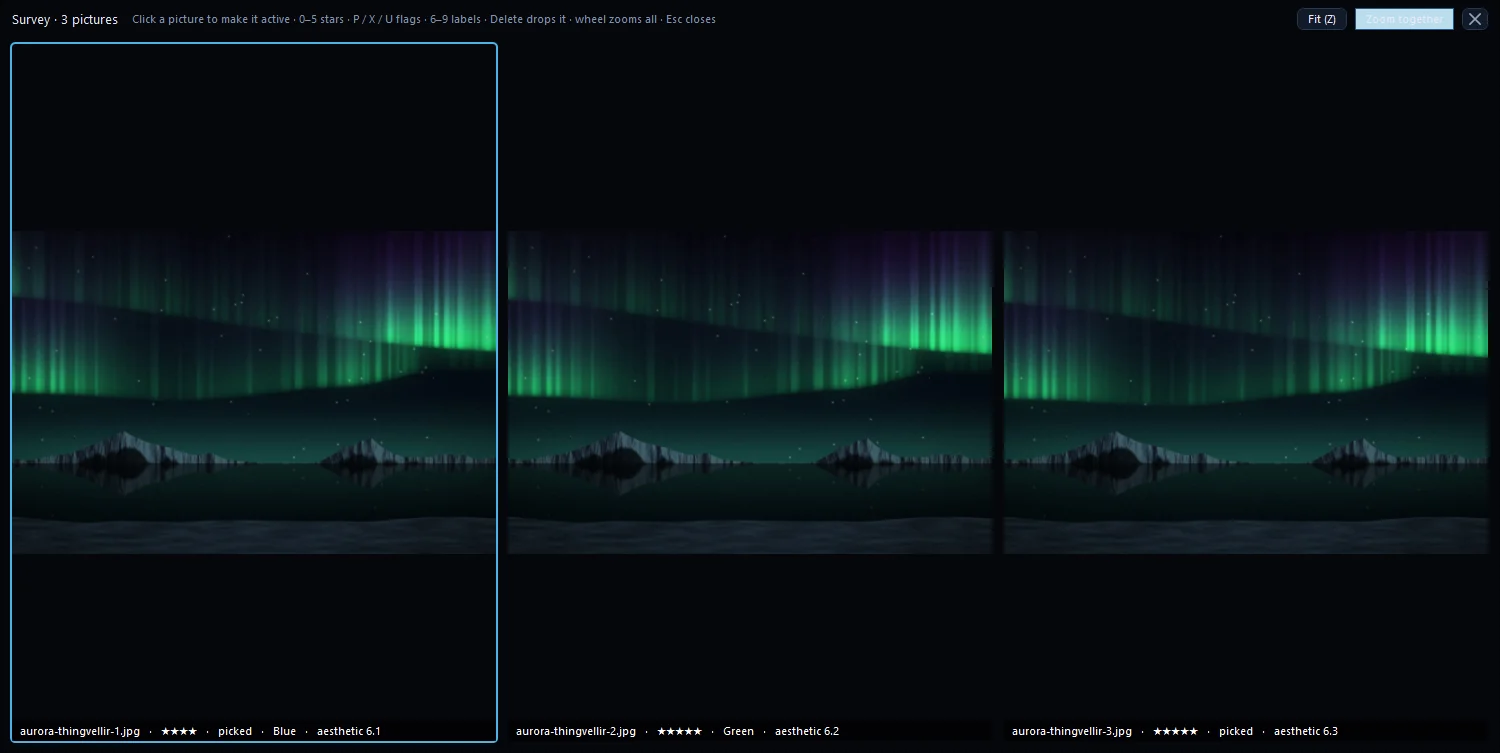
Compare 2–6 photos with C
For the close calls, look at them together:
- Select two to six photos with Ctrl-click or Shift-click.
- Press C, or right-click and choose Compare selected.
- Press L for Zoom together, then zoom in with +. Every pane shows the same spot, which makes soft focus obvious.
- Move between panes with ← and →, and mark the current one with P, X, U, a star key or a label key.
- Press Delete or Backspace to drop a pane you've ruled out, and Esc to close.

Dropping a pane only takes it out of the comparison; the file is untouched. Select more than six and the gallery compares the first six. For a single photo, the viewer's Focus peaking (K) paints what is sharp, and Clipping warnings (J) shows lost highlights in red and shadows in blue.
Review with the Rejected filter
Before anything leaves your library, check the rejects:
- Press Alt+2 for Filters and open Rating & labels.
- Choose Rejected under the flags.
- Scroll through. If a keeper slipped in, select it and press P to pick it, or U to clear the flag.
Choosing Not rejected instead shows only the keepers, which is a handy way to browse a shoot once culling is done. There's more on marks in rating, picking and colour labels.
Delete or keep
Culling never deletes. If you're sure, delete the rejects yourself:
- With the Rejected filter on, press Ctrl+A in the grid.
- Press Del and confirm. The files, with any sidecars, go to the Recycle Bin, and their stars, keywords and album places in the gallery go with them.
You don't have to delete at all. Leaving the rejects flagged and browsing with Not rejected hides them just as well. For true duplicates rather than similar frames, see finding and removing duplicate photos, and the blog has a full routine for culling hundreds of photos fast. The macOS and Linux builds, being finished, have the same tools.
Questions people ask
Will it overwrite my own flags?
No. Reject blurry and badly exposed and Keep the best of each burst only set flags, and never over a flag you set yourself.
How do I compare photos?
Select two to six photos and press C, or right-click and choose Compare selected.
Does culling delete anything?
No. The tools only set Pick and Reject flags. Deleting is a separate step you take yourself, and it goes to the Recycle Bin after a confirmation.
Was this article helpful?
Thank you — that is counted, and nothing else about you is. Still stuck? Ask a person.