How to rate, pick, reject and colour-label photos
Select photos and press 0–5 for stars, P to pick, X to reject, U to clear, or 6–9 for red, yellow, green and blue labels. Filter by them in Filters.
On this page
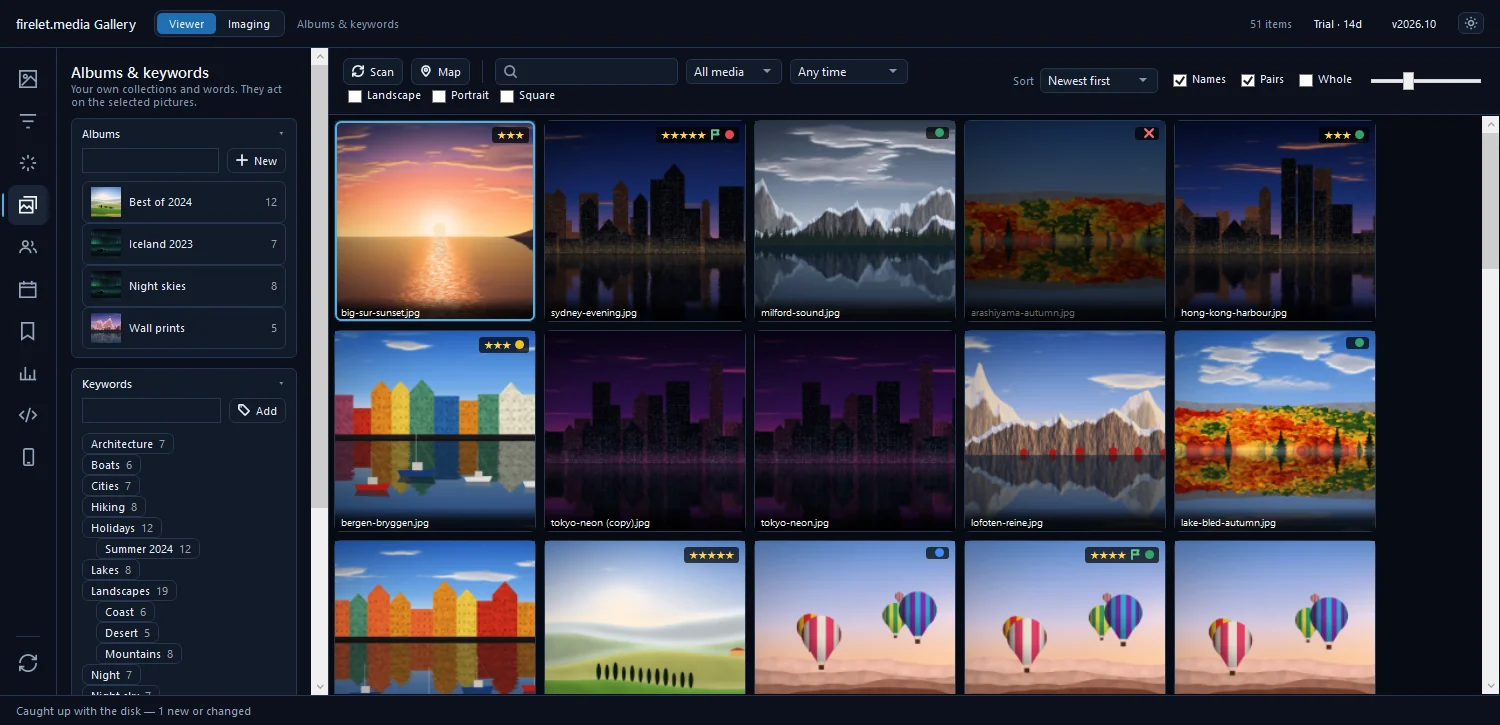
firelet.media Gallery gives every photo three kinds of mark: zero to five stars, a Pick or Reject flag, and a colour label. To rate photos with stars, pick or reject them, select one or more tiles and press a key: 0–5 for stars, P to pick, X to reject, U to clear the flag, and 6–9 for a red, yellow, green or blue label.
Stars, flags and colour labels
Each mark answers a different question, so it helps to keep them apart:
- Stars say how good a photo is. Five for the keepers you would frame, one for "it'll do".
- Flags are the yes/no decision when you sort through a shoot. Pick what stays, reject what goes. Rejected tiles are dimmed in the grid, so they fade out of the way while you work.
- Colour labels mean whatever you want: red for "to edit", green for "to print", blue for "family album".
| Mark | Keys | Good to know |
|---|---|---|
| Stars | 1–5; 0 clears | Replaces any rating the photo had |
| Flags | P Pick · X Reject · U Clear flag | Rejected tiles are dimmed |
| Colour labels | 6 Red · 7 Yellow · 8 Green · 9 Blue | Keys toggle: press again to remove. Purple has no key |
How to rate photos with stars, and pick or reject them
- Click a tile in the grid. To mark several at once, Ctrl-click or Shift-click more tiles, or press Ctrl+A to select everything showing.
- Press a number from 1 to 5 to give stars. Press 0 to remove them.
- Press P to pick, X to reject, or U to clear the flag.
- Press 6, 7, 8 or 9 to add a red, yellow, green or blue label. Press the same key again to take it off.
The keys act on the whole selection, so one press can rate a hundred photos from the same afternoon.
From the right-click menu and the viewer
If you prefer the mouse, right-click a tile and use:
- Rate: ★★★★★ down to ★, and No stars.
- Flag: Pick, Reject, Clear flag.
- Colour label: Red, Yellow, Green, Blue, Purple, No label. This is the only way to give Purple from the grid.
When the tile you right-click is part of a selection, the menu marks every selected photo.
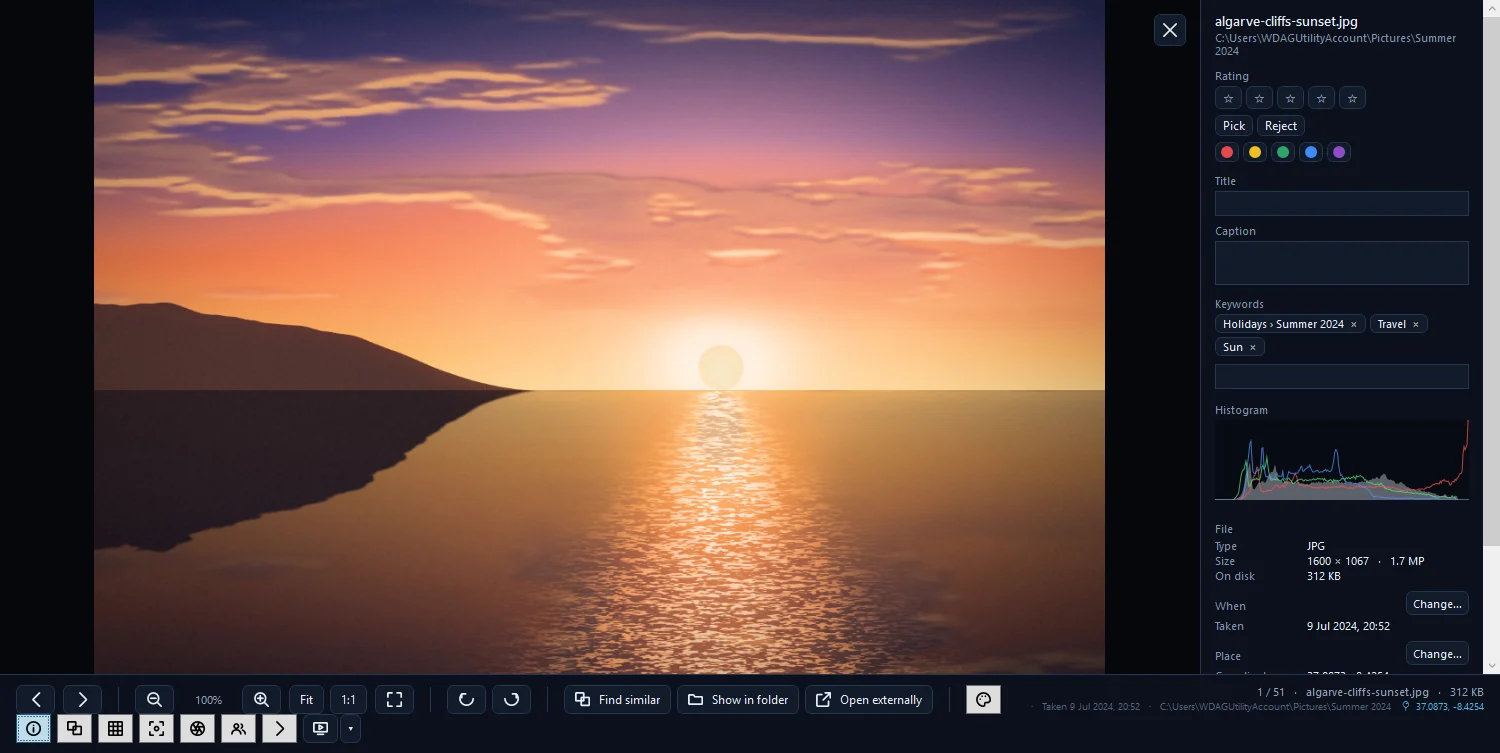
The same keys work in the viewer (double-click a tile or press Enter), with two extras: [ and ] lower or raise the rating by one star. Press I for the Info panel, which has the Rating stars, Pick and Reject buttons and all five colour dots, Purple included.

For a fast pass through a shoot, turn on Advance after rating with A in the viewer. After each star, flag or label the next photo appears, so you never touch the mouse. The same keys also work in Compare, which is covered in how to pick the best shots.
Filtering by rating and labels
Marks earn their keep when you filter by them. Press Alt+2 for Filters and open Rating & labels:
- Stars: Any stars, Unrated, 1+ stars up to 5 stars.
- Flags: Any flag, Picked, Rejected, Unflagged, Not rejected.
- Colour labels: Red, Yellow, Green, Blue, Purple and No label.

Unrated is handy for finding what you haven't looked at yet, and Not rejected hides the misses without committing to picks. You can also sort the grid by Highest rated. For combinations, the Advanced query panel (Alt+9) understands lines such as stars>=4, flag=reject and label=red. There's more on this in sorting and filtering photos, and a set of filters you use often can be kept in Presets (Alt+7).
Sharing ratings with other apps (XMP)
Stars, flags and labels are stored in the gallery's own library, never inside your photos. If you also use Lightroom, darktable or another program that reads XMP, write sidecars:
- Select the photos, or skip this to write everything you've changed.
- Press Alt+4 for Albums & keywords and open XMP sidecars.
- Press Write the selection, or Write changed pictures.
You can also right-click and choose Write metadata to XMP. A small .xmp file is written beside each photo. Ratings and colour labels go in, a Reject is written as −1, and Pick flags are not written. An existing sidecar is merged, never replaced. Going the other way, Import from XMP reads stars, labels, keywords and captions other programs wrote, for photos that have none here yet. Albums and keywords covers the rest of that panel.
The macOS and Linux builds are being finished and use the same keys; there, Ctrl and Cmd both work. The full list is in keyboard shortcuts.
Questions people ask
Does rating change my file?
No. Stars, flags and labels are stored in the gallery's library. The photo itself is never changed; the marks reach a separate .xmp sidecar only if you write XMP.
Is there a shortcut for purple?
No. Keys 6–9 toggle red, yellow, green and blue. Choose Purple from the right-click Colour label menu or the viewer's info panel.
Can I rate lots of photos at once?
Yes. Select them first (Ctrl-click, Shift-click or Ctrl+A), then press the key once; it applies to the whole selection.
Was this article helpful?
Thank you — that is counted, and nothing else about you is. Still stuck? Ask a person.