How to contact support and track a ticket
Open a ticket under Support in your account at firelet.media/app, or use the public form. Include your version and, for problems, About → Copy diagnostics.

On this page
To reach firelet support, sign in at firelet.media/app, open Support, write a one-line subject and the whole story, and press Send. The answer appears on that page. No account, or can't sign in? Use the public support form or email support@firelet.media. For a problem with firelet.media Gallery, paste in the report from About → Copy diagnostics.
Before you contact firelet support: the quick fixes
Many questions already have a step-by-step answer. These cover the most common ones:
- A label in the title bar such as Trial over, Past updates or Check-in needed: licence messages explained.
- iPhone photos show "no preview": HEIC photos don't show on Windows.
- The phone can't find the PC: fix the Wi-Fi link.
- Changed your mind about buying: get a refund within 14 days, which needs no ticket at all.
If none of those fits, write in. A real person reads every message.
Steps: open a ticket in your account
Buying the gallery creates an account with the email address you used at checkout. Opening the ticket from inside it means support can see your licence without asking you to find the key.
- Sign in at firelet.media/app with the address you bought with.
- Click Support in the sidebar.
- Type a one-line subject in What is it about?, like an email subject.
- Describe what you did, what you expected and what happened instead in The whole story.
- Click Send.
The ticket appears below the form with its subject, when it was last active, a short ref and the word open.
What to include (version, licence state, diagnostics)
A few details save a round trip:
- The version. It is at the top right of the title bar, for example v2026.10.
- The licence label beside it, exactly as shown: Licensed, Trial · 9d, Past updates and so on.
- The exact message you saw, copied word for word if you can.
- What you were doing, step by step, and whether it happens every time.
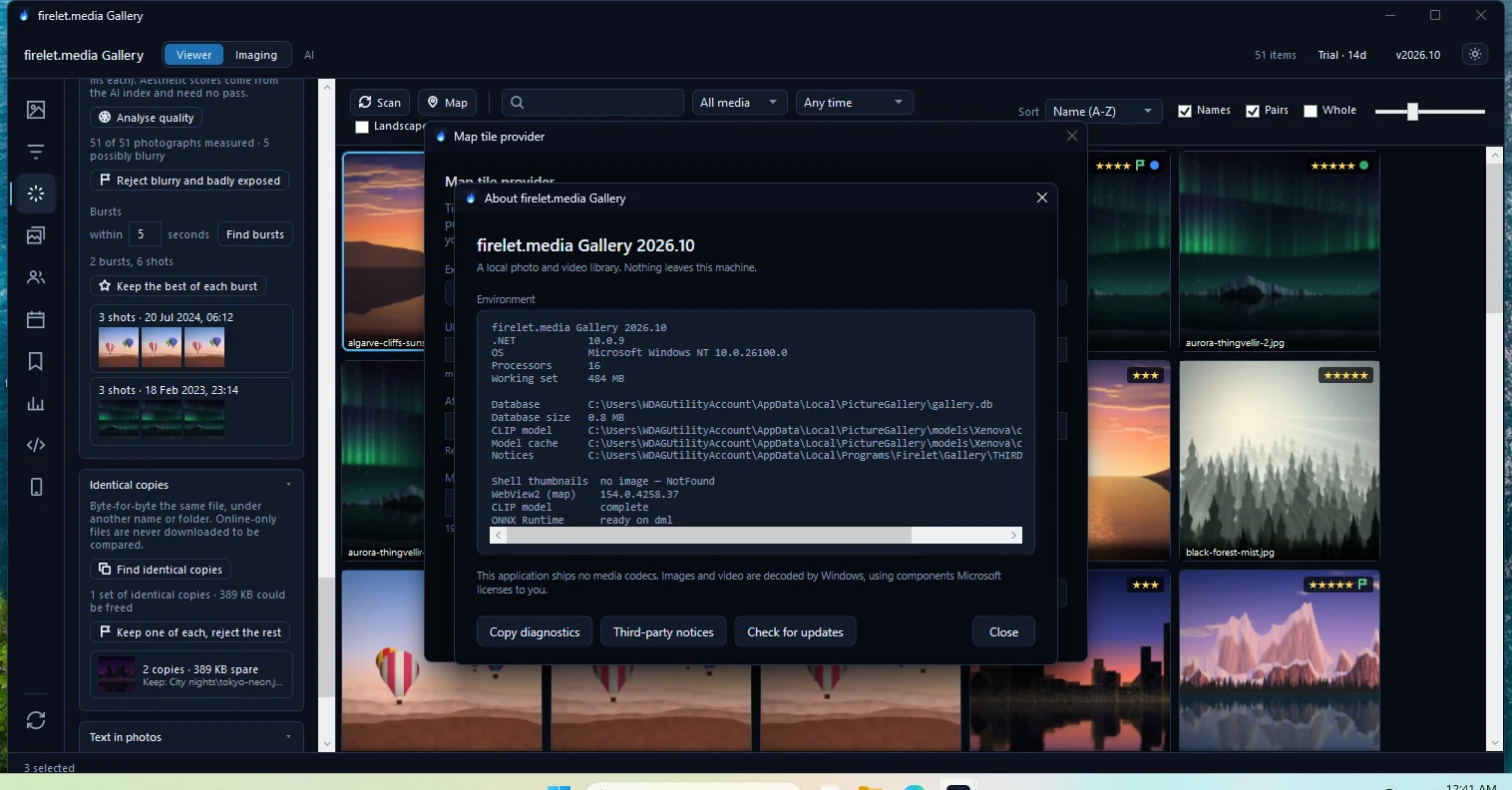
For anything that looks like a fault in the Windows app, add the diagnostics report. It lists the gallery's version, your Windows version, the number of processors, the memory in use, where the library database is and how big it is, whether the AI model is installed, and a quick check of four parts that can be missing on a PC: shell thumbnails, WebView2 (for the map), the AI model and the ONNX Runtime.
- Click the version (v2026.10) in the title bar. The About firelet.media Gallery window opens.
- Click Copy diagnostics. The button changes to Copied.
- Paste the report into The whole story, or into a reply.
Following up on a ticket
Answers appear on the Support page in your account, not in your inbox, so check back there.
- Open Support and click the ticket to show the whole conversation.
- Type in the reply box and click Reply.
- Click Mark solved when you're done. Replying later reopens it.
If you hold a licence, a reply can carry a file: Attach a screenshot or log — images, PDF or plain text, up to 5 MB. PNG, JPG, GIF, WebP, PDF and plain-text files such as diagnostics.log are accepted, up to 10 per ticket.
Contact without an account
You don't need an account to ask a question, for example before you buy, or if you can't install the gallery.
- The public form at firelet.media/app/support asks for your Email, What is it about? and The whole story, then Send. It takes no attachments.
- Email support@firelet.media from any address.
Without an account, a person answers by ordinary email, usually within a working day. If your address does have an account (buying the gallery creates one), the conversation is filed under Support in that account and the answer appears there instead.
Questions people ask
Where do I find my version number?
It is in the title bar, top right, for example v2026.10. Click it to open About, which also holds Copy diagnostics.
Where do I see the answer?
Tickets opened in your account are answered on the ticket page, not by email. The public form is answered by email, usually within a working day, unless your address has an account, in which case the answer appears under Support there.
Can I attach a screenshot or a log?
Yes, on a reply to a ticket in your account, if you hold a licence: PNG, JPG, GIF, WebP, PDF or plain text, up to 5 MB each and 10 per ticket. The public form takes no attachments.
Was this article helpful?
Thank you — that is counted, and nothing else about you is. Still stuck? Ask a person.