Phone can't find your PC over Wi-Fi: how to fix the link
Put both devices on the same Wi-Fi (not guest, mobile data or VPN), tick Let paired phones connect, and let Windows allow the gallery on private networks.

On this page
When your phone is not connecting to the PC over Wi-Fi, the cause is almost always the network, not the phone. Check that both are on the same home Wi-Fi (not a guest network, mobile data or a VPN), that Let paired phones connect is ticked in firelet.media Gallery's Devices panel, and that Windows lets the gallery use private networks. Then pair again if needed.
Quick checks when the phone is not connecting to the PC
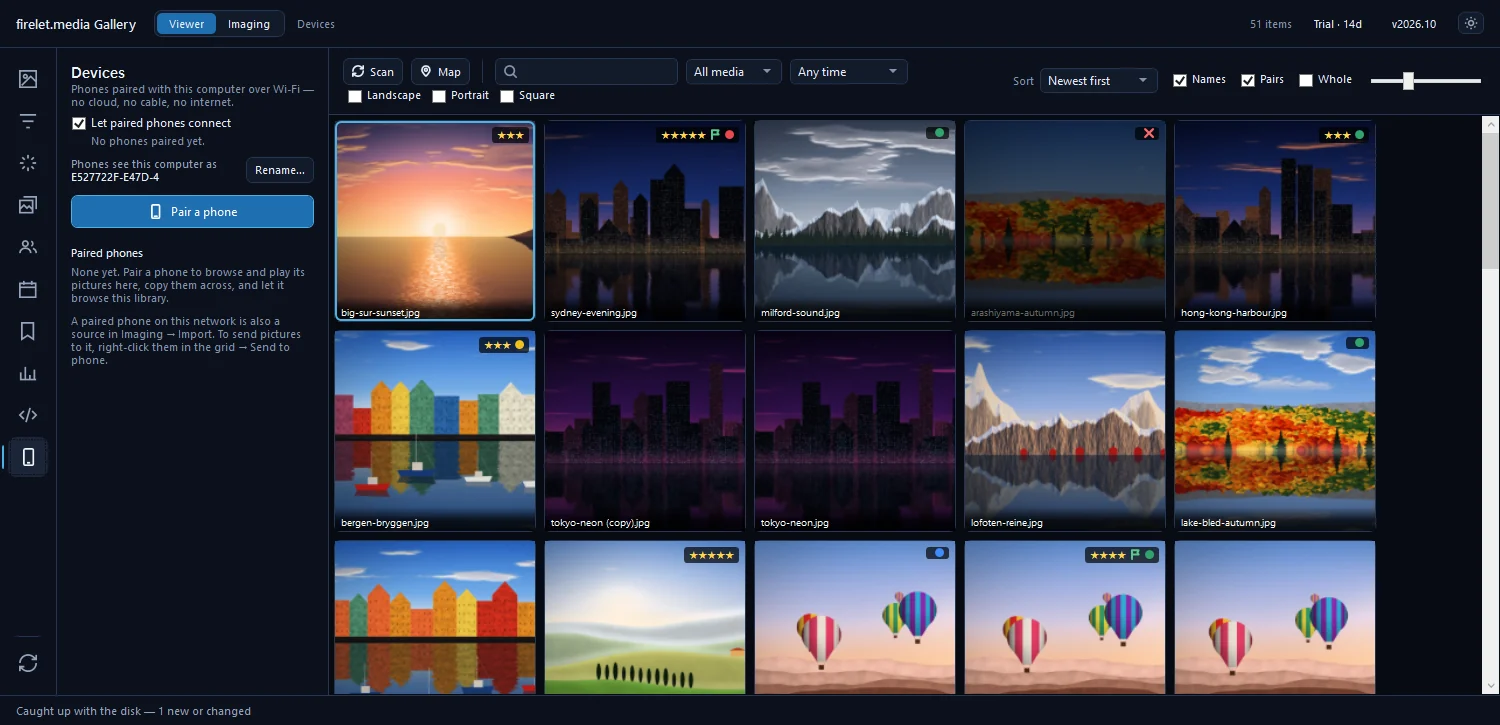
Open Devices (Alt+0) on the PC. The line under Let paired phones connect and the status on each phone's card tell you where to look.
| What Devices says | What it means | What to do |
|---|---|---|
| "Off — paired phones cannot reach this computer." | The link is switched off | Tick Let paired phones connect |
| "Listening, but this computer is not on a network." | The PC has no network connection | Connect the PC to your Wi-Fi or router |
| "Phones on this network can reach it at 192.168.1.20 (port 47810)." | The PC is ready | Check the phone's side and the firewall |
| Phone card: "Not seen yet" or "Last seen …" | The PC can't see the phone right now | Check the phone's Wi-Fi and Visible to your computers |
| Phone card: "On this network" | Both sides can talk | The link is working |
The gallery must also be open on the PC. The link only runs while it is.
Steps: put both on the same network
The link travels only between your own devices on your local network: nothing goes through the internet. The phone finds the PC with a small broadcast every 30 seconds, then connects to it directly, so both must be on the same network and allowed to see each other.
- Connect the phone to your home Wi-Fi, not mobile data.
- Check the PC is on the same Wi-Fi, or on a cable to the same router.
- Switch off any VPN on the phone and on the PC while you use the link.
- Move off a guest network. Guest Wi-Fi (and some hotel or office networks) keeps devices apart on purpose, and nothing on the phone or the PC can get round that.
Steps: Let paired phones connect
- Press Alt+0 to open Devices.
- Tick Let paired phones connect if it is unticked. It is on by default.
- Check the line beneath it now reads "Phones on this network can reach it at …".
If the PC needs to see the phone (to Browse it, or for auto-sync), Visible to your computers must also be on in the phone app. It is off by default, and while it is on the phone shows the notification "Paired computers on this Wi-Fi can browse this phone."
Steps: allow the firewall on private networks
How the firewall is handled depends on how the gallery was installed:
- All-users install: the installer added a rule called "firelet.media Gallery (Wi-Fi link)" that allows the gallery on private networks.
- Per-user install (the default): Windows asks the first time the gallery starts listening. Choose to allow it on private networks.
If you dismissed that question, or your Wi-Fi is marked as a public network, the phone can't get through. To fix it:
- Open Windows Settings → Network & internet, select your Wi-Fi (or Ethernet) connection and set its network profile to Private. Do this only on your own home network.
- Open Windows Security → Firewall & network protection → Allow an app through firewall.
- Click Change settings, find firelet.media Gallery in the list and tick its Private box.
- Close and reopen firelet.media Gallery.
The wording differs slightly between Windows 10 and Windows 11, and changing firewall settings may need an administrator. The link uses TCP port 47810 (or another free port if that one is taken) and UDP port 47811, and the gallery opens no port at all until a phone is paired.
Pairing code expired: New code
In the Pair a phone window, the typed code (XXXX-XXXX-XXXX) and the QR code work once, for 10 minutes. The window counts down: "The code works for another 9:41."
- "This code has run out. Press New code for another." means the 10 minutes are up.
- "That code was entered wrongly five times, so it has been closed. Press New code to try again." means too many mistakes.
In both cases click New code, then scan the QR code again or type the new code. Keep the window open until the phone says it is paired; the phone then shows "Paired with" and your computer's name.

Unpair and pair again
If a phone was paired but no longer connects, even with everything above in order, start the pairing afresh:
- Press Alt+0 and click Settings… on the phone's card.
- Click Unpair… and confirm. "No pictures are deleted on either side."
- Click Pair a phone in Devices.
- On the phone, open Devices → Pair with a computer and scan the new code.
How to pair your Android phone has the full pairing walk-through, and what the free Android companion app does explains what you can do once it's connected.
Questions people ask
Which ports does the link use?
TCP 47810 (or another free port) and UDP 47811, on your local network only. An all-users install adds a firewall rule for private networks; a per-user install lets Windows ask the first time.
The pairing code stopped working.
A code lasts 10 minutes, works once and closes after 5 wrong tries. Click New code in the Pair a phone window and scan or type the new one.
My network is set to Public in Windows.
Set it to Private, or allow the gallery on that network, so the phone can reach the PC. The gallery's firewall permission covers private networks.
Was this article helpful?
Thank you — that is counted, and nothing else about you is. Still stuck? Ask a person.


