How to buy firelet.media Gallery (for one or several computers)
Buy once at firelet.media: one key with a seat per computer, $160 each. Add a year of updates at checkout or later. Paddle handles payment, tax and receipts.
On this page
To buy firelet.media Gallery, open the pricing page, click Buy it, choose how many computers you need and pay once: $160 per computer, all on a single licence key. It is not a subscription. A year of updates is optional at $100 per computer, added at the checkout or any time later. Paddle takes the payment, handles tax and sends the receipt.
What you are buying (yours to keep)
- A licence that never runs out. The build you buy, and every earlier one, keeps working for ever, on the same computer or a new one. "Bought once. Not rented."
- One key, one seat per computer. A seat is one computer at a time. You can move a seat to another computer as often as you like, free.
- Works offline. The licence checks in about once a month and keeps working for three months without internet.
- The same price for everyone. $160 per computer, with no tiers and no volume discount.
- No updates are included by default. A year of updates is a separate, optional $100 per computer (see below).
The macOS and Linux builds are being finished and are not on sale yet. When they are available, the same key works on them too.
Steps: choose the number of computers and pay
- Open the pricing page and click Buy it.
- Set Computers with the − and + buttons. The line underneath confirms it, for example "One key, works on 3 computers at once."
- Tick Add 12 months of updates if you want a year of new releases. This is optional.
- Enter your Email. Your key, your receipt and your account all go to this address.
- Under How would you like to pay?, choose the card option.
- Click Continue to payment and pay on Paddle's secure page.
- Copy your key from the next screen. It is also emailed to you.
The total beside "One-time payment" is exactly what is charged, and the line under it says "then nothing — this is not a subscription". Nothing is charged on the firelet.media page itself; your card details are typed only on the payment processor's page.
Already own a key? If you are signed in, the checkout tells you what you already hold. For newer releases you don't need a second copy: extend the updates on the key you have. If you really need more computers, tick "I want to buy another key for more computers" to buy a separate key; the seats on an existing key are fixed when it is sold.
Adding a year of updates (optional)
Updates cost $100 for a year (12 months), per computer, and are entirely optional.
- Every build published inside the year you bought is yours for good.
- When the year ends nothing is taken away: you keep every release you got.
- You can add a year at the checkout, or at any time later from your account under Licences ("Buy a year of updates — $100 →" or Extend updates), at the same price, on the same key.
- Extending early adds to the time you have left. If your window has already lapsed, the new year starts on the day you pay.
How updates work, and what "Past updates" means explains what happens if you install a build newer than your updates cover.
Where the key arrives
Your key appears in three places:
- on the page you see as soon as the payment is confirmed;
- in the email "Your firelet.media Gallery licence key";
- in your account at firelet.media/app, under Licences.
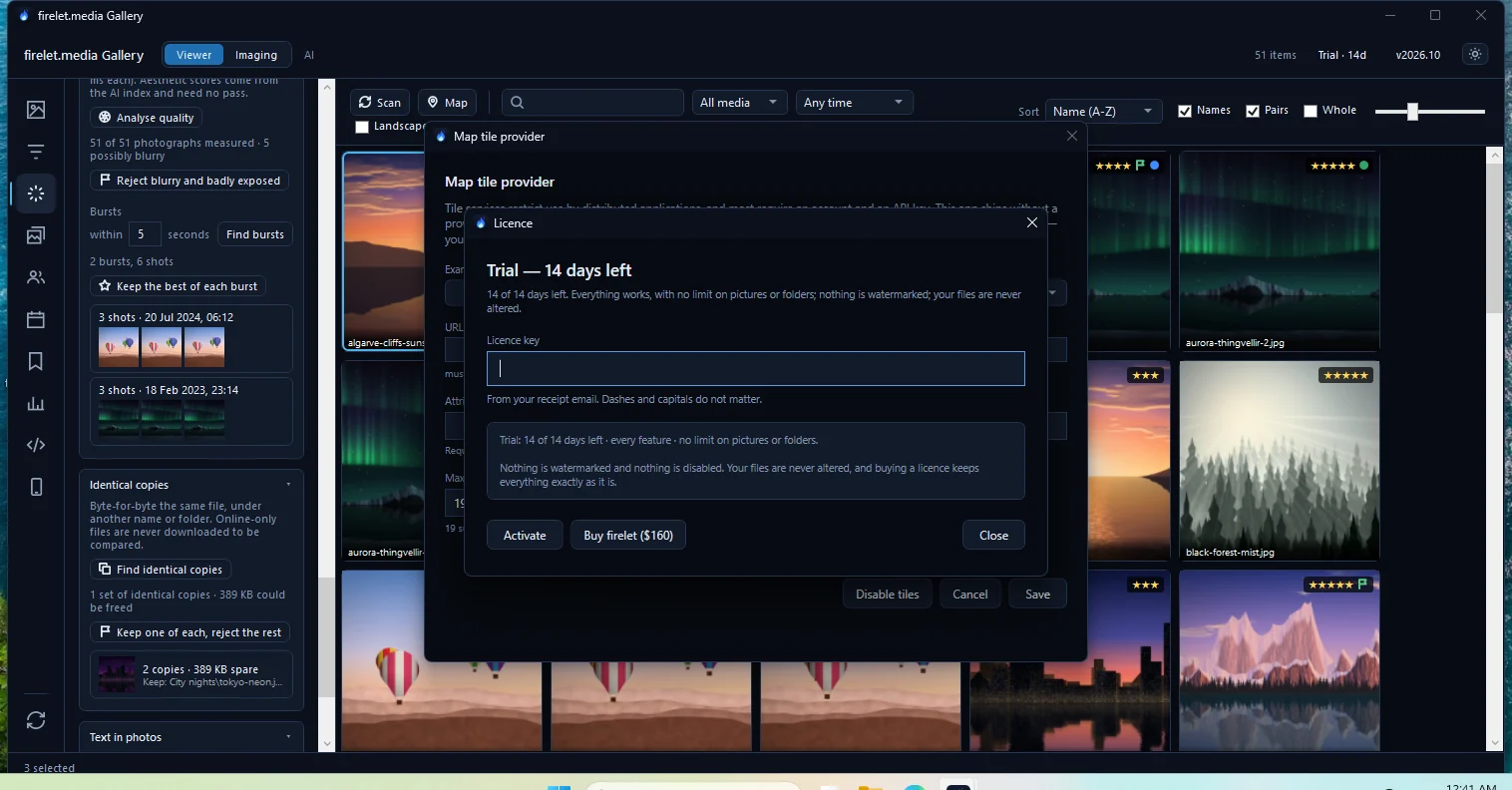
Buying creates your account automatically. A temporary password is emailed, and you choose your own at first sign-in. To use the key, click the licence label in the gallery's title bar, paste the key and press Activate; see how to activate your licence key.
Tax and invoices (Paddle)
Paddle is the merchant of record for firelet.media Gallery. That means:
- Paddle's name appears on your card statement.
- Paddle adds any sales tax your country charges and shows it before you pay.
- Paddle issues the receipt and invoice. In your account under Orders, Tax invoice at Paddle opens it.
See how to find your orders, receipts and invoices for the details.
Try the free trial first
You don't have to pay today. The free trial runs for 14 days with every feature on and no limits, and needs no card, account or email. When you buy, you paste the key into the copy you already have: nothing to reinstall, and your library stays exactly as it is.
Questions people ask
Is it a subscription?
No. You pay once and the version you bought keeps working for ever. Updates are optional and bought by the year.
How does pricing for several computers work?
One key carries several seats at $160 per computer, with no tiers or volume pricing. Choose how many computers (up to 10) at the checkout.
Who processes the payment?
Paddle is the merchant of record, so Paddle's name is on your statement and Paddle sends the receipt and handles sales tax.
Was this article helpful?
Thank you — that is counted, and nothing else about you is. Still stuck? Ask a person.