Trial over, Check-in needed, Past updates: licence messages explained
The title-bar label shows your licence state. What Trial over, Check-in needed, Check-in refused, Past updates and Another PC's licence mean, and each fix.

On this page
The licence label at the top right of the firelet.media Gallery title bar always shows your licence state. Trial over means the 14-day trial has ended, Check-in needed means the licence hasn't reached firelet.media for over 90 days, and Past updates means this build is newer than your updates. In every state your photos and library are safe. Here is what each label means, and the fix.
Where the licence label is
Look at the right-hand end of the title bar: the item count, then the licence label, then the version (v2026.10) and the theme button. Hover over the label for a short explanation, and click it to open the Licence window. That window always shows a headline, a sentence on what to do next, and only the buttons that apply to your state.

| Label | What it means | What still works | The fix |
|---|---|---|---|
| Licensed | A valid key on this PC | Everything | Nothing to do |
| Trial · Nd | In the 14-day trial, N days left | Everything | Buy and activate any time |
| Trial over | The trial has ended, no key yet | Browse and search the library | Enter a key |
| Past updates | This build is newer than your updates | Everything, but at most 50 new pictures are added | Install your covered build, or extend |
| Check-in needed | No check-in for more than 90 days | Browse and search; at most 50 new pictures are added | Connect and press Check in now |
| Check-in refused | firelet.media refused the check-in | Browse and search; new pictures aren't added | Read the reason in the Licence window |
| Another PC's licence | The licence file is for a different computer | This PC's trial rules | Enter your key to activate this PC |
| Licence problem | The licence file is damaged or can't be verified | This PC's trial rules | Enter your key again |
Trial · Nd and Trial over: steps to activate
Trial · Nd counts down the days of your free trial. When it reaches the end the label reads Trial over: "The 14-day trial has ended, so nothing new is added to the library. Everything already in it can still be browsed and searched — enter a licence key to carry on where it stopped."
- Click the label (Trial · 3d, Trial over or similar) in the title bar.
- Paste your key into Licence key. Dashes and capitals do not matter.
- Press Activate.
- If the message asks you to, press Rescan in the main window to add the pictures that were held back.
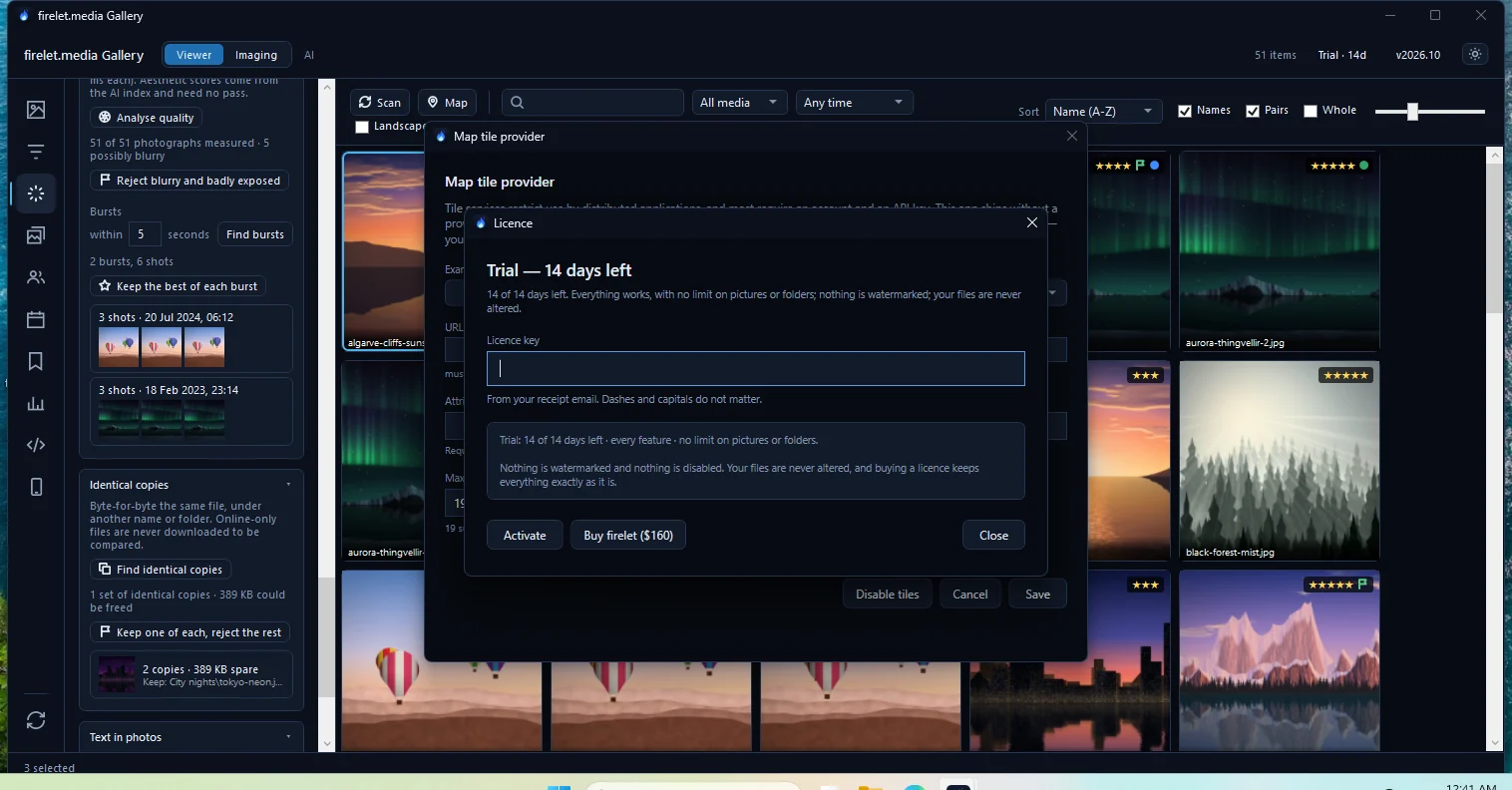
No key yet? Buy firelet ($160) in the same window opens the checkout. How to activate your licence key covers where to find the key and what to do if activation fails.
Check-in needed and Check-in refused: steps to check in
A licence checks in with firelet.media about every 30 days and keeps working for 90 days without internet. If it goes longer than that, the label reads Check-in needed and the Licence window explains: "Connect to the internet and press Check in now — it also tries by itself whenever the gallery starts. Nothing has been lost."
- Connect the computer to the internet.
- Click Check-in needed in the title bar.
- Press Check in now.
The label returns to Licensed. Until then, at most 50 new pictures are added.
Check-in refused means firelet.media answered but refused the licence. The Licence window gives the date and the reason. The usual causes are:
- The seat was released in your account, or on another computer. Enter your key again to activate this PC; it takes a free seat.
- The key was reset under Security → Reset a leaked licence key. Enter the new key from your account.
- The order was refunded. The gallery returns to its trial state.
If none of these fits, contact support with the reason shown.
Past updates: two ways to fix it
Past updates means you are running a build released after your updates window ended. You still own the program. Either:
- Get your covered build. Click it in the Licence window, download the newest build your account lists and install it over this one. It costs nothing.
- Extend updates ($100), then press Check again.
Both are explained step by step in how updates work, and what "Past updates" means.
Another PC's licence and Licence problem
Another PC's licence means the licence file on this computer was issued for a different one, for example after the gallery's data folder was copied across from another PC. The Licence window says: "Enter your key to activate it here — that takes one of the licence's seats, and Manage machines shows which computers hold them." If every seat is taken, release one first; see how to move your licence to a new computer.
Licence problem ("Licence could not be verified") means the licence file is damaged or unreadable. Enter your key again and press Activate.
In both cases this PC follows its own trial rules until you do: everything works while it has trial days left, and afterwards nothing new is added.
What still works in every state
Whatever the label says, you can always open the gallery and browse and search everything that is already in it. What changes is only whether new pictures are added. Fix the licence and it carries on where it stopped, without rebuilding anything.
Questions people ask
I paid, but it says Check-in needed. Why?
A licence checks in with firelet.media about once a month and works for up to three months offline. Connect to the internet and press Check in now in the Licence window.
What does Another PC's licence mean?
The licence file on this computer was issued for a different one. Enter your key to activate this PC; it takes one of your key's seats.
Do I lose my photos in any of these states?
No. In every state your pictures are untouched and the library stays browsable and searchable.
Was this article helpful?
Thank you — that is counted, and nothing else about you is. Still stuck? Ask a person.


