How to organize photos by date automatically
Want year and month folders without dragging files by hand? Browse by date instantly in the calendar, or let the gallery move files into date folders for you.
On this page
To organize photos by date automatically, you may not need to move a single file. firelet.media Gallery sorts and groups every photo by the date it was taken as soon as you attach a folder, so you can browse by year, month and day at once. Want year and month folders on disk too? Organise into date folders… moves the files in one go, with every star and keyword.
Here's how to do both, and the one thing to check before you move anything.
Organize photos by date automatically, without moving a file
The gallery reads the date each photo was taken from the file itself (or, if a file has none, the date it was last modified) and uses it everywhere:
- Sort the grid by Newest first or Oldest first, and photos from every folder and every drive fall into one timeline.
- The date range on the toolbar narrows the grid to Today, Last 7 days, Last 30 days, Last 90 days, Last year, Older than a year, or a Custom range… you choose.
- Advanced query (Alt+9) takes things like
year=2019,month=7orseason=winter, one per line.
So if what you want is "show me March 2018", you already have it. Moving files into date folders is worth doing only if you want the structure on disk too: for a backup drive, another program, or simply peace of mind. How to sort and filter photos covers the browsing tools in full.
Browse by year, month and day
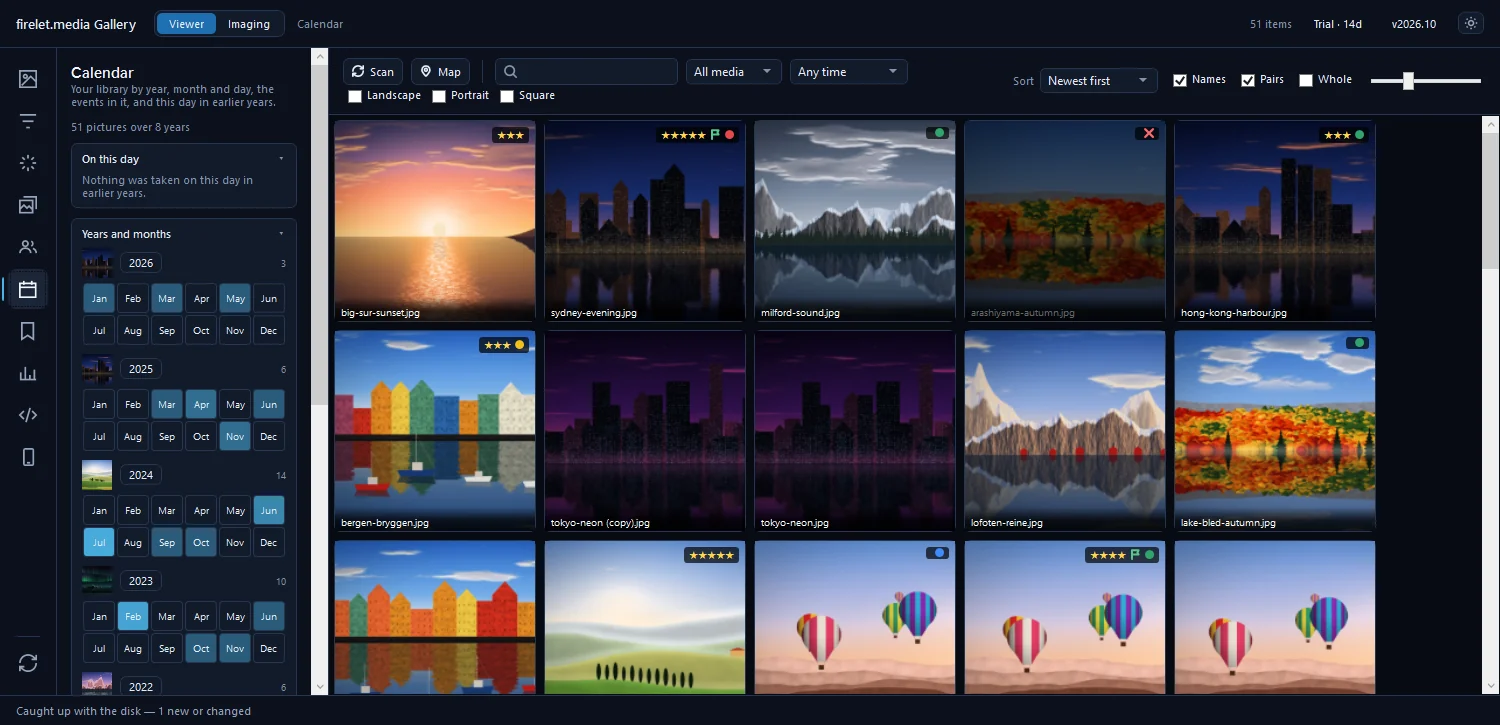
The Calendar panel (Alt+6) is the date view. Its hint: "Your library by year, month and day, the events in it, and this day in earlier years."
- Years and months lists every year with a row of month cells, shaded by how many photos each month holds. Click a year's button to show that year, click a month for its day grid, then click a day.
- Events groups your photos into outings automatically: a new event starts after a gap of more than eight hours or a jump of more than 150 km, and needs eight or more photos. Right-click one for Slideshow or Keep as an album.
- On this day shows what you took on today's date in earlier years.
In the viewer, Ctrl+← and Ctrl+→ jump to the first photo of the previous or next day, which is a quick way to skim a long holiday.
Organise into date folders…
When you do want year and month folders on disk, let the gallery do the moving. Moving in the gallery takes every star, keyword, album, face and edit with each file; moving in File Explorer would leave them behind.
- Make sure the folder you're moving into is part of your library: it should be listed under Sources in the Library panel (Alt+1).
- Select the photos to organise. Ctrl+A selects everything the grid is showing.
- Right-click and choose Move to → Organise into date folders….
- In Move pictures, Into date folders, by when each was taken is selected. Choose the folder to build under, and a Layout.
- Read the preview of where each picture goes.
- Press Move.
The layouts on offer:
| Layout | Example folder |
|---|---|
| Year \ Month | 2024\07 |
| Year \ Year-Month | 2024\2024-07 |
| Year \ Month \ Day | 2024\07\15 |
| Year \ Date | 2024\2024-07-15 |
| Year | 2024 |
The window says what it does in its first line: "The files move on disk, with their sidecars. Stars, keywords, albums, faces and edits go with them." If a file with the same name is already at a destination, the preview marks it as a problem and that photo stays where it is: nothing is overwritten and nothing is quietly renamed.
New photos don't need this at all. Imaging → Import always files what it copies under the folder you choose, as yyyy\yyyy-MM-dd, and so do photos from a paired phone. Only the backlog needs moving. How to move and rename photo files has the details.
Rename by date
Folders sort by date; file names can too. A name like 2024-07-15_001.jpg sorts correctly in any program, on any computer.
- Select the photos.
- Press F2, or right-click and choose Rename….
- Type a pattern in New names, such as
{date:yyyy-MM-dd}_{n:3}, or{date:yyyy-MM-dd_HHmmss}to use the time as well. - Check the preview, then press Rename.
Other tokens you can mix in: {name} for the original name, {camera}, {folder}, {title}, {stars} and {place}. The dialog promises: "Stars, keywords, albums, faces and everything else the gallery knows move with each file. Extensions never change." Like moving, this changes the files on disk, so it's worth trying on a few photos first.
Fix dates first
Sorting, the Calendar, date folders and date-based names all trust the date each photo carries. When that's wrong, everything built on it is wrong too. The usual culprits are a camera clock set to the wrong time zone, scans (dated the day they were scanned), and copies that lost their original date.
Open Date and time with Ctrl+Shift+D on the selected photos. It offers three fixes:
- Move them all by a number of days, hours and minutes: "For a camera clock that was wrong, or never set to the trip's time zone."
- Set the first to a date and time: the rest move with it, keeping their spacing. Ideal for a batch of scans.
- Use each file's own date on disk, for copies whose camera date is missing or wrong.
Press Apply. The correction is stored in the gallery's library; the file itself isn't changed, and Back to the file's date undoes it. Moves and renames use the corrected date, so fix first, then organise.
To find photos with no capture date at all, type has!=date in Advanced query. How to fix photo dates and times and photos in the wrong order? How to fix dates go into every case. Everything here describes the Windows app; the macOS and Linux builds, being finished, have the same tools.
Questions people ask
Does moving files lose my tags?
No. Moves made inside the gallery keep stars, keywords, albums, faces and edits with each file, and XMP sidecars move with them.
Can I rename files by date?
Yes. Select them, press F2 and use a pattern such as {date:yyyy-MM-dd} {n:3}. The preview shows every new name before anything changes.
Was this post helpful?
Thank you — that is counted, and nothing else about you is. Still stuck? Ask a person.