How to fix wrong photo dates and times
Select the photos, right-click → Date, place and copyright → Date and time… (Ctrl+Shift+D). Shift them by hours for a time zone, or set an exact date.

On this page
To fix a wrong photo date in firelet.media Gallery, select the photos, right-click and choose Date, place and copyright → Date and time…, or press Ctrl+Shift+D. Move them all by a number of days, hours and minutes (ideal for a camera left on the wrong time zone), or set the first photo's exact date and time and let the rest follow. Your files are never changed.
Why dates go wrong
The gallery sorts, groups and files photos by when they were taken, so one wrong clock scrambles a whole trip. The usual causes:
- The camera clock was never set, or it reset when the battery ran flat.
- The time zone stayed at home. Every photo from the trip is hours out, and photos from your phone and your camera no longer interleave.
- The file has no capture date. Scans, screenshots and copies sent through messaging apps often don't record when the picture was taken, so the gallery falls back to the date the file was last modified.
It shows up as photos in the wrong order, a holiday split across two days in the calendar, or pictures filed in the wrong date folder.
How to fix a wrong photo date
- Select the photos with the wrong date: click the first tile, then Shift-click the last. For a trip, select every photo from the camera with the wrong clock.
- Right-click one of them and choose Date, place and copyright → Date and time…, or press Ctrl+Shift+D.
- Read the line under the heading. It shows the current date of the first photo, and says "already corrected" if you've changed it before, or "the file's date — it declares no capture time" if the file has none.

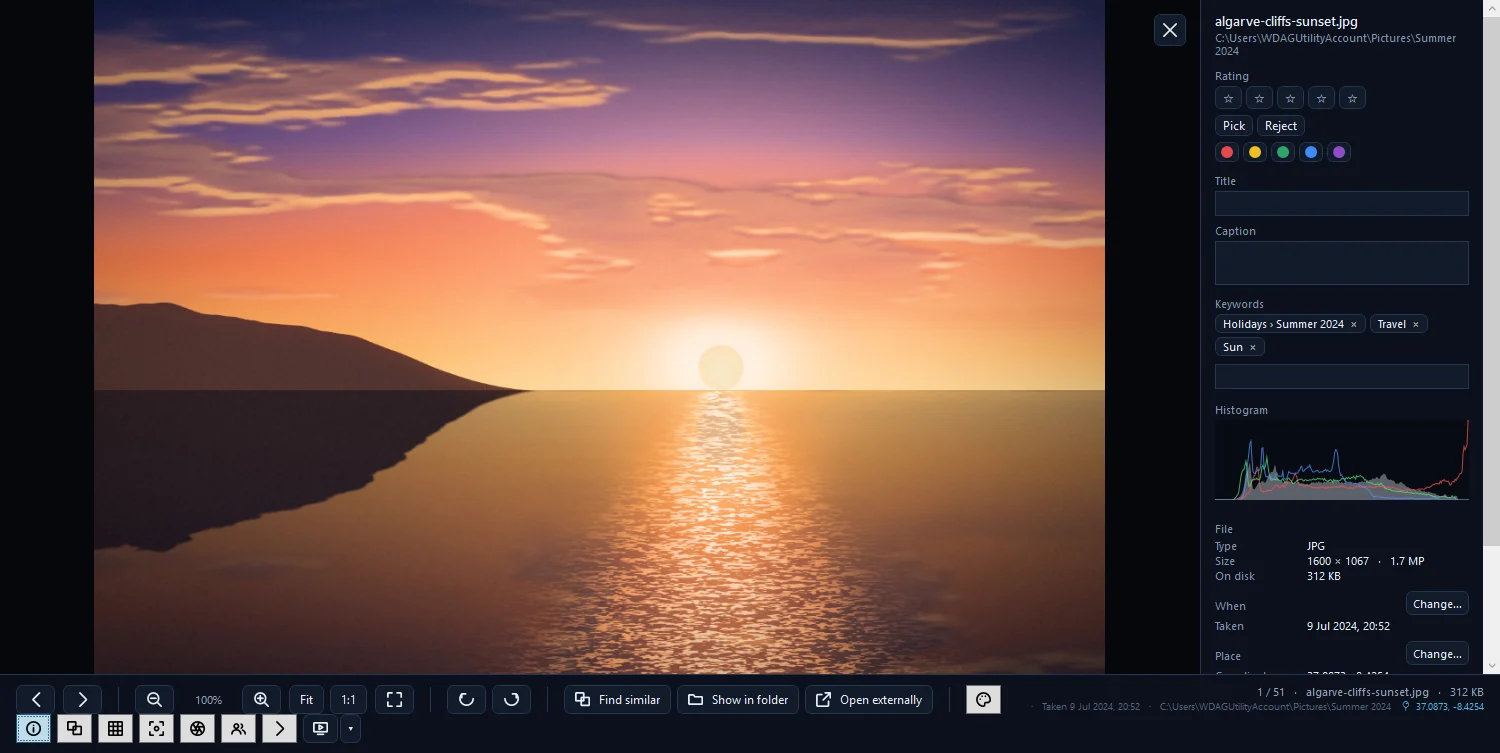
For a single photo you can also open it in the viewer, press I for the info panel, and press Change… beside When.
Move them all by, or Set the first to
The dialog offers three ways to correct the date. Choose one, then press Apply.
Move them all by: time zones and wrong clocks
- Choose Move them all by.
- Pick + to make the photos later, or − to make them earlier.
- Type the whole days, h (hours) and min (minutes). If the camera was still on home time on a trip three hours ahead, that is + 0 days, 3 h, 0 min.
- Press Apply. The status line confirms how many photos moved and by how much.
Set the first to: when you know one exact time
Find a photo whose real time you know, such as a phone shot of the same moment, a clock in the frame or a sunset.
- Choose Set the first to.
- Pick the date, and type the time as hours and minutes, for example 14:30. Seconds are optional.
- Press Apply. The earliest selected photo gets that time, and the others move by the same amount, keeping the gaps between them.
Use each file's own date on disk
This uses when each file was last modified. It suits scans and copies whose camera date is missing or plainly wrong, when the file date is closer to the truth.
Back to the file's date
Changed your mind? Select the same photos, open Date and time… and press Back to the file's date ("Forget the correction; the date in the file counts again"). The button is only active when at least one of the selected photos has a correction. There is no other undo, so check the result before moving on.
What is changed: the library, not the file
The new date is stored as a correction in the gallery's own library. The photo file itself is never touched, so nothing is lost and another program still sees the original date.
Inside the gallery, everything follows the correction at once: the sort order, the date filter, the calendar, events, and the {date} token when you rename or move files into date folders. That makes it worth fixing dates before you organise into folders.
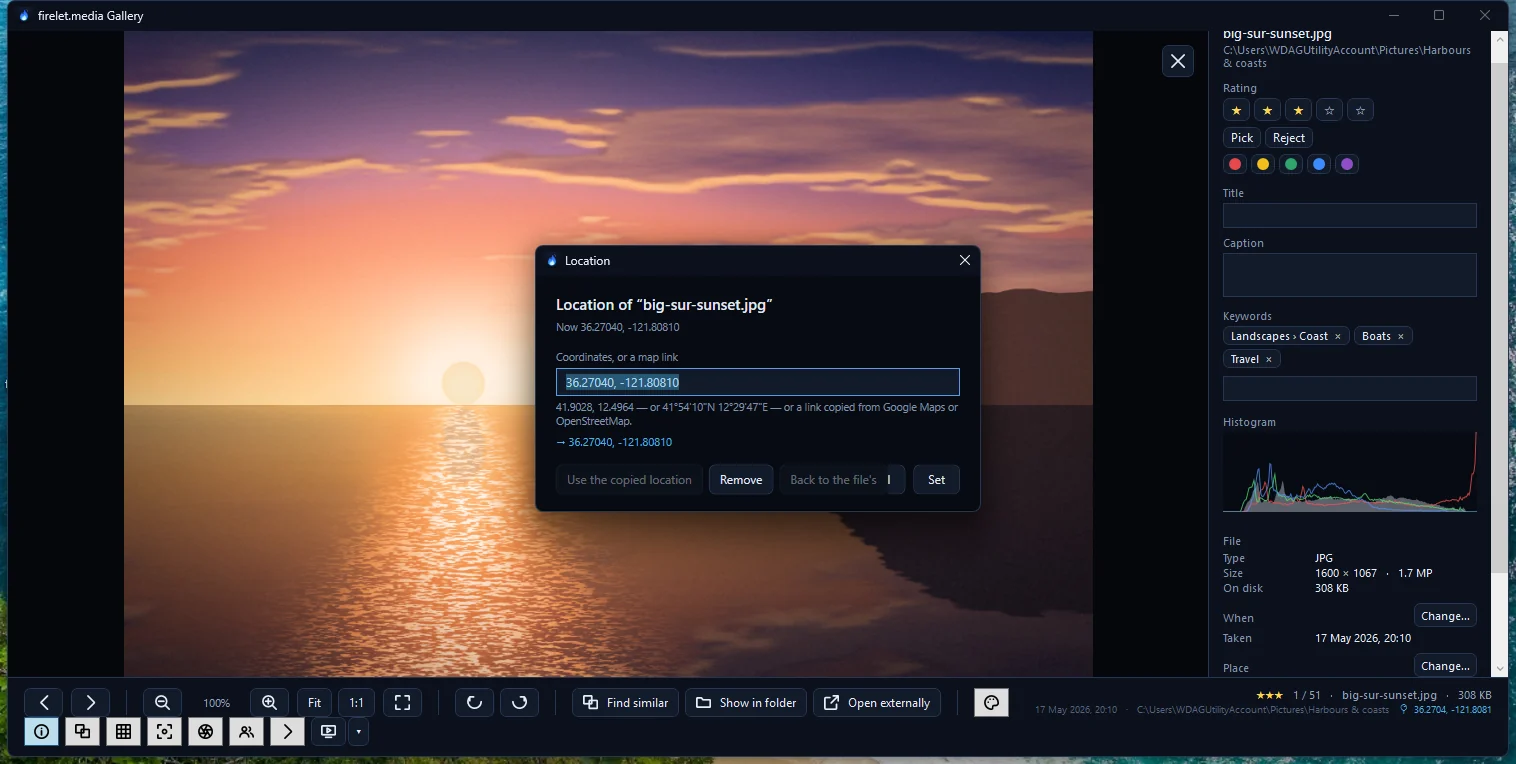
Locations are fixed the same way; see how to add or change a photo's location.
Checking the result in the calendar
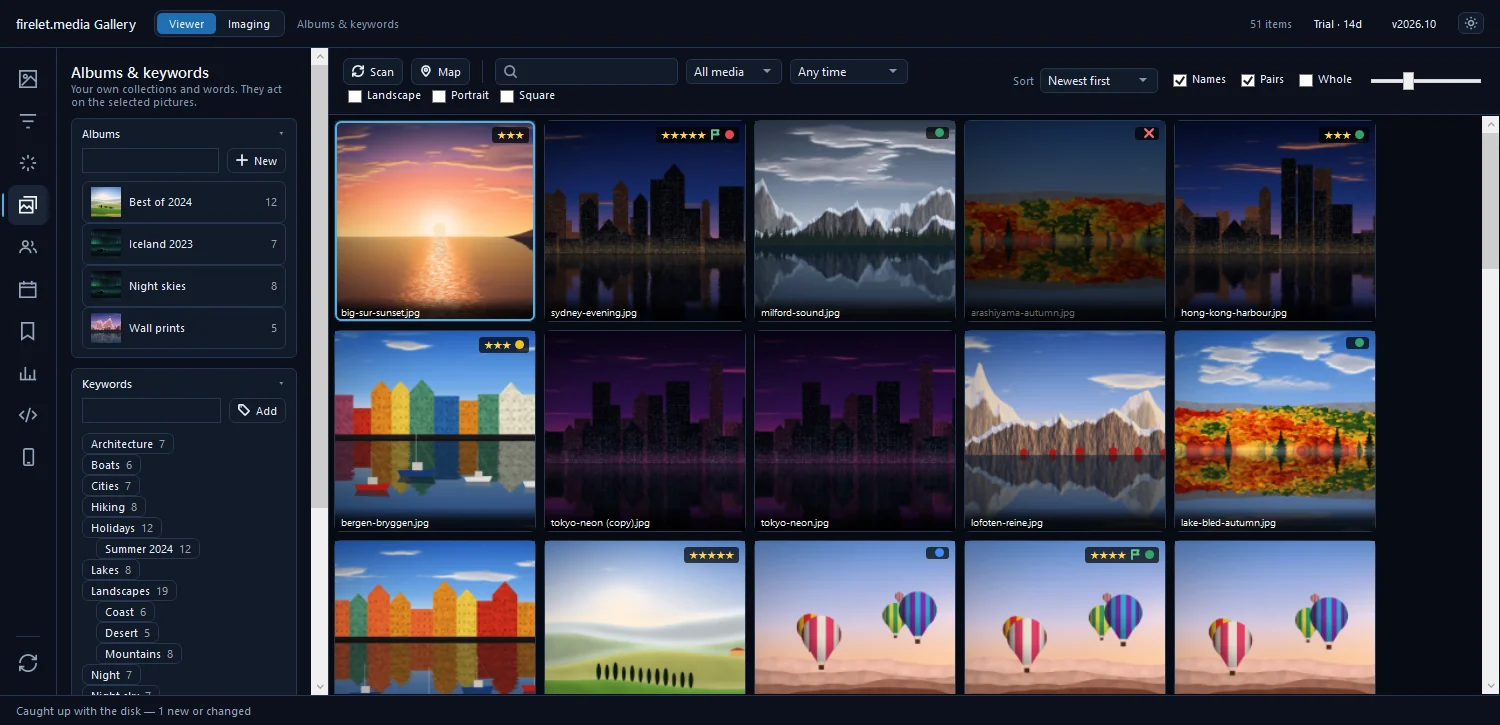
Press Alt+6 for Calendar. Click the month you corrected to see its days, then click a day to show only those photos. The trip should now sit on the right days, and its events are rebuilt from the new dates. Sorting the grid by Oldest first is another quick check that photos from two cameras now interleave. Browsing by date covers the calendar in full, and the blog has a longer walk-through on fixing photos in the wrong order. For old prints you have scanned, see scanning photos and documents.
Questions people ask
Does changing the date modify my file?
No. The new date is stored as a correction in the gallery's library. The file is never changed, and the date reaches an .xmp sidecar only if you write XMP.
Can I fix a whole trip at once?
Yes. Select every photo from the trip (or from the camera that was wrong) and apply one shift. They all move by the same amount.
How do I undo a date correction?
Select the photos, open Date and time… again and press Back to the file's date. The date written in the file counts again.
Was this article helpful?
Thank you — that is counted, and nothing else about you is. Still stuck? Ask a person.