Albums, keywords or folders? Organize photos that stay organized
Folders hold files, albums tell stories and keywords describe what's in a picture. Use each for its job and your photo library stays organised as it grows.
On this page
Albums vs keywords vs folders isn't a contest: each does a different job. Folders decide where files live, albums gather photos into stories that can overlap, and keywords describe what's in a picture. firelet.media Gallery gives you all three, plus AI search that finds most things without any tagging, so you only need to label what a computer can't guess.
Most photo libraries fall apart because one tool is asked to do everything, usually folders. Here's what each is good at, and a simple system that keeps working at 5,000 photos or 50,000.
Folders: where files live
A folder is a physical place on a drive. Every photo is in exactly one, which is both its strength and its limit.
Good for: storage by date or by source. A layout like 2024\2024-07-15 never needs a decision, and it's what firelet.media Gallery's import uses automatically when it copies from a card or phone.
Bad for: subjects. Is a photo of grandma on the beach at a wedding a "Grandma" photo, a "Beach" photo or a "Wedding" photo? A folder forces you to choose, and you'll never find it again under the other two.
The gallery doesn't make you move anything. Library → Attach a folder reads your folders where they are, on any drive, and shows them as one library. You can narrow the grid to certain folders with Show only in the Library panel, or right-click any photo and choose Filter by this folder. How to add your photo folders covers the details.
My photos are scattered across drives shows how to bring folders together without losing anything.
Albums: collections that can overlap
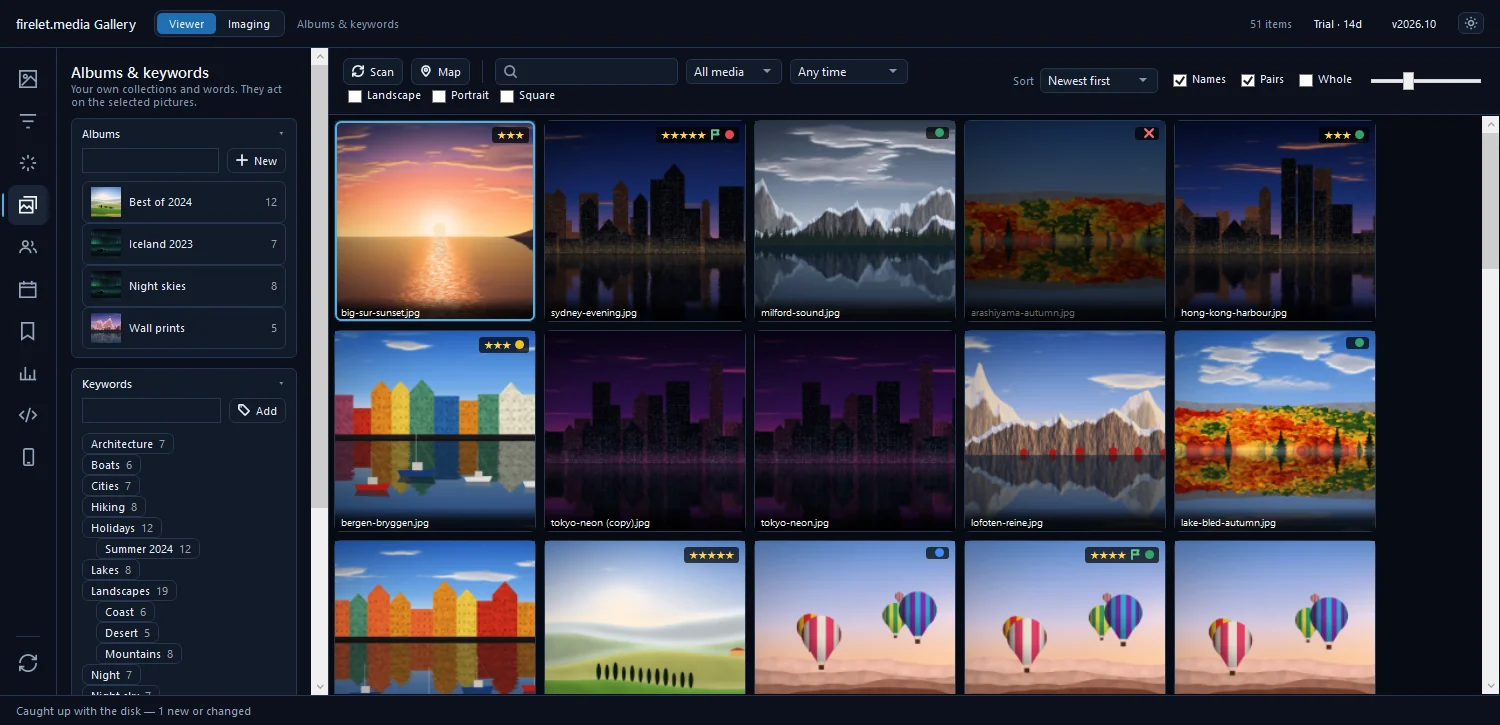
An album is a list of photos kept in the library. No files are copied or moved, so one photo can be in "Grandma", "Summer 2019" and "Best of the decade" at once, for no extra space.
Good for: stories and selections. A trip's best twenty, photos for a birthday slideshow, prints to order, a gift for a cousin.
To make one:
- Select the photos in the grid.
- Open Albums & keywords (Alt+4).
- Type a name in the album box and press Enter (or press New).
The album is created with the selected photos in it. From the grid, Ctrl+B opens Add to album, which lists your albums and New album…. Right-click an album for more: Add the selection, Slideshow, New album inside… for nesting, Use the current picture as the cover, Duplicate, Rename… and Delete album. Deleting an album never deletes the photos in it.
Albums also come ready-made. In the Calendar panel (Alt+6), right-click an event or an On this day row and choose Keep as an album.
The one thing to know: albums live in the gallery's library and aren't written to XMP. If a collection must survive outside the gallery, give its photos a keyword as well.
Keywords: what is in the picture
A keyword is a word attached to a photo: a person, a place, a subject, an event. A photo can have as many as it needs, which is exactly what folders can't do.
Good for: describing things in a way that lasts, and that other programs can read.
- Add them to the selected photos in Albums & keywords (type and press Enter, or Ctrl+K from the grid), or one photo at a time in the viewer's info panel (I).
- Build a hierarchy with
>:Places > Italy > Rome.|and›work too. - Right-click photos and use Keywords for Copy keywords, Paste keywords and Add the folder name as a keyword. That last one is a quick way to carry old folder names like "Anna's 40th" into keywords before you reorganise.
- Right-click a keyword chip to Rename… it or Delete everywhere.
Keywords are searchable from the toolbar search box straight away. When you want them outside the gallery, open XMP sidecars in the same panel and press Write changed pictures or Write the selection. That writes .xmp files beside the photos, the format many other photo programs read. The pictures themselves are never changed. Albums and keywords has every option.
Let AI do the describing
Here's what changes the maths: you don't need a keyword for everything that's visible in a photo.
With the AI model downloaded (a one-time 438 MB) and Index library run in the AI panel (Alt+3), you can type a description, such as "birthday cake with candles" or "snowy mountains at sunset", and the gallery ranks your whole library by how well each photo matches. English descriptions work best. It all runs on your PC; see how to find photos by describing them.
The same panel can Generate tags: it scores every indexed photo against 50 fixed English tags and gives each up to five. Right-click a tag and choose Keep as a keyword on these pictures to turn a good one into a real keyword.
Other things are found without keywords too: people's names from the People panel, words printed in the pictures once Read text has run, places from GPS, and dates from the files. So keywords are best kept for what no software can know: who someone is when faces aren't named, which event a photo belongs to, why it matters.
Albums vs keywords vs folders: a simple system that scales
| Folders | Albums | Keywords | |
|---|---|---|---|
| Where it lives | On the drive | In the gallery's library | In the library, and in XMP sidecars when you write them |
| A photo in several? | No | Yes | Yes |
| Readable by other programs? | Yes | No | Yes, once written to XMP |
| Best for | Storage by date or source | Stories and selections | People, places, events, subjects |
Put together, a system that doesn't need maintaining looks like this:
- Folders by date, made by the import. Don't fiddle with them.
- A few keyword branches, such as
People >,Places >andEvents >. Keep the list short; ten well-used keywords beat two hundred forgotten ones. - Albums for stories, made whenever you want to show or share something.
- Stars and flags for quality, so "the best" is a filter away.
- AI search for everything else.
- Write XMP now and then, so your keywords and captions sit beside the files.
For a big backlog, how to organise 20 years of family photos puts this system to work. Everything here describes the Windows app; the macOS and Linux builds, being finished, have the same panels.
Questions people ask
Can a photo be in several albums?
Yes. Albums are lists in the library, not copies of files, so one photo can be in any number of albums without taking extra space.
Do keywords work in other programs?
Yes, once you write them to XMP sidecars from Albums & keywords → XMP sidecars. Many photo programs read keywords from .xmp files. Albums are not written to XMP.
Was this post helpful?
Thank you — that is counted, and nothing else about you is. Still stuck? Ask a person.


