How to move, rename and sort photos into date folders
Right-click photos → Move to → Organise into date folders…, or batch rename with Rename… (F2) and a pattern like {date:yyyy-MM-dd}_{n:3}. Stars go with them.
On this page
To batch rename photos in firelet.media Gallery, select them, press F2 (or right-click → Rename…), type a pattern such as {date:yyyy-MM-dd}_{n:3} and check the preview before pressing Rename. To move them, right-click → Move to → Choose a folder…, or Organise into date folders… to sort them into year and day folders. Both change the files on disk and keep your stars, keywords and albums attached.
Moving files from inside the gallery
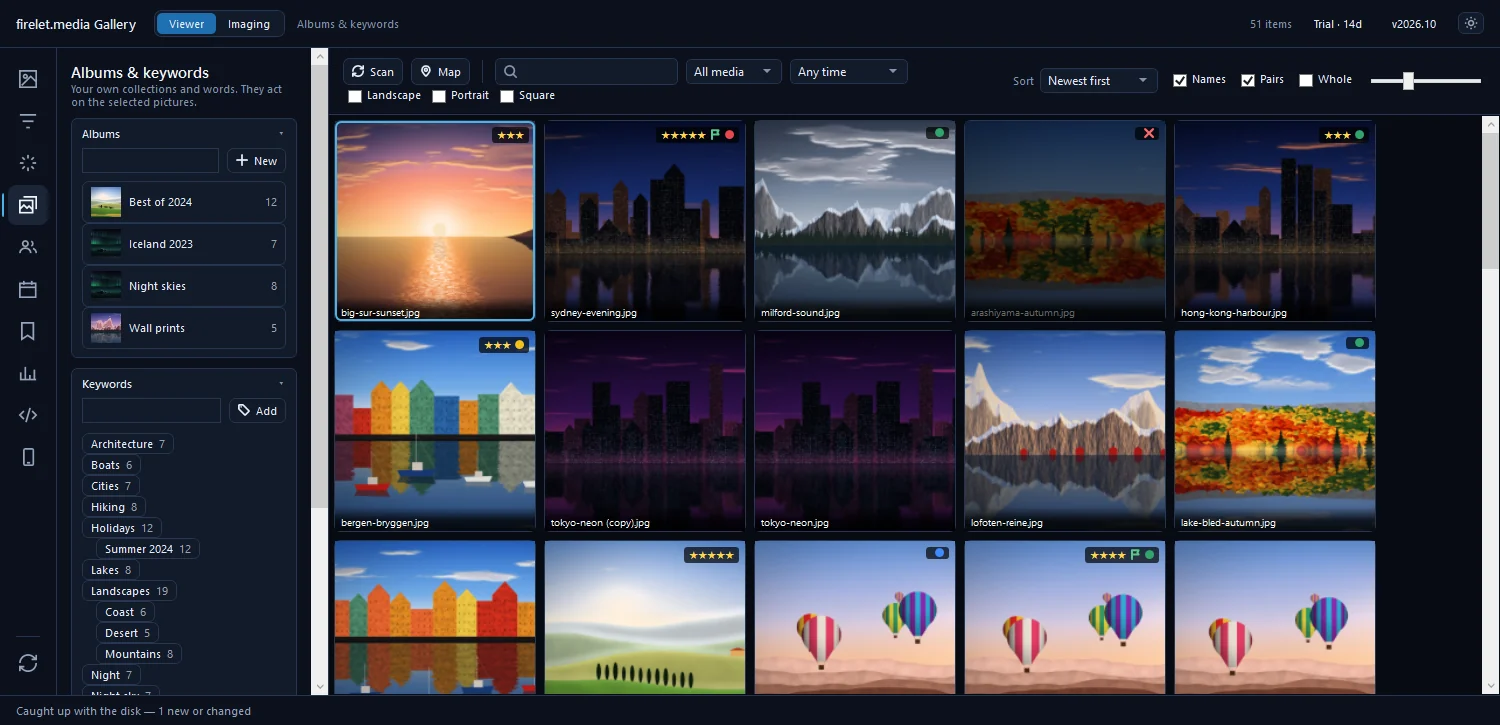
Most of what you do in the gallery (stars, keywords, edits, corrected dates) never touches your files. Moving and renaming are the exceptions: they really do move and rename the files on disk. Doing it from inside the gallery has one big advantage: "Stars, keywords, albums, faces and edits go with them", and any .xmp sidecar moves too.
If you move or rename photos in File Explorer instead, the gallery's next scan sees one file disappear and a new one arrive, so what it knew about the old file doesn't follow. If you have to use Explorer, write XMP sidecars first; Import from XMP in Albums & keywords can then read stars, labels, keywords and captions back.
The destination must be inside one of your library folders (Library → Sources). To move photos somewhere new, attach that folder first.
Steps: move to a folder
- Select the photos in the grid.
- Right-click one of them and choose Move to → Choose a folder….
- In the Move pictures window, Into one folder is selected. Press Choose… and pick the destination.
- Check the preview, Where each picture goes, and the summary under it, for example "120 will move · 3 already there".
- Press Move.
Folders you've moved to recently are listed at the top of Move to. Choosing one moves the photos straight away when every one of them can go, and shows the preview when some can't.
Steps: Organise into date folders…
- Select the photos to sort. To take a whole folder, right-click any photo in it, choose Filter by this folder, then press Ctrl+A.
- Right-click and choose Move to → Organise into date folders….
- Into date folders, by when each was taken is selected. Under Under, pick the library folder to sort into.
- Pick a Layout (see the table below).
- Check Where each picture goes, then press Move.
For a photo taken on 14 July 2024:
| Layout | Folder |
|---|---|
yyyy\MM |
2024\07 |
yyyy\yyyy-MM |
2024\2024-07 |
yyyy\MM\dd |
2024\07\14 |
yyyy\yyyy-MM-dd |
2024\2024-07-14, the same as Import uses |
yyyy |
2024 |
Steps: batch Rename… (F2)
- Select the photos. They are numbered in grid order, so sort by Oldest first if you want the numbers to follow time.
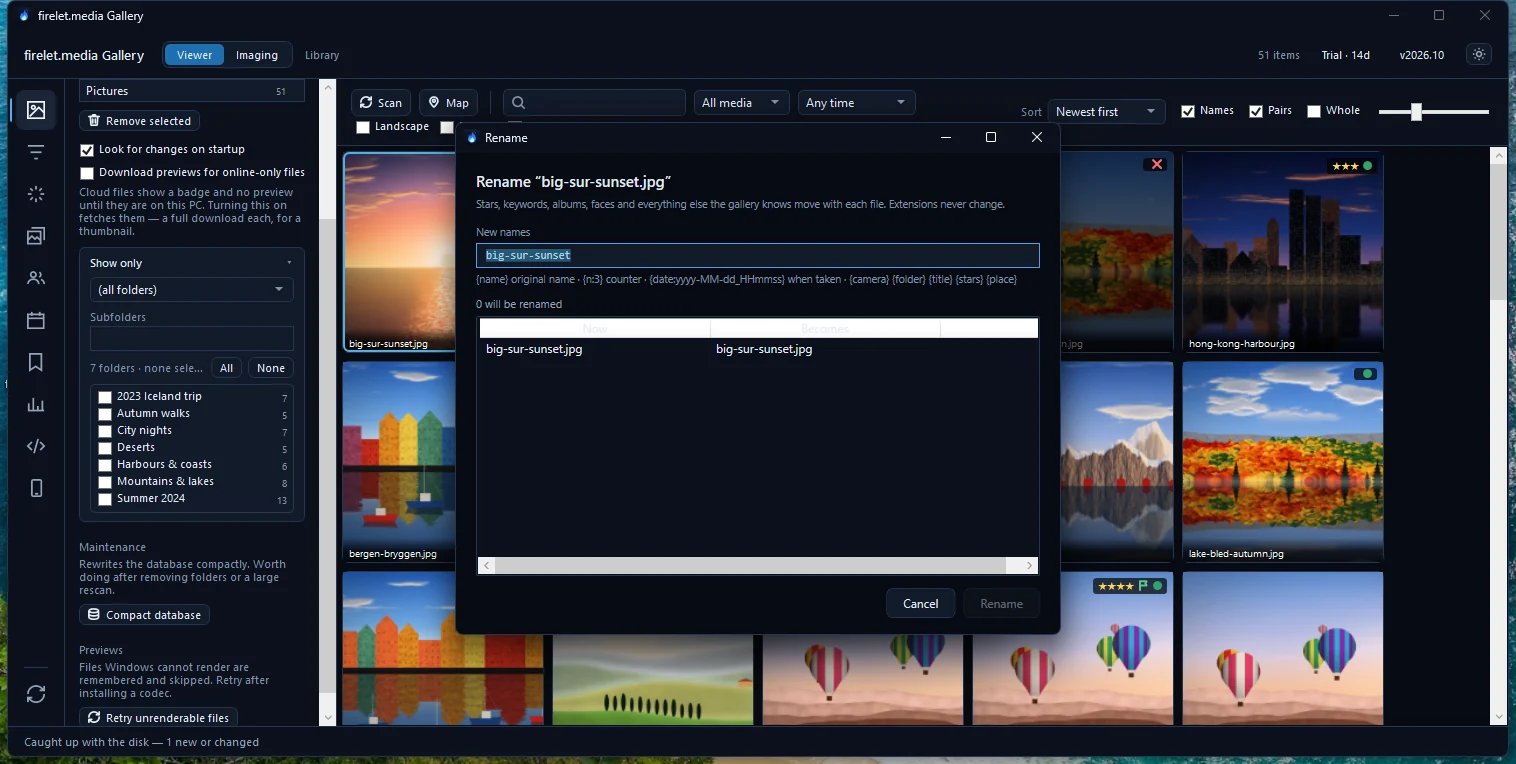
- Press F2, or right-click and choose Rename….
- Type a pattern in New names. For several photos it starts as
{date:yyyy-MM-dd}_{n:3}. - Check the preview: each file's current name beside what it becomes, and a summary such as "48 will be renamed".
- Press Rename.

The file extension never changes, so a JPEG stays a JPEG. If two photos would end up with the same name, or a name is already taken in that folder, the preview says so and those files are left alone.
Name pattern tokens
| Token | Becomes |
|---|---|
{name} |
The original name, without its extension |
{n} / {n:3} |
A counter from 1; {n:3} pads it to 001, 002… |
{date:yyyy-MM-dd} |
When it was taken (or else modified). Change the format inside, e.g. {date:yyyy-MM-dd_HHmmss} |
{camera} |
The camera, once Read camera data has run |
{folder} |
The name of the folder it is in |
{title} |
The title you gave it |
{stars} |
Its star rating |
{place} |
City and country, once place names are looked up |
Mix tokens with your own text, for example Iceland_{date:yyyy-MM-dd}_{n:3} or {folder}_{name}. An unknown token is left as written, so a typo shows up in the preview instead of vanishing.
What moves with the files
When you move or rename inside the gallery, everything it knows travels with each file: stars, flags and labels, keywords and albums, faces and names, edits, and corrected dates and places. Sidecar .xmp files move alongside. Nothing is copied. You end up with the same files in new places, still in every album, as explained in albums and keywords.
For more on sorting a messy collection, the blog covers photos scattered across drives and organising photos by date automatically. New photos from a card can be filed by date as they come in, too; see importing from an SD card or camera.
Questions people ask
Do moves keep my ratings and albums?
Yes. Moving or renaming inside the gallery keeps its stars, keywords, albums, faces and edits with each file, and sidecar files move too.
Which tokens can a name pattern use?
{name}, {n} or {n:3}, {date} (with a format such as {date:yyyy-MM-dd}), {camera}, {folder}, {title}, {stars} and {place}.
Can I move photos to a folder outside my library?
No. The destination must be inside one of your library folders. Attach the folder in Library first, then move.
Was this article helpful?
Thank you — that is counted, and nothing else about you is. Still stuck? Ask a person.