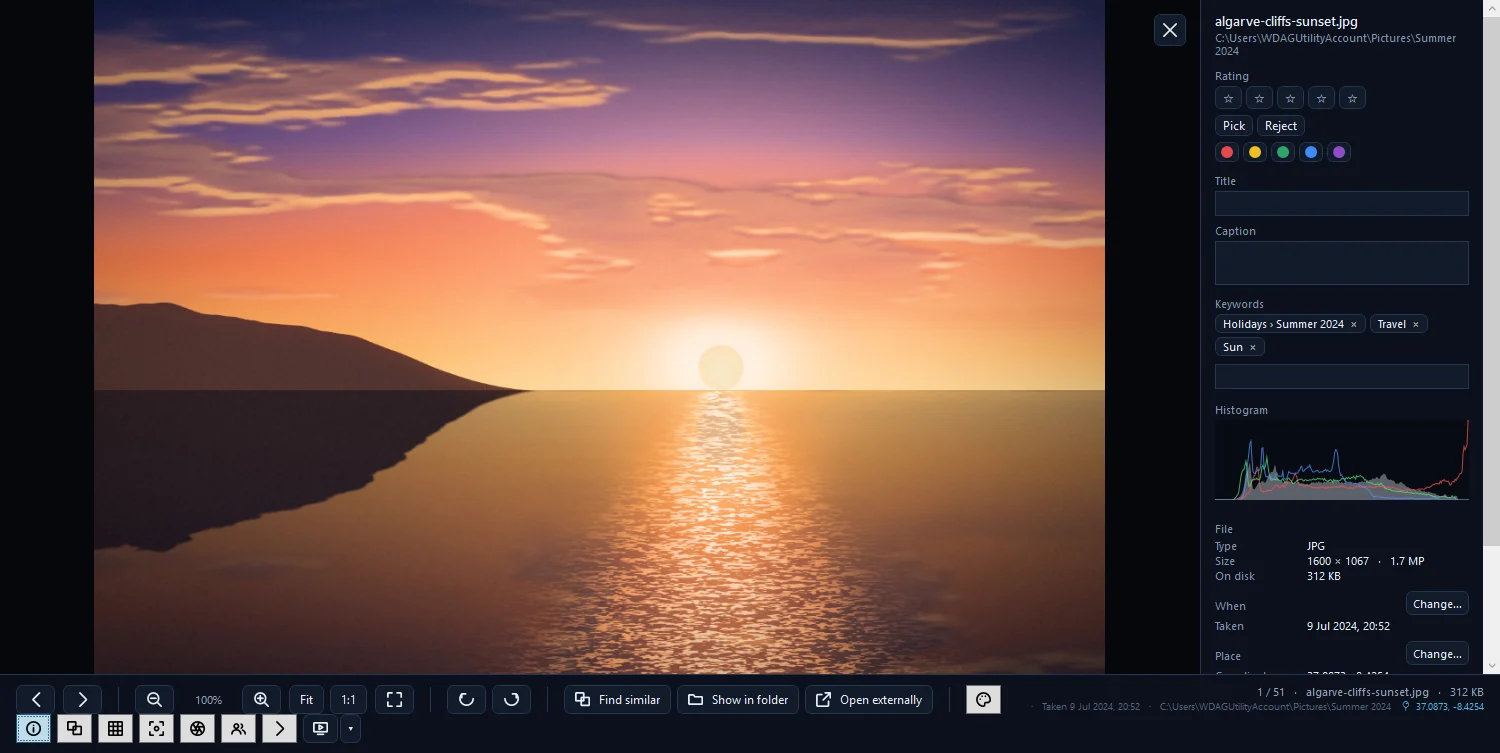
How to sort and filter your photo library
Use the toolbar for sort order, media type, date range and orientation, and the Filters panel (Alt+2) for stars, labels, camera, size, location and more.

On this page
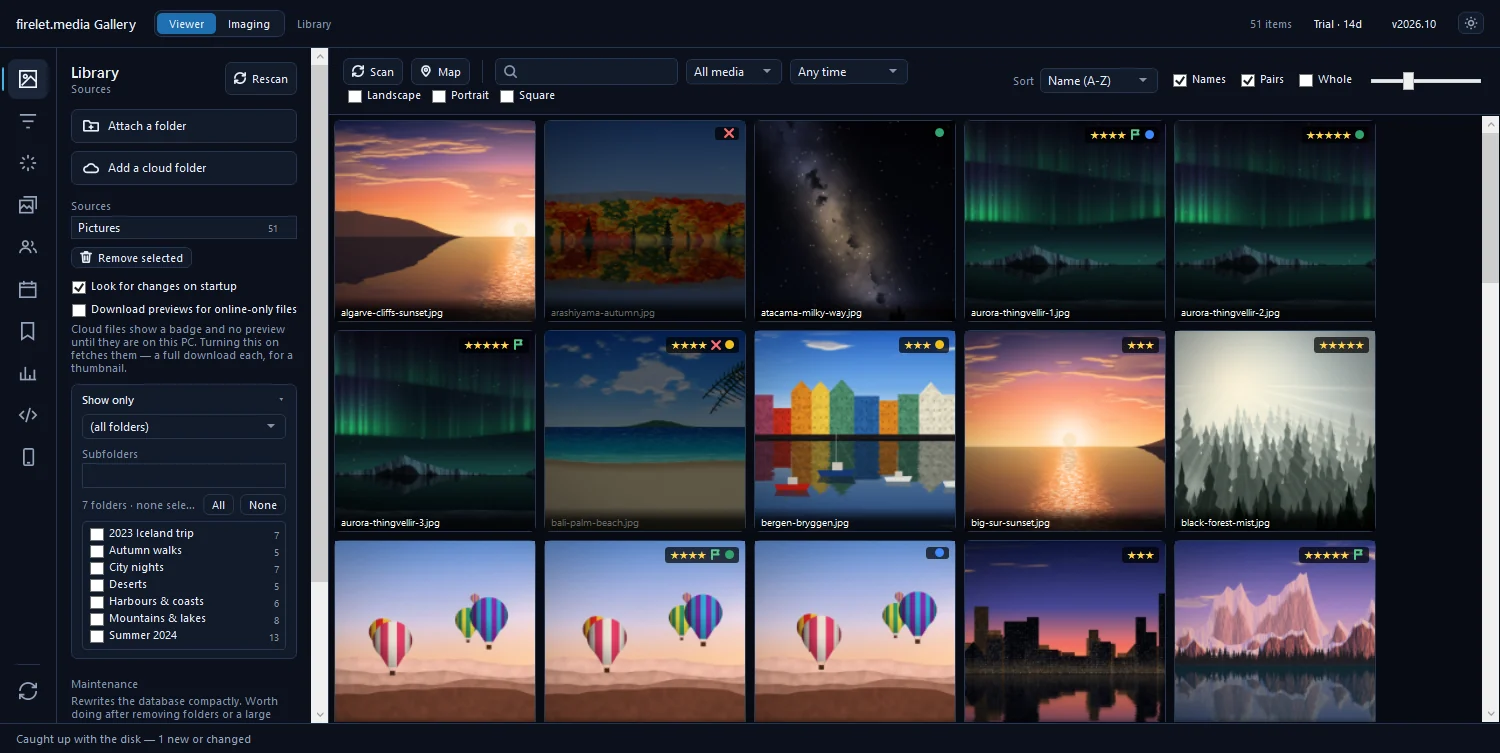
firelet.media Gallery gives you two places to narrow the grid. The toolbar above it sorts the library and limits it by media type, date range and orientation. The Filters panel (Alt+2) lets you filter photos by date, rating, camera, colour label, file type, size, location and more. Filters combine, the grid updates as you click, and Reset filters brings everything back.
The toolbar: Sort, All media, Any time, orientation
The toolbar is always in view above the grid, so it's the quickest way to reshape what you see.
| Control | Choices |
|---|---|
| Media kind | All media, Photos only, Videos only |
| Date range | Any time, Today, Last 7 days, Last 30 days, Last 90 days, Last year, Older than a year, Custom range… |
| Orientation | Landscape, Portrait, Square (tick more than one to see either) |
| Sort order | Name (A-Z), Name (Z-A), Newest first, Oldest first, Largest first, Smallest first, Longest first, Shortest first, Random, Highest rated, Most aesthetic, Sharpest first |
Custom range… shows From and To date boxes. Most aesthetic needs the library indexed for AI search, and Sharpest first needs Analyse quality from the AI panel. The search box sits on the same bar: every word you type must match somewhere, such as a name, folder, keyword, album, person, place or title.
Names shows file names on the tiles, Whole shows each picture uncropped, and the slider (or Ctrl+mouse wheel) sets the tile size. They change the look, not what's included.
Steps: filter photos by date, rating, camera and more (Alt+2)
- Press Alt+2 to open Filters.
- Open a section, for example Rating & labels.
- Choose a value, such as 4+ stars or the Green label.
- Open another section to narrow further; every filter you set must match.
- Clear one filter by setting it back to its "any" choice, or press Reset to clear them all.

What each section filters on:
- Rating & labels: stars (Unrated, 1+ stars … 5 stars), flags (Picked, Rejected, Unflagged, Not rejected) and the five colour labels or No label.
- Quality & faces: sharpness, exposure, number of faces, Text in the picture, and Aesthetic score at least (1–10). These need Analyse quality or Read text (AI panel), Find faces (People) or the AI index first.
- File types: one tick box per extension, with counts.
- Location: Has location or No location, and Place contains for city or country names once places have been looked up.
- File size: from Tiny (under 100 KB) to Huge (over 20 MB), or a custom range.
- Duration (video): minimum and maximum seconds.
- Camera: camera, lens, ISO, aperture and focal length. Click Read camera data here first; it reads camera, lens and exposure from each photograph.
Show what does not match
Tick Show what does not match at the top of the Filters panel to flip the result: "Everything the filters below would hide, and nothing they would show." Set Rating & labels to Picked and tick it, for example, and you see every picture you haven't picked yet.
Save filters as a preset
If you use the same combination often, such as "5 stars, landscape, last year", save it.
- Set up the filters and toolbar choices you want.
- Press Alt+7 to open Presets.
- Type a name under Save current filters and click Save.
To use it again, pick it under Load preset and click Load; Delete removes it. Separately, the gallery remembers your filters, sort order and open panel between sessions, so it opens the way you left it.
Advanced query for power users
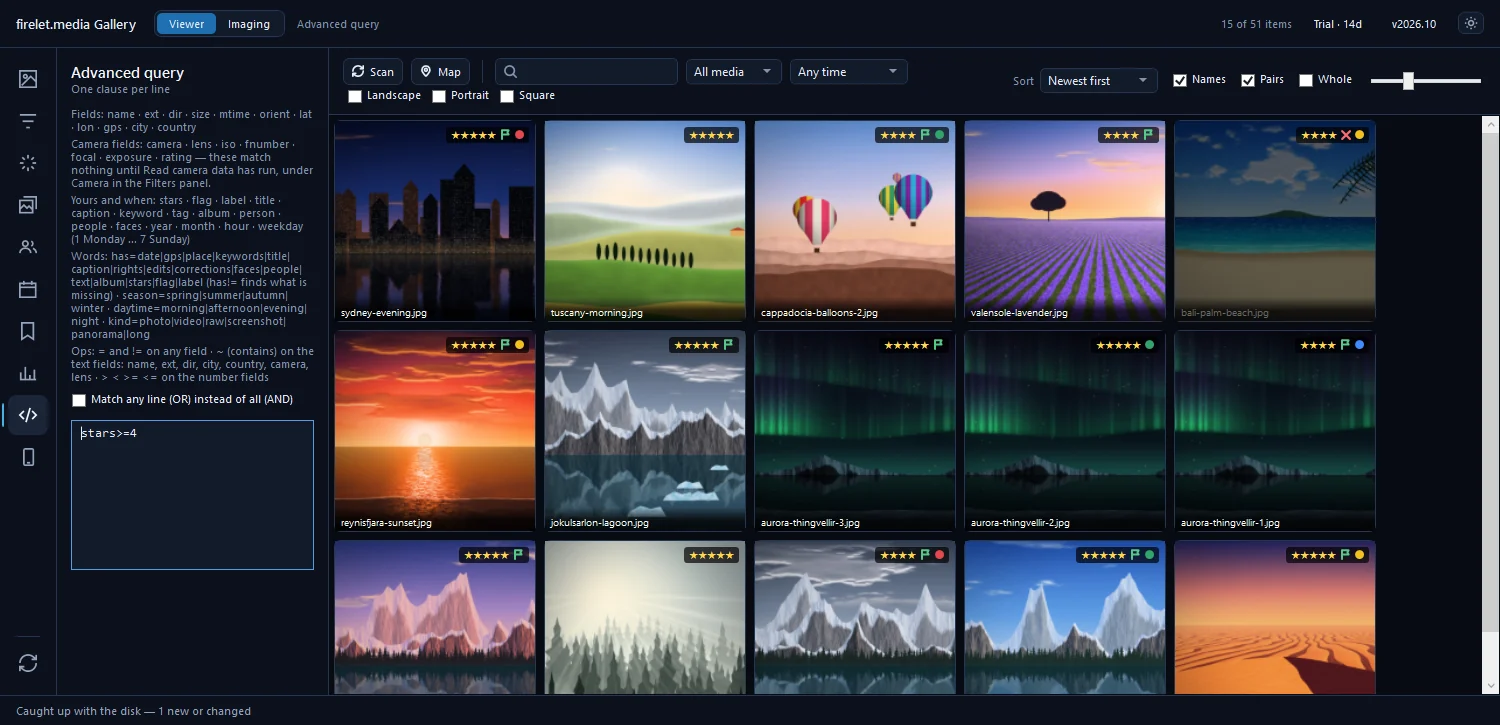
For combinations the panels can't express, open Advanced query (Alt+9) and type one clause per line. Every line must match, or tick Match any line (OR) instead of all (AND).
| Query | Finds |
|---|---|
stars>=4 |
Four stars and up |
year=2019 |
Pictures taken in 2019 |
season=winter |
Winter pictures |
city~paris |
A city name containing "paris" |
has!=gps |
Pictures without a location |
kind=screenshot |
Screenshots |
= and != work on any field, ~ means "contains" on text fields, and >, <, >= and <= work on numbers. has= finds pictures that have something and has!= those that don't. Camera fields such as camera, lens and iso match nothing until Read camera data has run.
Reset filters
Reset filters at the foot of the icon rail clears the filters in one click, wherever you are. The Reset button at the top of the Filters panel does the same from there. If an AI search or similar-photo result is active, a chip such as "duplicates ≥ 0.97" appears on the toolbar; its ✕ clears the AI result.
To browse by year, month and day instead, open Calendar (Alt+6). New to the gallery? The 10-minute tour shows where everything is.
Questions people ask
How do I show only photos from last month?
Pick Last 30 days in the date box on the toolbar, or Custom range… to choose two dates.
Can I save a filter combination?
Yes. Open Presets (Alt+7), type a name under Save current filters and click Save. Load it again from Load preset.
How do I get everything back?
Click the Reset filters button at the foot of the icon rail, or Reset at the top of the Filters panel.
Was this article helpful?
Thank you — that is counted, and nothing else about you is. Still stuck? Ask a person.