A duplicate photo finder for Windows that catches near copies too
Identical files are easy to find. Resized, re-saved and lightly edited copies are not. How to find both on Windows, keep the best copy with its tags, and delete nothing by accident.

On this page
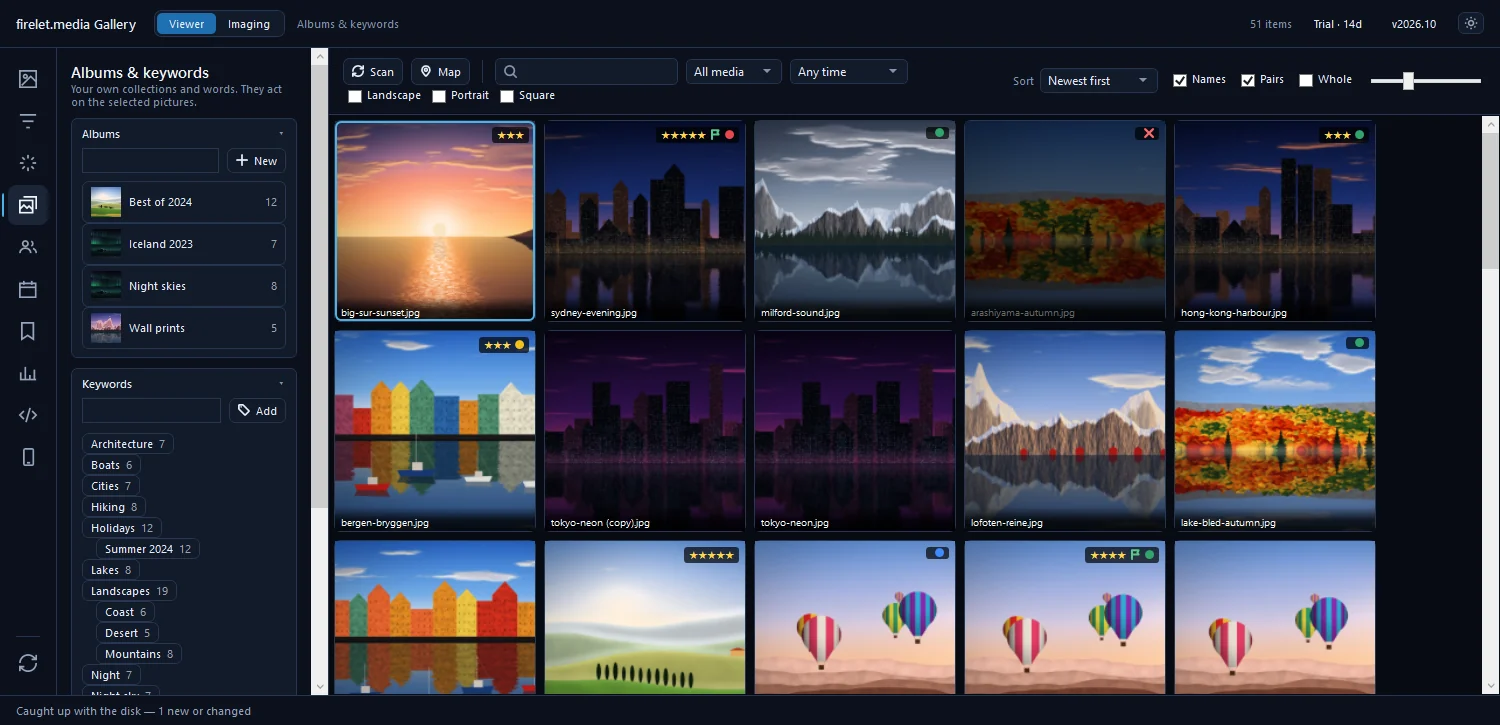
Duplicates come in two kinds. Identical copies are the same file saved twice — easy to find with a checksum. Near copies are the ones that really clutter a library: the version resized for email, the one re-saved by a phone app, the slightly cropped edit. A checksum can't see those. firelet.media Gallery finds both, keeps the best copy with everything you added to it, and deletes nothing on its own.
Identical copies: byte for byte
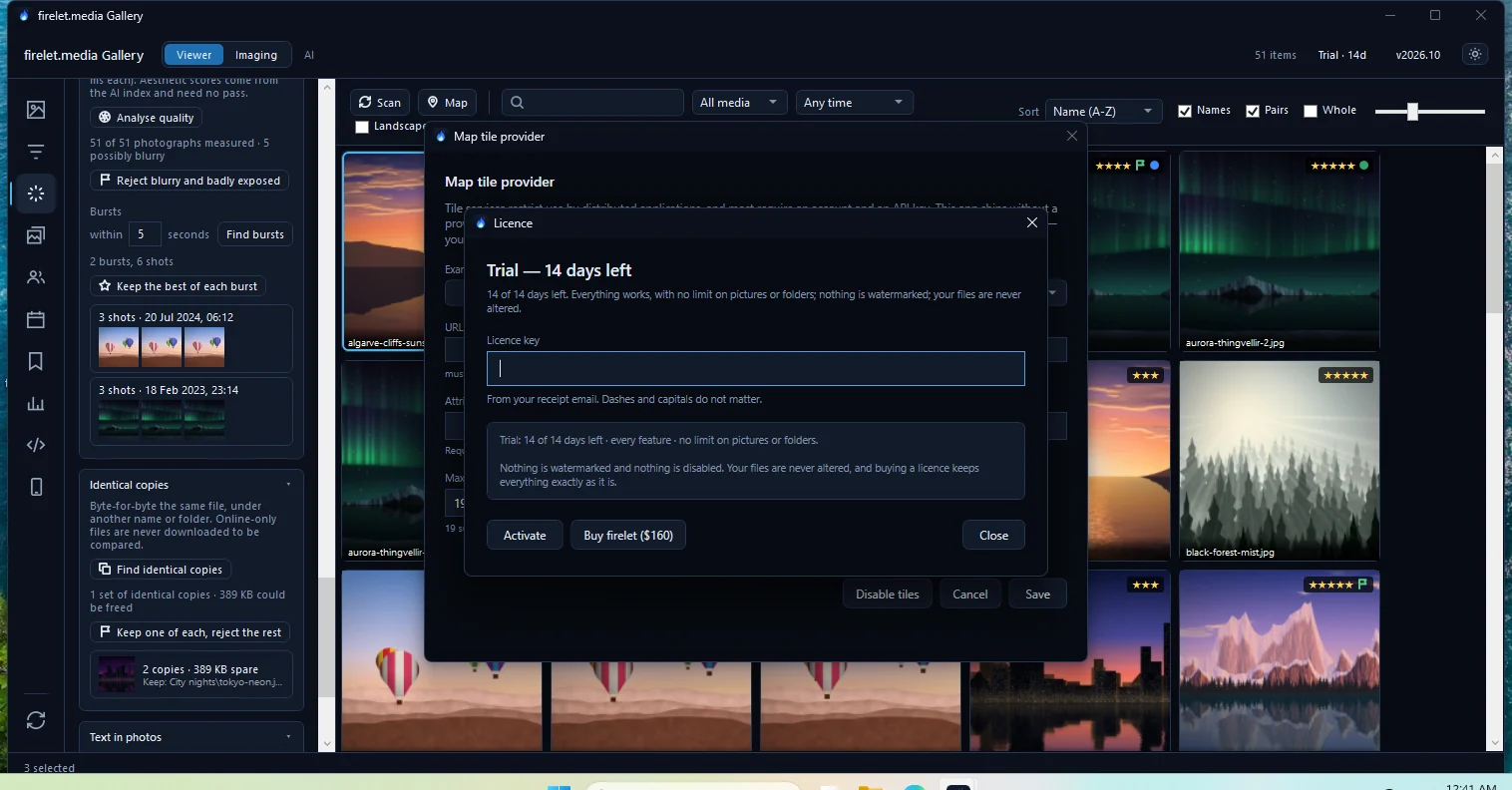
Open the AI panel (Alt+3) and expand Identical copies, then press Find identical copies. It compares file size, then the first 64 KiB, then a full SHA-256 checksum, so two files are only grouped when they really are the same.
Press Keep one of each, reject the rest and every group is tidied at once. The copy kept is chosen in this order:
- the highest star rating;
- then more keywords and albums — the copy you've been working with;
- then one not named like a copy ("Copy of…", "(1)", a "Backup" folder);
- then the shorter path.
The kept copy takes the others' stars, keywords and albums, so nothing you added is lost.
Near copies: by how they look
Near-duplicates are found from the AI index, so the first time you need the model and Index library — how to index your library. Then expand Duplicates, choose how close a match should be (Near-identical is the default), and press Scan for duplicates. You review each pair side by side and reject the one you don't want.
A safe clean-up, in order
- Back up first if you haven't recently — back up photos and the library.
- Run Identical copies and keep one of each. This is the quick win.
- Scan for near copies and review pairs, starting with the strictest match.
- Filter by Rejected and look once more.
- Move the rejects to the Recycle Bin yourself — the gallery never deletes on its own.
Online-only OneDrive or Dropbox files are never downloaded just to be compared.
Why "flag, don't delete" matters
A duplicate finder that deletes automatically is one bad match away from losing the only good copy of a photo. Flagging means every decision is yours, and an undo is just un-flagging. The full steps are in find and remove duplicate photos, and a bigger tidy-up plan is in one weekend photo clean-up.
Got a library full of copies? Try firelet.media Gallery free for 14 days — every feature, no limits, nothing uploaded.
Questions people ask
Does the duplicate finder delete photos?
No. Both tools only flag the extra copies as rejected. You review them and move them to the Recycle Bin yourself when you are sure.
Which copy is kept?
The one with the highest star rating, then the one with more keywords and albums, then one not named like a copy, then the one with the shorter path. The kept copy takes the others' stars, keywords and albums.
Will it download my OneDrive files to compare them?
No. Online-only cloud files are never downloaded just to be compared.
Was this post helpful?
Thank you — that is counted, and nothing else about you is. Still stuck? Ask a person.