How to find every photo of one person in a family collection
Want every picture of grandma for a birthday slideshow? Group faces on your PC, name her once, then show her photos, play a slideshow or keep them as an album.
On this page
To find all photos of a person in a big family collection, let the computer do the looking: firelet.media Gallery finds the faces in your photos, groups the ones that look alike, and asks you to name each group once. After that, one click on her name shows every photo she's in, ready for a slideshow or an album. It all runs on your own PC.
Here's the whole process, from a library nobody has tagged to a birthday slideshow of grandma through the decades.
Find faces
Face grouping starts in the People panel. Its hint says what it does: "Faces found on this PC, grouped by who they look like. Name a group once and the rest follow."
- Open People with Alt+5.
- Press Download face models. This fetches two small models, YuNet and SFace, about 39 MB in total, once. They're checked against pinned digests before use.
- Press Find faces. The gallery looks at every photograph it hasn't looked at yet. The panel shows its progress, such as how many photographs have been looked at and how many had faces.
- Press Group unnamed when it's done.
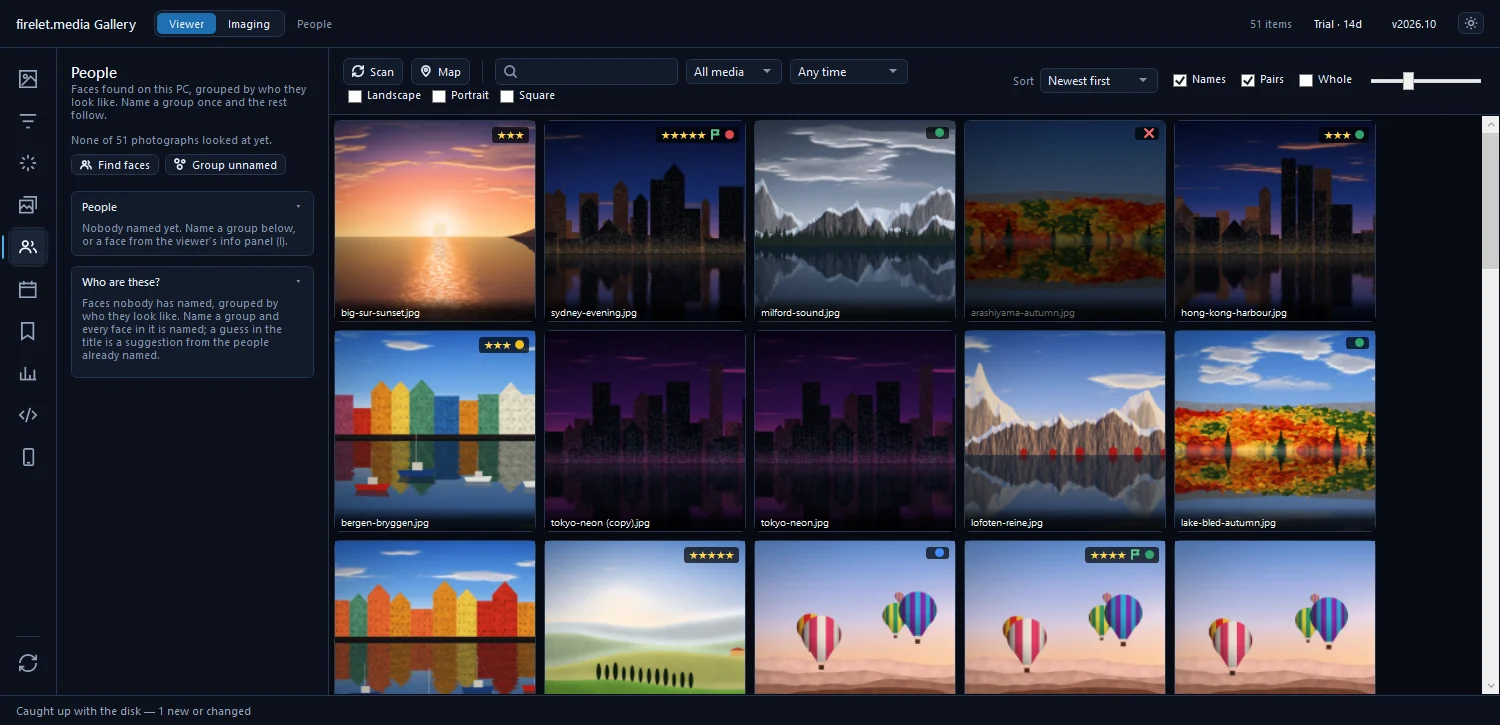
Finding faces runs on the processor and takes a while on a big library, so it's a good job to start before dinner. It works on photos, including scanned prints, but not on videos. Later, when you add new photos, press Find faces again and it only looks at the new ones.
Name the group
After grouping, the Who are these? section lists groups of faces that look like the same person, with a few sample faces in each.
- Find a group that shows her.
- Press Name….
- Type her name, such as "Grandma Rose", and confirm. Every face in the group gets that name.
You can also name one face at a time: open a photo in the viewer, press I for the info panel, and use Who is this? under People. Pressing N in the viewer shows the face boxes on the photo.
In a collection that spans decades, the same person often turns up as several groups: grandma at twenty, at fifty, at eighty. That's expected. Name each group with exactly the same name, and they all become one person. Renaming one person to a name that already exists merges the two, too.
Check the suggestions
Once she has a name, the gallery starts suggesting her for other groups. A suggestion appears in the group's title as a question, for example "12 faces — Grandma Rose?", and each group has four buttons:
| Button | What it does |
|---|---|
| Yes | Names them all as suggested |
| Name… | Gives the group a different name |
| Show | Shows the pictures these faces are in, so you can check first |
| Skip | Takes the group off the list for now |
A suggestion never becomes a name until you accept it, and only faces you've confirmed teach the matcher who someone is. So a wrong guess costs nothing: press Skip or Name… and move on.
Work through the list a few times. Each group you name makes the next suggestions better, and pressing Group unnamed again after a naming session tidies up what's left. How to find and name people covers renaming, merging and the viewer's naming tools in detail.
Show her photos: find all photos of a person in one click
Now the payoff. Her name appears in the People list at the top of the panel, with a count beside it.
- Click her name to show only her photos in the grid. Click it again to show everyone.
- Type her name in the toolbar search box. Names are included in the search, alongside keywords, captions and places.
- Narrow it down with the usual tools: the date range on the toolbar, Newest first or Oldest first in the sort, or the Calendar panel (Alt+6).
For portraits of her on her own, open Filters (Alt+2), expand Quality & faces and set Faces to 1 face. Photos with two faces are often the best of all: set it to 2 faces to find her with one other person.
Slideshow or album
With her photos showing, the rest takes seconds.
For a slideshow, sort by Oldest first so it tells her life in order, then press F5. The slideshow plays every photo shown, or just the ones you've selected. In the viewer, Slideshow options sets the interval (2 to 30 seconds), the transition (Fade, Slide in, Slow zoom or None), a caption, and whether to shuffle or start again at the end.
For an album, which you can come back to and add to later:
- Select all her photos with Ctrl+A, or pick the best ones with Ctrl-click.
- Open Albums & keywords (Alt+4).
- Type a name such as "Grandma's 90th" and press Enter.
The album is a list, not a copy, so it takes no extra space. From there you can export copies for the family with Ctrl+E, or print a contact sheet of 20 photos a page with Ctrl+P. Albums and keywords has more on albums, and how to organise 20 years of family photos shows where this fits in a bigger clear-out.
Privacy
Faces are personal, so it's worth being clear about where they go: nowhere. The face models run on your computer, and what they produce (where each face sits in a photo, a short numerical description used to compare faces, and the names you give) is stored in the gallery's library database on your PC. No photo, face or name is uploaded. Names reach other files only if you choose to write XMP sidecars.
If you want to take a name back, right-click the person in the People list and choose Forget this person. Their pictures stay; the faces in them become unnamed. What data is sent lists everything the gallery ever connects to.
Questions people ask
Does face grouping need the cloud?
No. Faces are found and grouped on your computer, after a one-time 39 MB download of the face models. No photo or face leaves the PC.
Can I search by name afterwards?
Yes. People's names are included in the toolbar search box, so typing a name shows the photos of that person.
Was this post helpful?
Thank you — that is counted, and nothing else about you is. Still stuck? Ask a person.