How to create albums and add keywords
Select photos, open Albums & keywords (Alt+4), type an album name and press Enter. Add keywords with Ctrl+K, and use Parent > Child for a keyword hierarchy.
On this page
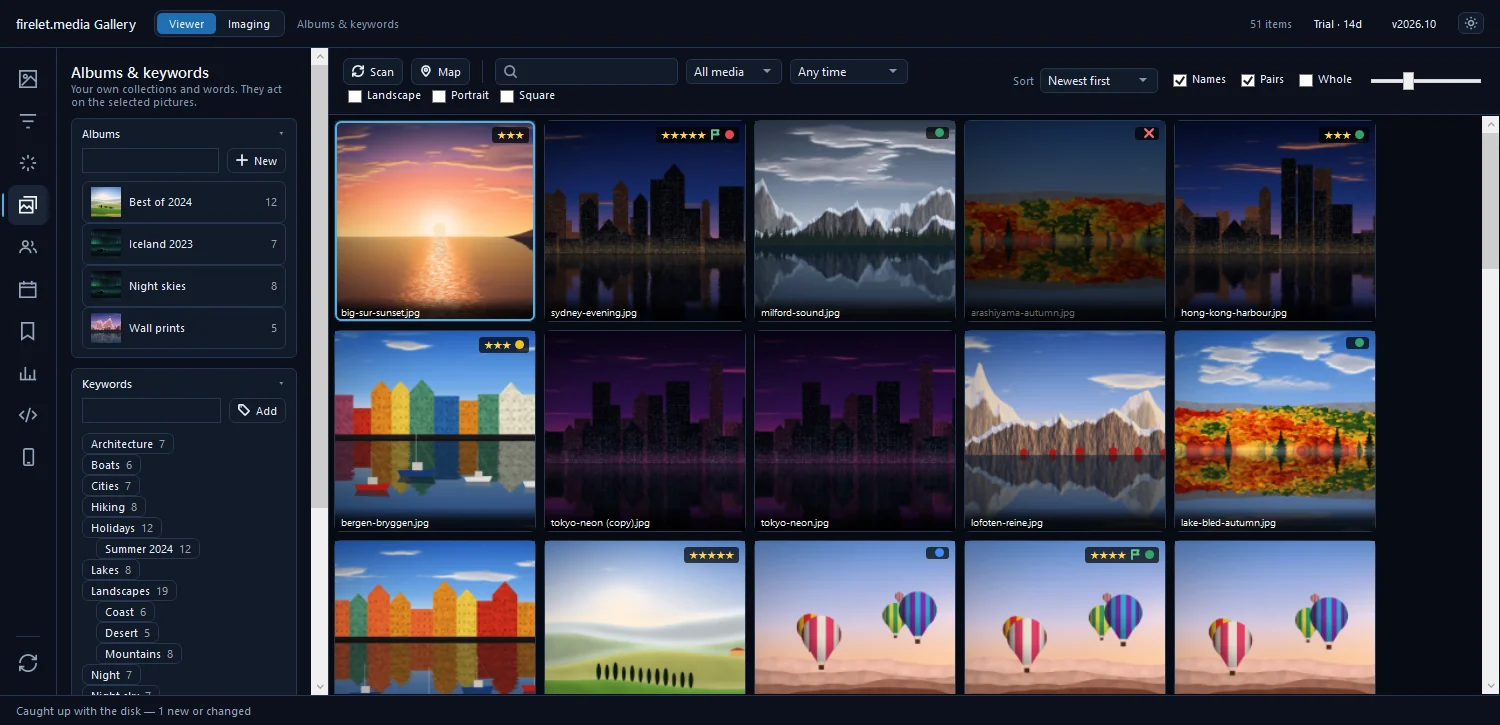
To create photo albums offline in firelet.media Gallery, select the pictures in the grid, open Albums & keywords (Alt+4), type a name in the album box and press Enter: the album is made with those pictures in it. To add a keyword, press Ctrl+K, type it and press Enter. Nothing is copied or uploaded; albums and keywords live in your library on your PC.
Albums vs keywords
Both group pictures without moving any files, but they answer different questions:
| Albums | Keywords | |
|---|---|---|
| Best for | A set you'll look at together: a trip, a wedding, "Best of 2024" | Describing what's in a picture: people, places, subjects, events |
| Structure | Albums can sit inside albums | Hierarchies such as Places > Italy > Rome |
| Cover picture | Each album can have its own | – |
| Shared with other apps | Stay in the gallery's library | Can be written to XMP sidecars |
A picture can be in as many albums and carry as many keywords as you like. Both are stored in the library, not in your files, and both are found by the search box on the toolbar.
Steps: create photo albums from a selection
- Select the pictures in the grid (Ctrl-click or Shift-click to pick several, Ctrl+A for everything shown).
- Press Alt+4 to open Albums & keywords.
- Click in the box under Albums ("Name a new album, then press Enter").
- Type a name, such as
Iceland 2023. - Press Enter, or click New.

To add more pictures later, select them in the grid and press Ctrl+B, or right-click → Add to album ▸ and pick the album (or New album…). You can also right-click an album in the panel and choose Add the selection. Remove the selection takes pictures out of the album without touching the files.
Click an album to show its pictures in the grid; click it again, or Show all, to go back to everything.
Nested albums, covers and slideshows
Right-click an album in the panel for everything else:
- New album inside… makes a sub-album, for example
2023 > Iceland. - Move into puts the album inside another; Move to the top level takes it out again.
- Use the current picture as the cover sets the album's thumbnail.
- Slideshow plays the album straight away.
- Duplicate, Rename… and Delete album. Deleting an album removes the list only; the pictures stay in the library and on disk.
Clicking a parent album shows its pictures and the albums inside it.
Steps: add keywords (Ctrl+K)
- Select the pictures in the grid.
- Press Ctrl+K, or click in the Keyword box in Albums & keywords.
- Type the keyword ("Type a keyword and press Enter").
- Press Enter, or click Add.
Keywords appear as chips in the panel with a count. Click a chip to show the pictures that carry it. Right-click a chip for Add to the selection, Remove from the selection, Rename… and Delete everywhere.
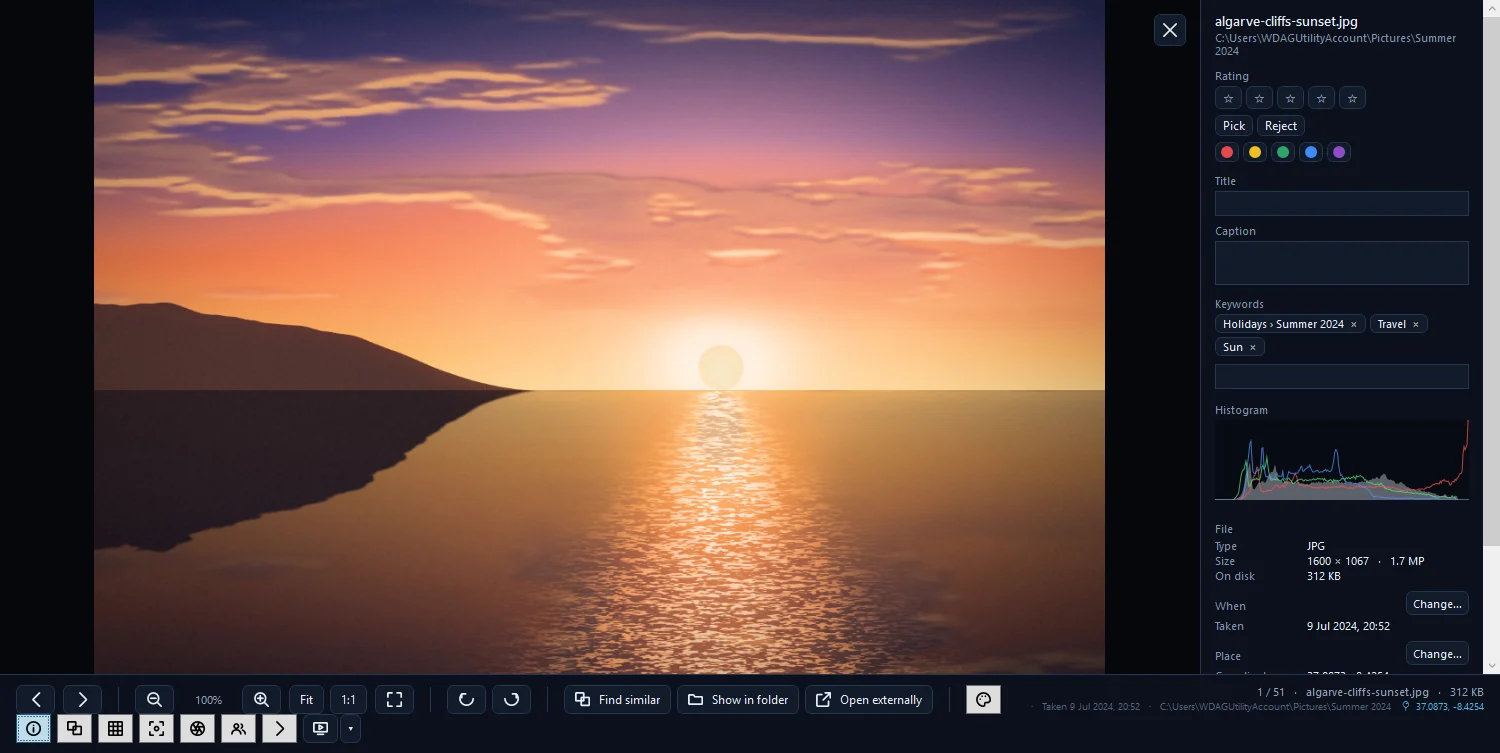
From the grid, right-click → Keywords ▸ also offers Copy keywords and Paste keywords (to copy one picture's keywords onto others), Add the folder name as a keyword, and Remove all keywords. In the viewer, the info panel (I) has an Add keyword box for the picture on screen.
Keyword hierarchies with >
Write a hierarchy with > between the levels: Travel > Iceland, or Places > Italy > Rome. The gallery also accepts | and › as separators, so Places|Italy|Rome works too, which helps if you're used to that style from other software.
A hierarchy keeps a large keyword list tidy: People > Family > Grandma, Events > Weddings > Sam and Alex. When you write XMP, the hierarchy is written as well, so programs that understand hierarchical keywords see the same tree.
Keep AI tags as keywords
If you've indexed your library for AI search, the AI panel's Tags section can suggest words for you. Generate tags scores each picture against a fixed list of 50 English tags, up to 5 per picture.
- Press Alt+3 and open Tags.
- Click Generate tags.
- Right-click a tag you agree with and choose Keep as a keyword on these pictures.
The tag becomes a real keyword on every picture that carried it. Tags you don't want can be hidden with Hide this tag.
Share keywords with other apps (XMP)
Keywords, stars, labels, rejects, titles, captions and people can be written to XMP sidecars, small .xmp files beside each picture, "what Lightroom, Excire, Mylio, Capture One and darktable read. The pictures themselves are never changed."
In the XMP sidecars section of Albums & keywords:
- Write changed pictures writes "every picture whose stars, words or people changed since it was last written".
- Write the selection writes just the pictures you've selected.
- Import from XMP reads stars, labels, keywords and captions other programs wrote, for pictures that have none in the gallery yet.
Sidecars are written only when you press one of these buttons (or right-click → Write metadata to XMP), and an existing sidecar is merged rather than replaced. Albums aren't part of XMP, so they stay in the gallery.
People you've named work the same way: see how to find and name people. The free Android companion (coming soon) has albums of its own but no keywords. For narrowing the grid by keyword, rating and more at once, see how to sort and filter your photo library.
Questions people ask
Does an album copy my photos?
No. An album is a list in the library; the photos stay in their folders, and one photo can be in many albums.
Can albums contain other albums?
Yes. Right-click an album and choose New album inside…, or Move into to put an existing album inside another.
Will Lightroom see my keywords?
Yes, if you write them to XMP sidecars from the XMP sidecars section of Albums & keywords. The gallery writes XMP only when you ask.
Was this article helpful?
Thank you — that is counted, and nothing else about you is. Still stuck? Ask a person.