How to organize 20 years of family photos
A calm plan for decades of family pictures: gather, de-duplicate, fix dates, name people, and make albums everyone can enjoy, all on your own PC.
On this page
To organise 20 years of family photos, don't start by moving files. Put every folder into one library, remove the duplicates, fix the dates so the years line up, name the people, then build albums and write down the stories. firelet.media Gallery does each step on your own PC and never changes your original files, so you can work at a calm pace.
Start with one library, not one folder
Two decades of pictures rarely live in one place. There are folders from three old laptops, a backup drive, a cloud folder, a box of prints and a few memory cards nobody emptied. The usual advice is to copy all of it into one master folder first. That's the step that stalls most family archive projects before they start.
Build one library instead. The files stay where they are, and the gallery indexes them together.
- Open the Library panel with Alt+1.
- Click Attach a folder and pick your photo folders on each drive. You can select several at once.
- Click Add a cloud folder to include OneDrive, Dropbox, Google Drive or iCloud Photos folders already synced to this PC.
- For memory cards, use Imaging → Import, which copies the pictures into dated folders and skips anything you already have.
Printed photos can join too. Imaging → Scan works with a connected scanner, which should appear in its list (scanner support hasn't been verified on real hardware yet). There's a whole post on it: how to scan old family photos.
Remove duplicates first
It's tempting to jump to the fun parts, but de-duplicate before anything else. Otherwise you'll date the same photo three times, name the same face three times and find the same wedding picture in every album.
Open the AI panel (Alt+3):
- Find identical copies, then Keep one of each, reject the rest, clears byte-for-byte copies. The copy that's kept takes the others' stars, keywords and albums.
- Scan for duplicates finds resized and re-saved copies. It uses the AI index, so it needs the one-time 438 MB model download and a run of Index library first.
Nothing is deleted. The extras are flagged as rejected, and you review and delete them yourself. Too many duplicate photos? walks through both passes safely.
Fix the dates so years line up
A family archive is a story told in order, and wrong dates scramble it. Old cameras often had clocks that were never set, scans carry the day they were scanned, and some copies only have the date they were copied.
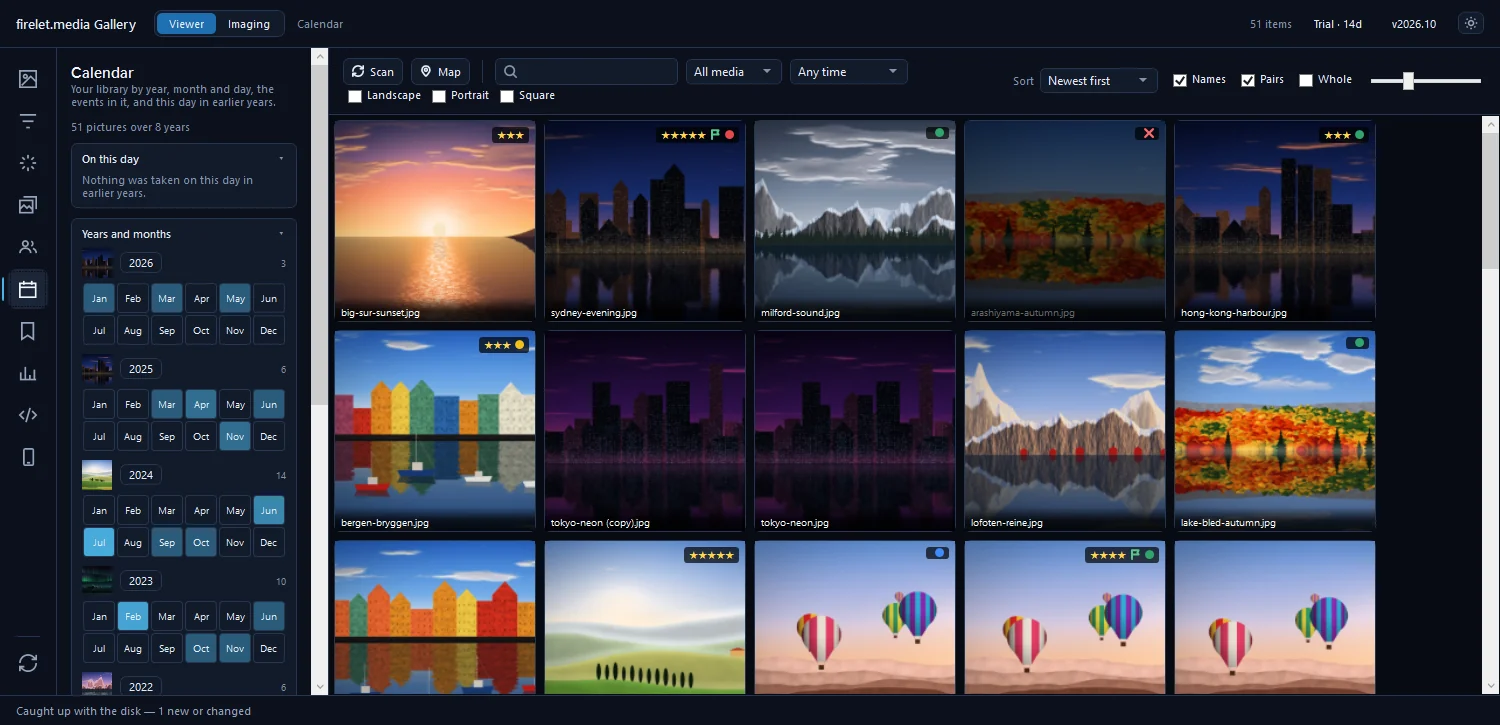
Start with the Calendar panel (Alt+6). The years-and-months grid shows at a glance where pictures cluster. A sudden pile of photos in a year when nobody owned a camera is a clue.
To correct a batch:
- Select the pictures that share the same problem, such as everything from one camera on one trip.
- Press Ctrl+Shift+D to open Date and time.
- Choose Move them all by to shift them by days, hours or minutes, or Set the first to to give the earliest picture its true date. The rest move with it and keep their spacing.
- Click Apply.
For scans with no real date, set an approximate one. The right year is far better than the scan date. The correction is stored in the library and the file itself is never changed. How to fix wrong photo dates and times covers every option.
Group faces and name the family
This is the step that turns a pile of pictures into a family history. The People panel (Alt+5) finds faces on your PC and groups them by who they look like. Nothing leaves the computer.
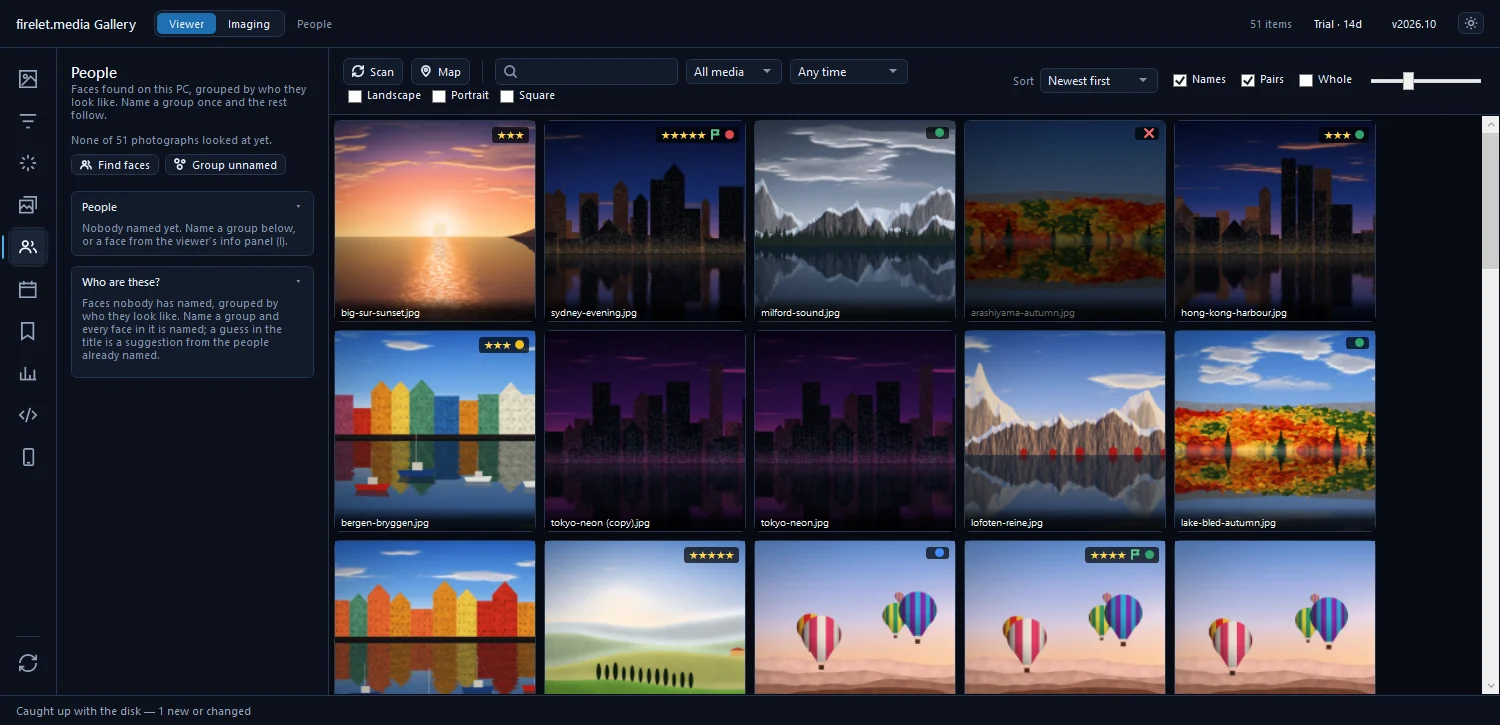
- Click Download face models (about 39 MB, fetched once).
- Click Find faces. It works through every photo not yet looked at.
- Click Group unnamed.
- Under Who are these?, click Name… on a group and type the person's name.
- When the gallery suggests a name for a similar group, click Yes to accept it, or Skip.
Start with the people who appear most, like parents, grandparents and children, and the rest gets easier. Children change a lot over 20 years, so the same child may turn up in several groups. Give each of those groups the same name and they all join that person.
Names are searchable straight away: type a name in the search box and every photo of that person appears. How to find every photo of one person has more ideas.
Events, On this day and albums
With dates and faces in place, the gallery can start telling stories by itself.
- Events in the Calendar panel group pictures taken close together, eight or more at a time, splitting where there's a long gap or a big jump in place. Right-click one and choose Keep as an album.
- On this day shows what was taken on today's date in earlier years, labelled "A year ago", "5 years ago" and so on. Right-click it for a Slideshow, which is lovely at a family dinner.
Then make the albums that matter to your family. Select pictures, open Albums & keywords (Alt+4), type a name such as "Grandma's 80th" and press Enter. Albums are just lists, so no files are copied and one picture can sit in many albums. Right-click an album and choose New album inside… to nest them, for example "Birthdays" holding one album per year.
Captions for the stories
A photo without its story is just a face in a garden. The names, the place and the reason everyone was there are exactly what gets lost when the people who remember are gone.
Open a picture, press I for the info panel, and fill in Title and Caption. The caption is saved when you click away. Captions are searchable, so "Uncle Tariq's farm" will find the picture years from now. Add captions and stories to family photos has prompts to get relatives talking.
Keep it safe: backups
Organising 20 years of photos is a lot of work. Protect both the pictures and the work.
- The photos. firelet.media Gallery isn't a backup. Follow the 3-2-1 rule: three copies, on two different devices, one of them kept somewhere else, such as a drive at a sibling's house.
- The library. Close the gallery and copy
%LOCALAPPDATA%\PictureGallery\gallery.dbalong with your photos. It holds the names, dates, albums and captions you've added. - The sidecars. Write XMP sidecars after a big session, so the most important details also travel with the files.
Build a family photo archive that lasts turns this into a routine. Everything above is in the Windows app today, and the macOS and Linux builds are being finished. The 14-day trial has no limits, so you can start on the whole archive this weekend.
Questions people ask
Should I rename or move every file first?
No. Attach the folders as they are; reorganising the files is optional and can come last, if at all.
Can it find everyone's faces?
It finds and groups faces on your PC. You name a group once, and the gallery suggests the same name for similar faces.
Was this post helpful?
Thank you — that is counted, and nothing else about you is. Still stuck? Ask a person.