How to find and name people in your photos
Open People (Alt+5), download the face models once (39 MB) and click Find faces. Faces are grouped on your PC; name a group once and the rest follow.
On this page
firelet.media Gallery can find the faces in your photos and group them by who they look like, entirely on your PC. Open People (Alt+5), click Download face models (about 39 MB, once), then Find faces. Name a group once and every face in it takes the name; after that you can show all of one person's photos with a click or by typing their name.
How offline face recognition works (on your PC)
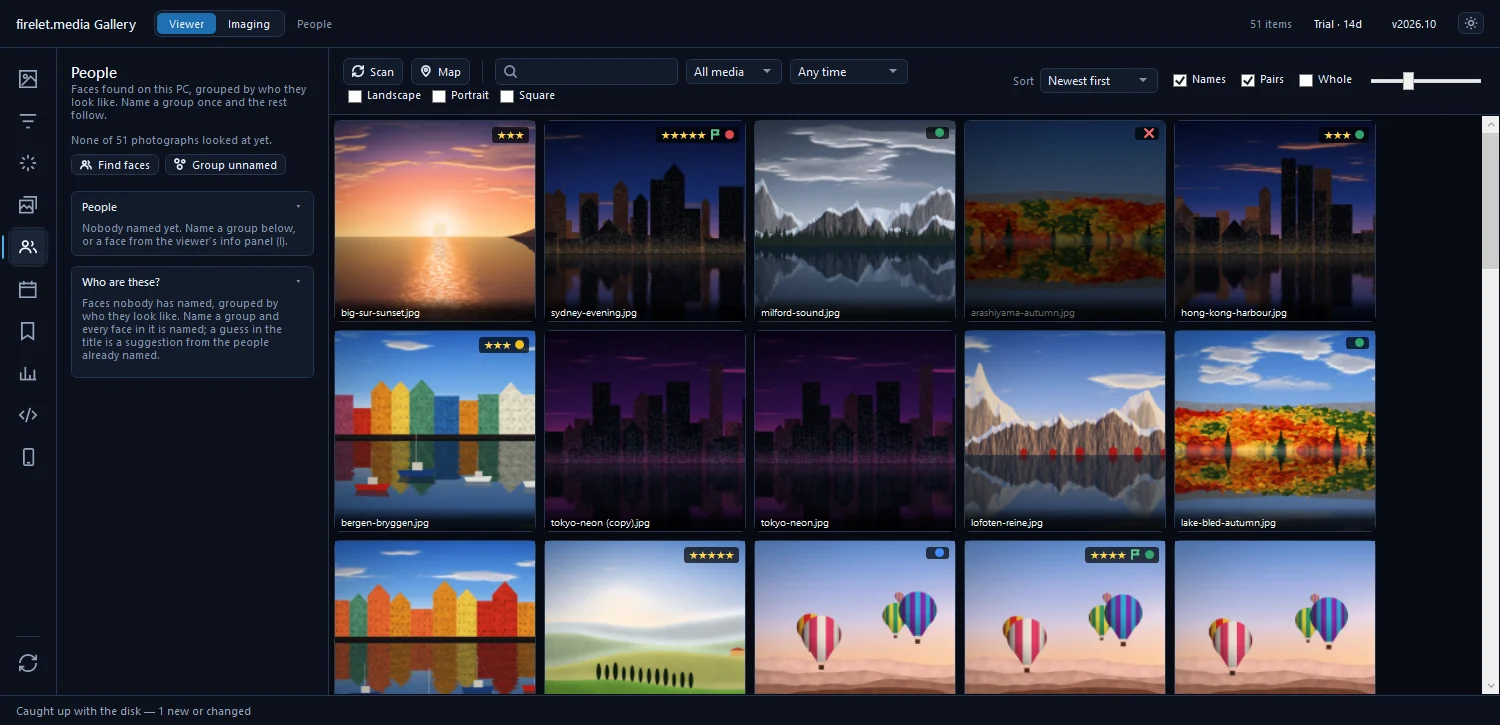
This is offline face recognition in a photo organiser: nothing is sent to a server. The People panel's own description is "Faces found on this PC, grouped by who they look like. Name a group once and the rest follow."
It works in three stages:
- Find faces looks at every photograph and marks where the faces are.
- The gallery compares the faces and puts ones that look like the same person into groups.
- You name the groups. Names you've already given help it suggest names for new groups.
Faces are found in photos only, not videos. The work runs on your computer's processor, and the results (where each face is, and who you said it is) are stored in your library database. Your photo files are only read.
Steps: Download face models
The face models aren't part of the installer. They are two small, openly licensed models (YuNet and SFace), fetched once from Hugging Face and checked against pinned checksums.
- Press Alt+5 to open People.
- Read the status line: "The face models are not on this PC yet".
- Click Download face models.
- Wait for the status to change to "None of … photographs looked at yet".
If the download is interrupted, clicking the button again resumes it where it left off.
Steps: Find faces
- Click Find faces: "Look for faces in every photograph not yet looked at. Runs on this PC; nothing leaves it."
- Watch the progress: "Looking for faces… 350 of 2,400 · 212 found".
- Wait for the summary, for example "Looked at 2,400 photographs · 1,630 faces".
- Click Group unnamed to sort the faces nobody has named into groups.
You can stop at any time with Stop in the status bar ("what was found is kept") and carry on later; Find faces only looks at photographs it hasn't looked at yet. Run it again after you add new pictures.
Naming: Who are these? Yes, Name…, Skip
Grouped faces appear under Who are these?: "Faces nobody has named, grouped by who they look like. Name a group and every face in it is named; a guess in the title is a suggestion from the people already named."
Each group has four buttons:
| Button | What it does |
|---|---|
| Yes | "Name them all as suggested", when the title already guesses the right person |
| Name… | Asks "Who is this?"; type the name and every face in the group gets it |
| Show | "Show the pictures these faces are in", so you can check who it is |
| Skip | "Take this group off the list for now" |
Work down the list, naming the people you care about and skipping the rest. As more people are named, more groups arrive with a suggested name, so you'll mostly be clicking Yes.
You can also name one face at a time from the viewer: open a photo, press I for the info panel, and use Who is this? under People. Press N in the viewer to show the faces and who they are on the picture itself. How to use the photo viewer covers the rest of the info panel.
Showing one person's photos
Named people are listed under People at the top of the panel, each with a count. To see their photos:
- Click the person ("Show this person"). The grid shows only pictures they're in. Click again, or Show all, to go back.
- Type their name in the search box on the toolbar. People's names are searched along with keywords, albums and places.
- Filter by number of faces under Filters → Quality & faces → Faces, for example 1 face for portraits or 3+ faces for group shots.
In Advanced query (Alt+9), person= finds one named person and has=people finds pictures with anyone named. Combine it with a date range to find, say, one grandchild's photos from a single summer. How to sort and filter your photo library explains combining filters.
Rename or forget a person
Right-click a person under People:
- Rename… changes the name everywhere. "Renaming onto a name that already exists merges the two people", which is how you join two groups that turned out to be the same person.
- Forget this person removes the name: "Their … pictures stay; the faces in them become unnamed."
Neither changes your photo files. If you share names with other software, the XMP sidecars section of Albums & keywords can write them into .xmp files beside the pictures, but only when you ask.
The macOS and Linux builds (being finished) have the same People panel, with Download face models (39 MB) and Group unnamed faces. The free Android companion doesn't find faces. For the privacy side, see what firelet.media Gallery sends.
Questions people ask
Are faces uploaded anywhere?
No. Face detection and grouping run on your PC and nothing leaves it. Only the two face models, about 39 MB together, are downloaded once when you ask.
Can I name a face from the viewer?
Yes. Open the photo, press I for the info panel and use Who is this? under People.
What does Forget this person do?
It removes that name from the library. The pictures stay, and the faces in them become unnamed; your photo files are not changed.
Was this article helpful?
Thank you — that is counted, and nothing else about you is. Still stuck? Ask a person.