How to install firelet.media Gallery on Windows
Download the free trial from firelet.media and run the signed installer. No admin rights are needed, and the gallery opens ready for your photo folders.
On this page
To install firelet.media Gallery, download the free trial from firelet.media, run the signed installer and click through the short wizard. It installs for your Windows account without an administrator prompt, needs nothing else installed first, and opens ready for you to attach your photo folders. The same installer becomes the full program when you enter a licence key.
What you need before you start
- Windows 10 version 2004 (build 19041) or later, or Windows 11, on a 64-bit PC. ARM-based Windows PCs run it under emulation: slower, but it works.
- About 67 MB for the download and about 228 MB of disk once installed. The AI model (438 MB) and face models (39 MB) are only downloaded later, if you ask for them.
- Nothing else to install. The .NET runtime, the AI engine and the database engine are all inside the installer.
- Internet for the download. After that the gallery only goes online to activate a licence, check in about once a month, check for updates and download the AI models when you press the button.
The full list is in firelet.media Gallery system requirements.
Install firelet.media Gallery: download and run the installer
- Open the download page and click Download free trial. The file is
firelet-gallery-setup-2026.10.0.exe. - Open the downloaded file from your browser's download list or your Downloads folder.
- Choose to install for yourself only when Setup asks how to install. This is the default and needs no admin rights.
- Click Next through the wizard, keeping the suggested folder.
- Tick Create a desktop shortcut if you want one on your desktop.
- Click Install and wait for the files to copy.
- Leave Launch firelet.media Gallery ticked and click Finish.
The gallery also appears in the Start menu as firelet.media Gallery, inside a Firelet folder. Starting it a second time simply brings the open window to the front.
Per-user or all-users install
Most people should keep the default. The choice only changes who can use the program and whether Setup can adjust the firewall for you.
| Just for you (default) | All users | |
|---|---|---|
| Admin rights | Not needed, no UAC prompt | Needed |
| Installed to | %LOCALAPPDATA%\Programs\Firelet\Gallery |
Program Files\Firelet\Gallery |
| Firewall rule for the phone link | Windows asks the first time it is needed | Added by Setup, for private networks |
Either way, each Windows account keeps its own library in its own %LOCALAPPDATA%\PictureGallery folder.
Windows firewall and the phone link
firelet.media Gallery can pair with an Android phone over your home Wi-Fi. The free Android companion app is coming soon, and the gallery opens no network port until a phone is paired, so this does not affect you until then.
- An all-users install adds a firewall rule called "firelet.media Gallery (Wi-Fi link)" for private networks, so nothing asks.
- A per-user install cannot add firewall rules. Windows asks the first time the gallery listens for a phone. Allow it on private networks.
See how to pair your Android phone for the full steps.
First launch: what you will see
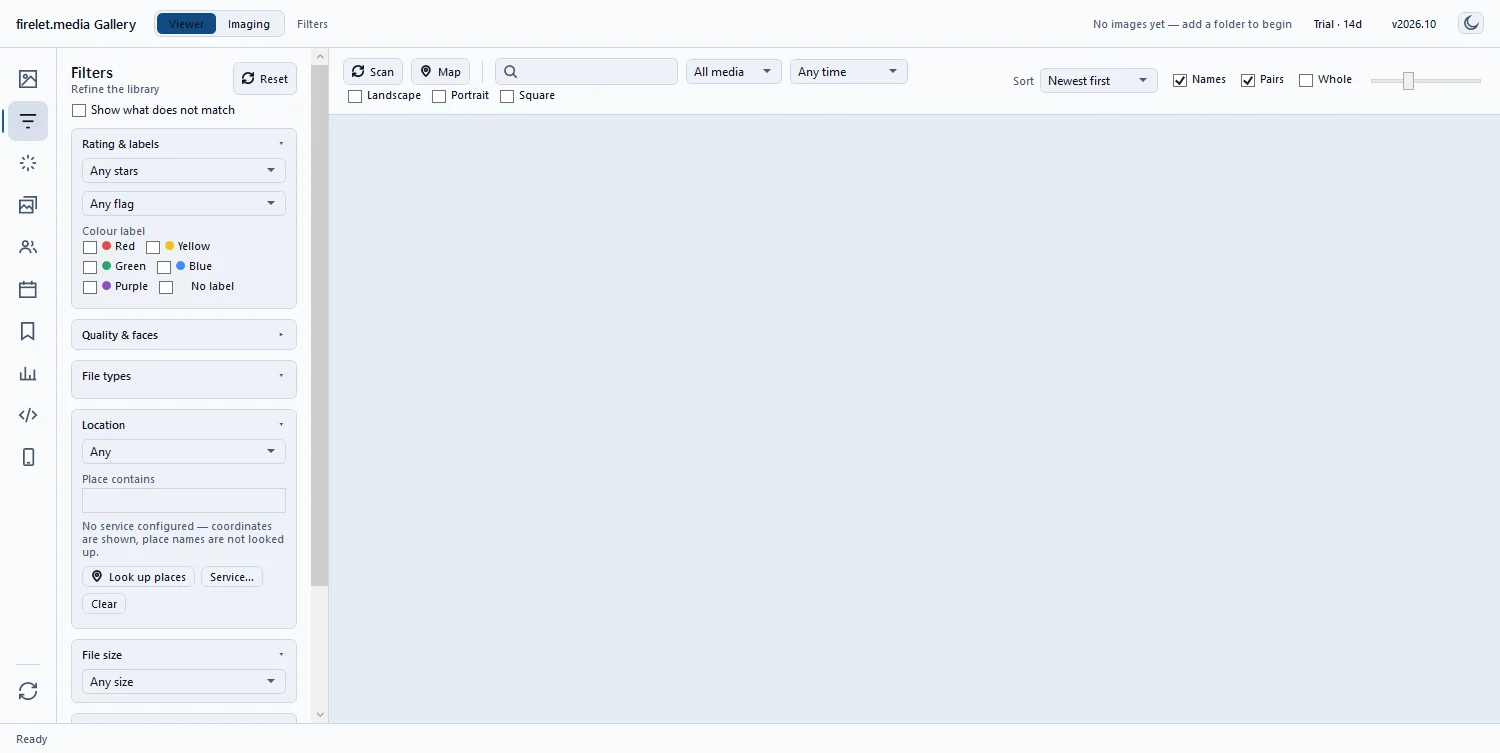
The window opens with an empty grey grid. The only hint is the title bar text "No images yet — add a folder to begin". On the very first run the left rail opens on Filters, so press Alt+1 for Library and click Attach a folder to begin. How to add your photo folders walks through it.

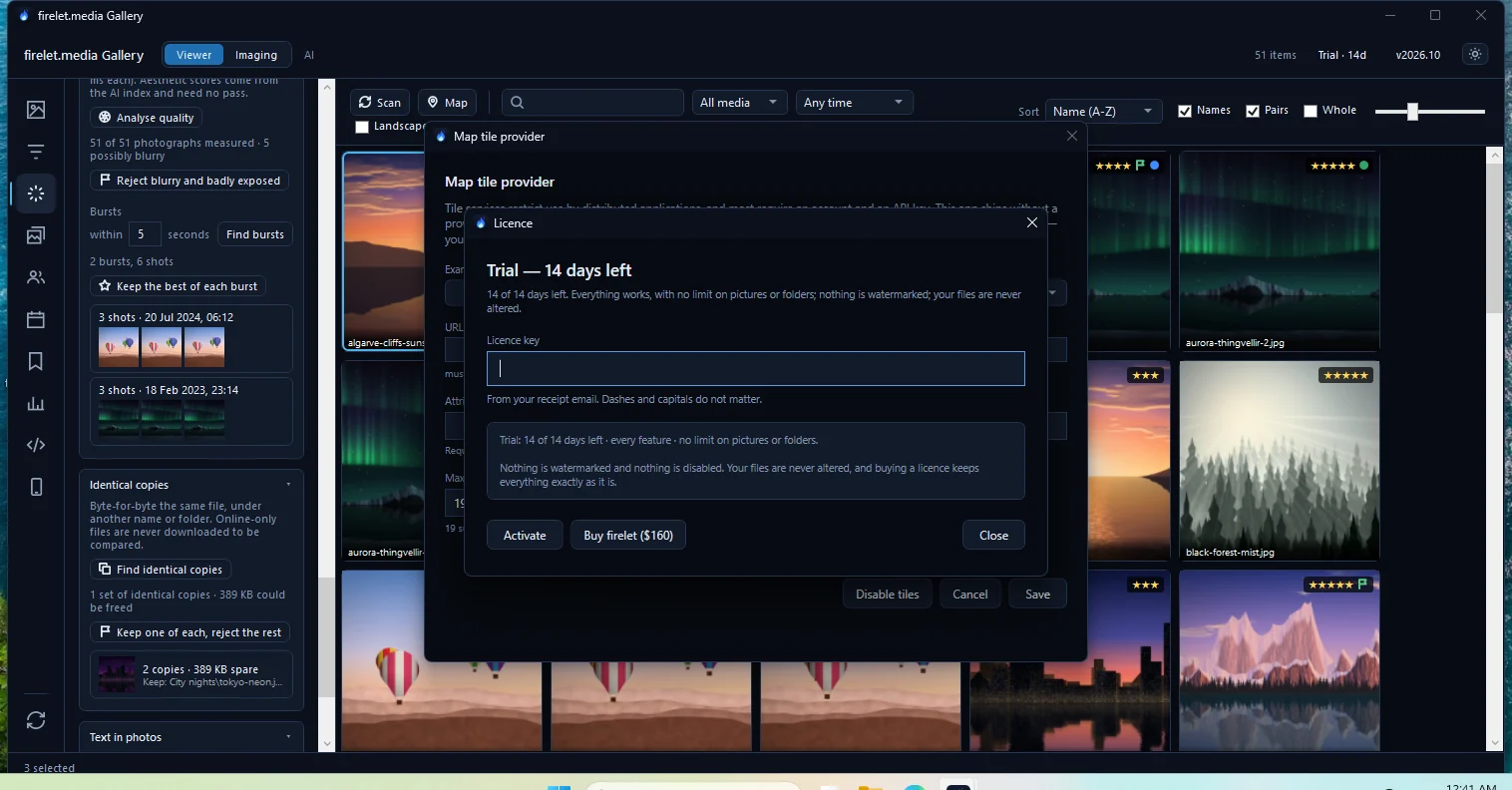
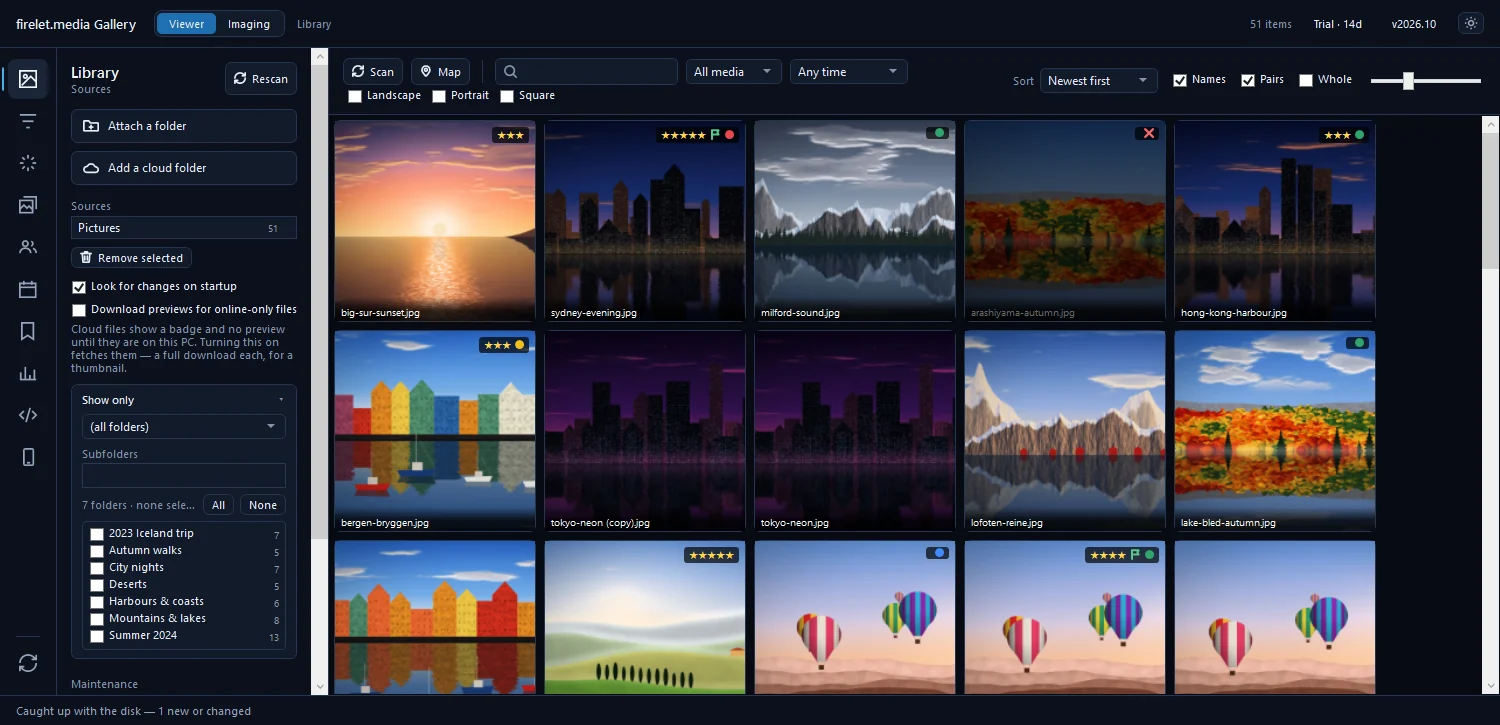
At the top right of the title bar you will see Trial · 14d. Your 14-day free trial has started, with every feature on and no limits. Click that label to open the Licence window. Next to it are the version, v2026.10, and the theme button. The theme follows Windows at first and remembers your choice.

Updating and uninstalling (your library is kept)
Updating. The gallery checks for a new version when it starts and every 24 hours, and shows a strip at the top of the window when one is out. Nothing installs by itself: click Download, then run the new installer over the old one. Your library and licence are kept. How updates work explains which versions your licence covers.
Uninstalling. Open Settings → Apps → Installed apps, find "firelet.media Gallery version 2026.10.0" and choose Uninstall.
- It removes the program, its web cache and its log files.
- It asks whether to also remove the downloaded AI model. The default is No, so a reinstall does not have to download it again.
- It keeps
gallery.db(your ratings, albums, keywords, edits and search index) and your licence files. Your photos are never touched.
Because those files stay, reinstalling picks up the same library. It also does not reset the trial, which is counted from the first launch on that computer.
Questions people ask
Do I need administrator rights to install it?
No. The installer installs for your own Windows account by default, into your AppData Programs folder, without a UAC prompt. You can choose an all-users install instead, which does need admin rights.
Does uninstalling delete my library?
No. Uninstalling removes the program, its web cache and its logs, but keeps gallery.db, the file that holds your ratings, albums, keywords and search index. Your photos are never touched.
Is the installer signed?
Yes. Both the installer and the app are code-signed and time-stamped by the publisher.
Was this article helpful?
Thank you — that is counted, and nothing else about you is. Still stuck? Ask a person.