How updates work, and what 'Past updates' means
The build you buy is yours for ever. A year of updates ($100) adds 12 months of new releases. Run a build newer than you own and it shows Past updates.

On this page
Your firelet.media Gallery purchase includes the build you bought and every earlier one, for ever, but no months of updates. Updates are optional: $100 for a year per computer, bought at the checkout or later. If you install a build released after your updates window, the title bar shows Past updates and new pictures stop being added until you install your covered build or extend.
What your purchase covers
- The build you bought, and every earlier build, for ever. "Bought once. Not rented." It keeps working on the same computer or a new one.
- No months of updates unless you add them. A purchase on its own includes the version you bought, not the ones after it.
- Everything you received stays yours. When an updates window ends, you keep every release published inside it. Nothing is taken away.
- Older builds always activate. You can download any build your licence covers again from your account under Downloads.
For a licensed copy, the Licence window shows how far your updates run: "Yours to keep. Updates are included through", followed by the last version they cover.
Buying a year of updates (now or later)
A year of updates costs $100 per computer on your key. You can tick Add 12 months of updates at the checkout, or buy it any time afterwards:
- Sign in to your account at firelet.media/app and open Licences.
- Click Buy a year of updates — $100 →, or Extend updates if you already have a window.
- Pay on the secure payment page. The price covers every computer on the key.
- If the gallery's title bar shows Past updates, click it and press Check again. Otherwise there is nothing to do: the new year reaches the gallery at its next check-in.
- Every build published inside the year is yours for good.
- Extending early adds the year to the time you have left.
- If your window has lapsed, the new year starts on the day you pay.
Your account can also email you about new versions, and a month before your updates end: switch on "Email me when a new version is out, and a month before my updates end" on the Licences page.
How the app tells you about a new version
The gallery checks for a newer version when it starts, every 24 hours, after the Licence window closes, and when you press Check for updates in the About window (click v2026.10 in the title bar). When there is one, a strip appears at the top of the window:
- "firelet.media Gallery {v} is available." Your updates cover it. Click Download and run the new installer over the old one. Your library and licence are kept, and nothing installs by itself.
- "{v} is out. Your updates ran through {X}." Your updates don't cover it. The strip offers Extend updates ($100), Get your covered build, Check again, Email me about new versions and Dismiss.
What 'Past updates' means and the 50-picture cap
The title-bar label reads Past updates when the build you are running was released after your updates window ended. Usually that means you installed a newer version than your licence covers.
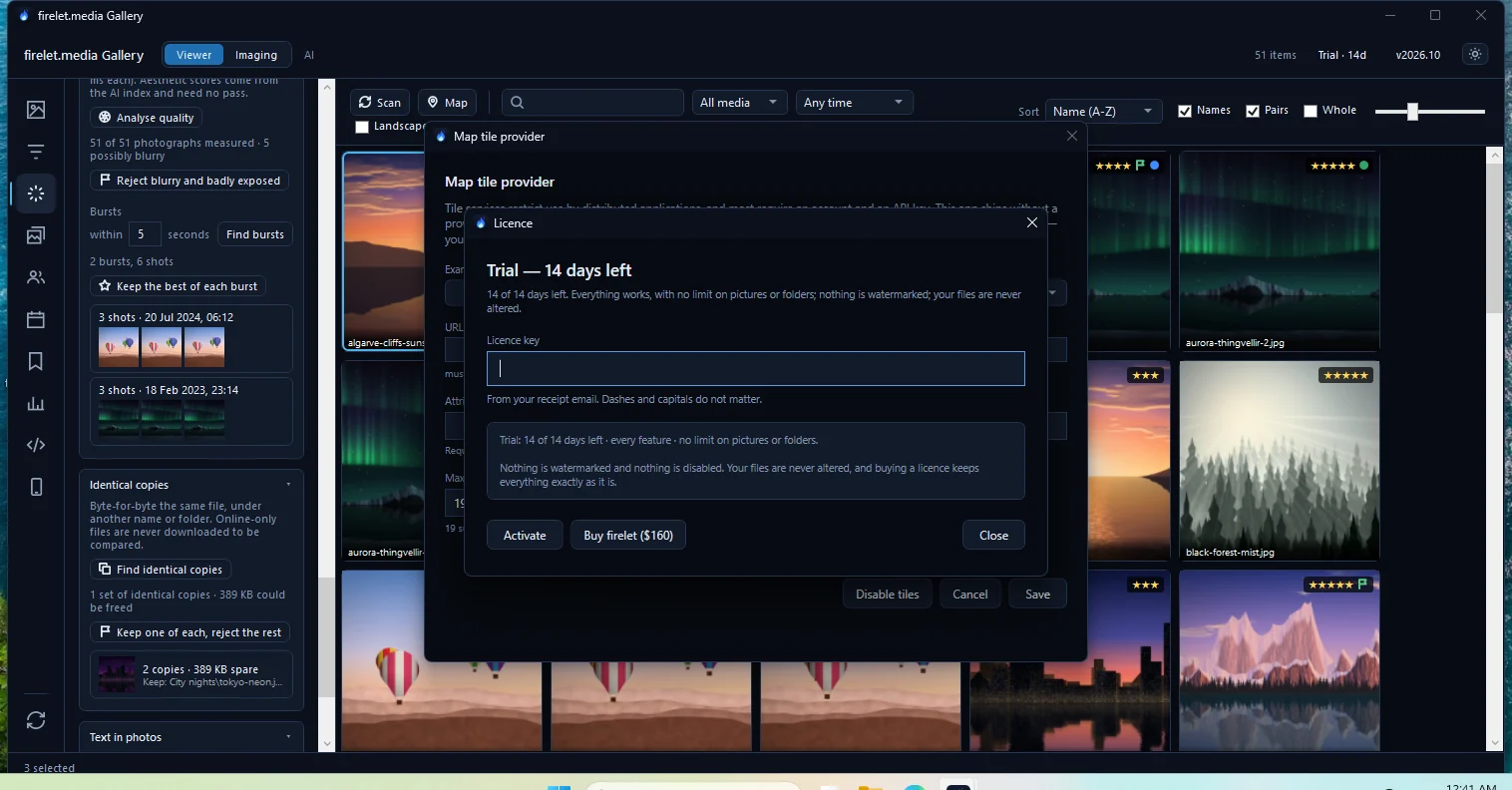
You still own the program. The Licence window says: "You own this program and that has not changed. Your key includes updates through {X}, and this build is {V}. Any build up to your version works for ever — download it again from your account — or extend your updates to run this one. Already extended? Check again."
While the label shows Past updates:
- Everything already in your library works: browsing, searching and viewing.
- At most 50 new pictures are added. The cap stops a scan after its first 50 new files. It removes nothing, however large your library is.
- The gallery checks the licence at every launch, so an extension bought on the website is picked up the next time you open it.
Fix 1: Get your covered build
Go back to the newest version your updates include. This costs nothing.
- Click Past updates in the title bar.
- Click Get your covered build. Your account's Downloads page opens, listing every build your updates cover.
- Download the newest Windows build shown there. Builds you aren't entitled to say "Needs an update year".
- Run the installer. Your library and licence are kept.
The label returns to Licensed.
Fix 2: Extend updates, then Check again
Keep the newer build by adding a year of updates.
- Click Past updates in the title bar.
- Click Extend updates ($100) and complete the payment in your browser.
- Back in the Licence window, press Check again.
The label returns to Licensed. Click Scan on the toolbar to add any new pictures the cap held back. Receipts for the extension are in your account under Orders; see how to find your orders, receipts and invoices.
For every other label the title bar can show, see licence messages explained. Buying for several computers? How to buy firelet.media Gallery covers seats and the checkout.
Questions people ask
Does the program stop working when my updates end?
No. Every build released inside a window you own keeps working for ever, on this or a new computer.
What does Past updates in the title bar mean?
You are running a build released after your updates ended. At most 50 new pictures are added until you install your covered build or extend your updates.
Is my library deleted when it says Past updates?
No. Nothing is removed; the cap only stops new pictures being indexed. Everything already in the library stays browsable and searchable.
Was this article helpful?
Thank you — that is counted, and nothing else about you is. Still stuck? Ask a person.