How to pair your Android phone with your PC over Wi-Fi
On the PC open Devices (Alt+0) > Pair a phone; in the Android companion (coming soon) choose Pair with a computer and scan the code. No cable, no cloud.

On this page
To pair an Android phone with your PC over Wi-Fi, open Devices (Alt+0) in firelet.media Gallery on Windows and click Pair a phone. The phone then scans the QR code, or you type the 12-character code. Both must be on the same Wi-Fi. The PC side is ready in version 2026.10; the free Android companion app is coming soon and isn't on Google Play yet.
What the Wi-Fi link does
The link connects your phone and your PC directly over your home network: no cable, no cloud account and no internet in between. Pictures travel only between your own devices, encrypted, and each device keeps its own keys.
Once paired:
- On the PC you can browse the phone's photos and videos, copy them across with Copy to this PC, use the phone as a source in Imaging → Import, send pictures to it with Send to phone, and switch on auto-sync.
- On the phone you can browse your whole PC library, keep pictures with Save to this phone, and send photos to the PC with Send to PC.
- The companion's pro features, such as describe search and the editor, unlock while the phone is paired with a PC that is licensed or in its 14-day trial.
The companion is for Android only. There is no iPhone app.
Availability: the Android companion is coming soon
The PC side ships in firelet.media Gallery 2026.10 for Windows today. The free Android companion (Android 10 or later, phones and tablets) is being finished and is not on Google Play yet. There is no release date. To hear when it is out, use Email me when it's ready.
The phone-side steps below describe how the companion works as it has been built. Until it is available, you can bring phone photos in with Imaging → Import; see how to import from an SD card, camera or phone cable.
Steps: pair with the QR code
- Connect the phone and the PC to the same Wi-Fi network.
- On the PC, press Alt+0 to open Devices.
- Check that Let paired phones connect is ticked. It is on by default.
- Click Pair a phone. A window opens with a QR code and a 12-character code.
- On the phone, open firelet.media Gallery and go to Devices → Pair with a computer.
- Point the phone at the QR code on the PC screen.
- Keep the PC window open until the phone shows "Paired with" and your computer's name.
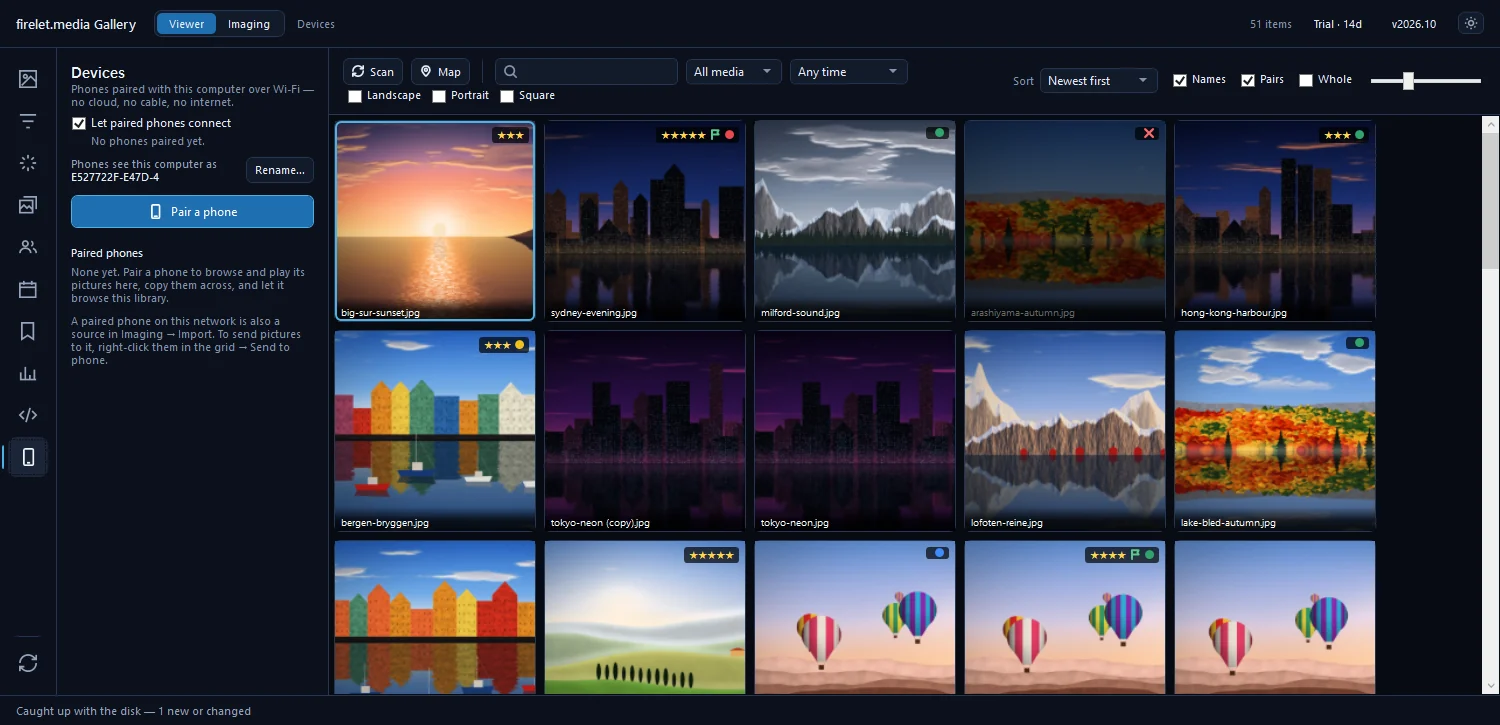

The Devices panel says "Phones see this computer as" followed by its name. Click Rename… to give it a friendlier name before pairing, such as "Study PC".
Or type the code instead (12 characters, valid 10 minutes)
If the phone's camera can't read the screen, type the code shown under the QR code. It has 12 characters in the form XXXX-XXXX-XXXX.
- On the phone, tap Type it instead.
- Pick your computer under "Which computer?", or type its network address, such as 192.168.1.20.
- Enter the code and tap Pair.
The code works once and only for 10 minutes; the window counts down with "The code works for another M:SS". After 5 wrong tries the window closes. Click New code at any time for a fresh one.
Windows firewall prompt: allow private networks
The gallery opens no network port until you start pairing. At that moment:
- A per-user install (the default) cannot add a firewall rule itself, so Windows asks whether to let the gallery use the network. Allow it on private networks.
- An all-users install added the rule "firelet.media Gallery (Wi-Fi link)" during setup, so nothing asks.
The pairing window says the same: "The phone and this computer must be on the same Wi-Fi. If Windows asks whether to let the gallery use the network, allow it on private networks."
After pairing: Browse, Settings, Send to phone and Unpair…
The phone now appears under Paired phones with its status and two buttons:
- Browse ("See this phone's pictures and videos here") opens the phone's library on the PC. For this to work, turn on Visible to your computers on the phone; it is off by default.
- Settings… opens "Phone settings", where you can switch on auto-sync, choose albums, and Unpair… the phone.
To send pictures the other way, select them in the grid, right-click and choose Send to phone.
Auto-sync is off until you turn it on; how to copy new phone photos to your PC automatically explains the options. If the PC's trial has ended without a licence, pairing, browsing and sending to the phone still work, but pictures received on the PC are not added to the library. For everything the phone app will do, see what the free Android companion app does.
Questions people ask
Do the phone and PC need to be on the same Wi-Fi?
Yes. Pairing and every transfer happen directly between your devices on the local network; nothing goes through the internet.
Can I use it today?
The PC side is in Windows 2026.10; the free Android companion app is coming soon and is not on Google Play yet. Until then, import phone photos with Imaging > Import.
Windows asked about network access. What should I choose?
Allow the gallery on private networks. A per-user install cannot add a firewall rule itself, so Windows asks the first time the gallery listens for a phone.
Does it work with iPhone?
No. The companion app is for Android only, and there is no iPhone version.
Was this article helpful?
Thank you — that is counted, and nothing else about you is. Still stuck? Ask a person.