How to add or change a photo's location
Select photos and press Ctrl+Shift+L, or right-click → Date, place and copyright → Location…. Type coordinates or paste a Google Maps or OpenStreetMap link.
On this page
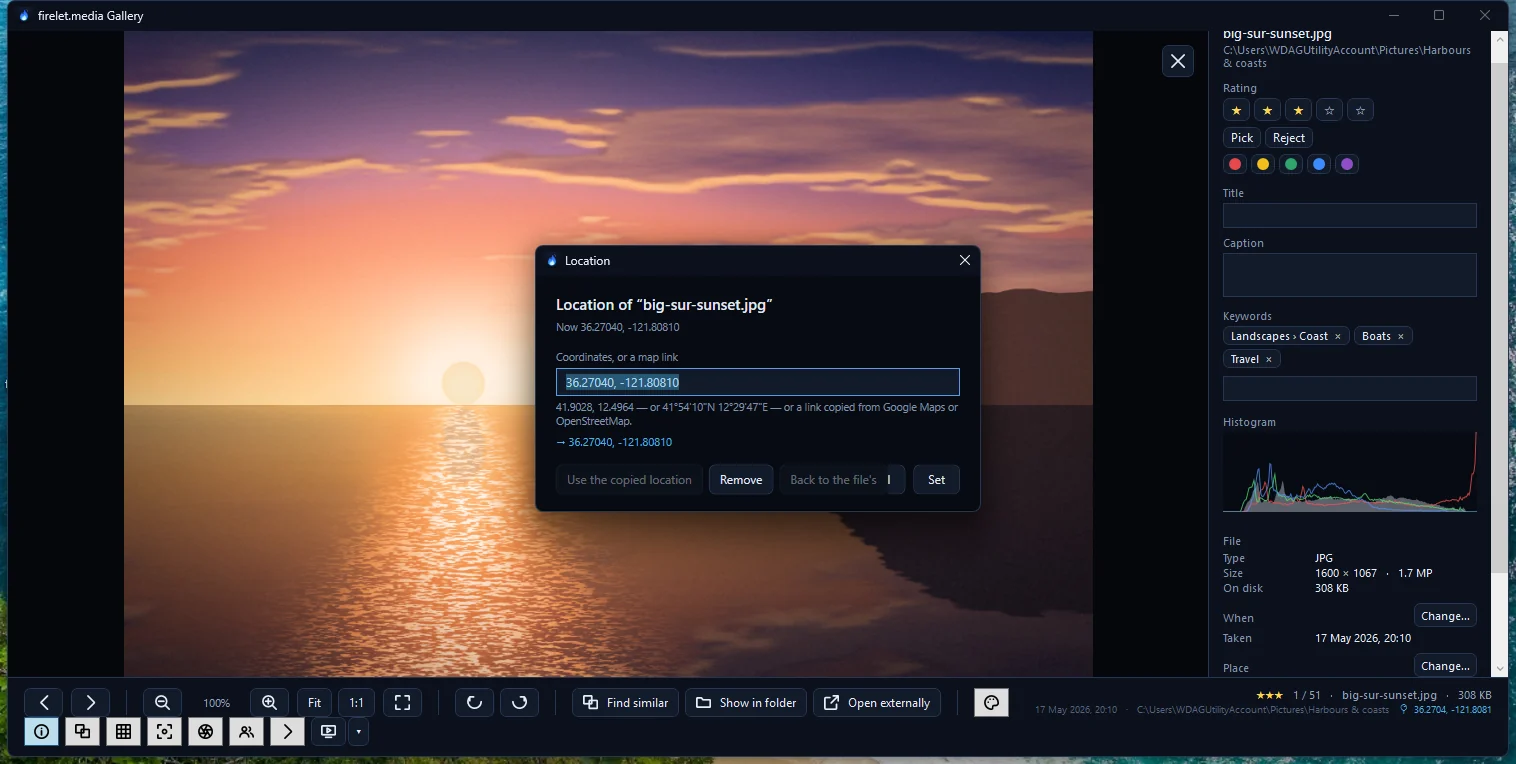
To add a location to a photo in firelet.media Gallery, select it (or a whole batch), press Ctrl+Shift+L or right-click → Date, place and copyright → Location…, then type the coordinates or paste a link copied from Google Maps or OpenStreetMap and press Set. The location is stored in the gallery's library, so your photo file is never changed.
When photos have no location
Plenty of photos arrive without GPS: pictures from cameras that have none, phone photos taken with location turned off, scans of old prints, screenshots, and pictures passed through apps that strip location before sending. Sometimes the location is there but wrong, because the GPS hadn't caught up yet.
A photo with no location is missing from the map and from place filters, so a whole trip can disappear from the map. Adding the location once puts it back everywhere in the gallery.
How to add a location to a photo
- Select the photos taken in the same place.
- Press Ctrl+Shift+L, or right-click and choose Date, place and copyright → Location….
- In Coordinates, or a map link, type or paste the place. Any of these works:
41.9028, 12.4964,41°54'10"N 12°29'47"E, or a link copied from Google Maps or OpenStreetMap. A line under the box shows what the gallery understood. - Press Set. The status line confirms how many photos were located, and where.

The easiest way to get a link is to find the place in Google Maps or OpenStreetMap in your browser and copy the address from the address bar.
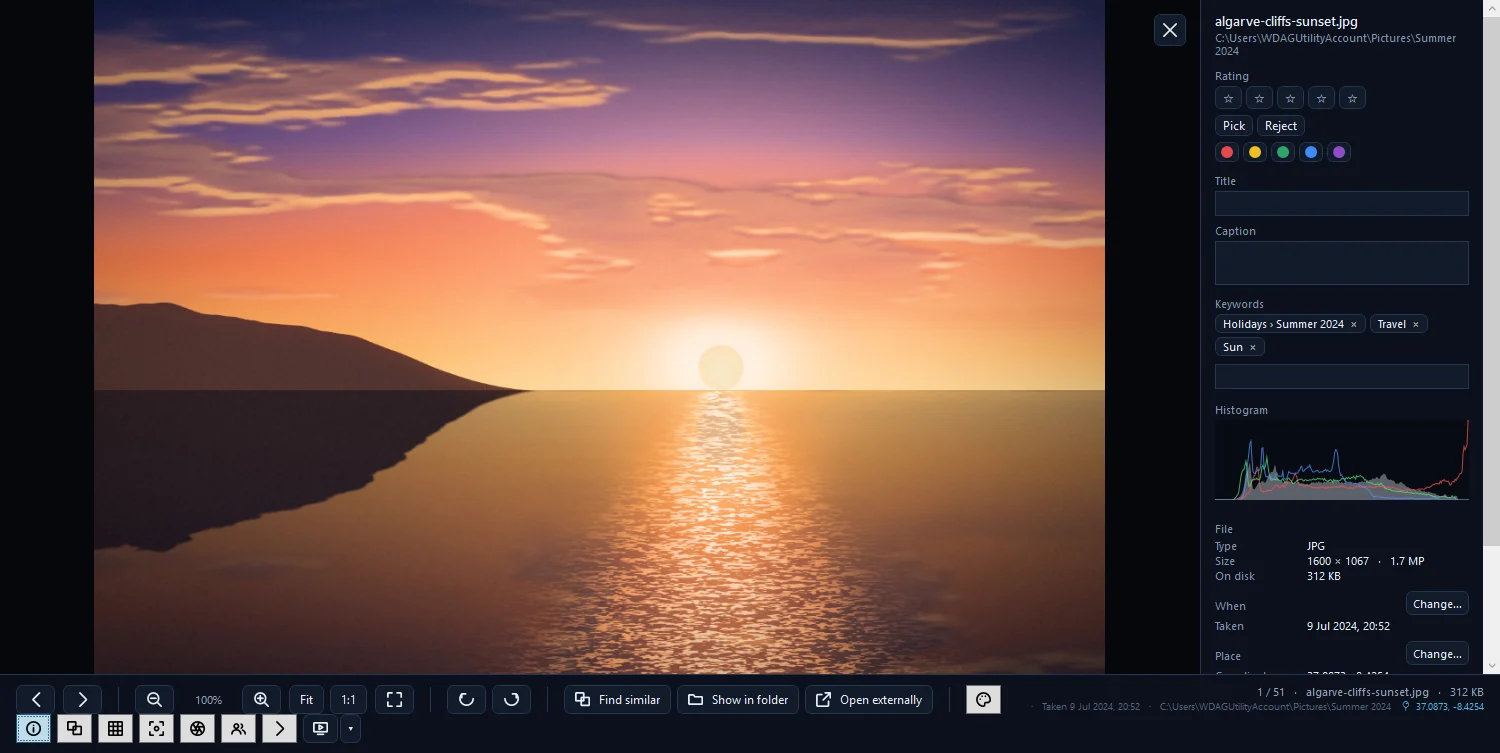
For a single photo you can also work from the viewer: press I for the info panel and press Change… beside Place.
The dialog has three more buttons:
- Remove gives the selected photos no location in the gallery. Their files keep theirs.
- Back to the file's forgets your correction and uses the GPS recorded in the file again.
- Use the copied location fills in a location you copied from another photo (next section).
Copy location and Paste location
When one photo from a day out has GPS and the rest don't, copy it across:
- Select just the photo that has a location, right-click it and choose Date, place and copyright → Copy location.
- Select the photos that need it.
- Right-click one of them and choose Date, place and copyright → Paste location. The menu shows the coordinates it will paste.
Copy location is only available with a single photo selected, and only if that photo has a location.
Place names need a service you set up
Coordinates are plotted on your own computer, but city and country names are not built in. To look them up, you choose a reverse-geocoding service yourself:
- Press Alt+2 for Filters and open Location.
- Press Service… and enter the address of a service you have access to. The dialog gives examples such as a self-hosted Nominatim, LocationIQ, OpenCage and BigDataCloud.
- Press Look up places. Names are fetched only when you press it: one request per area of roughly 1 km, then remembered.
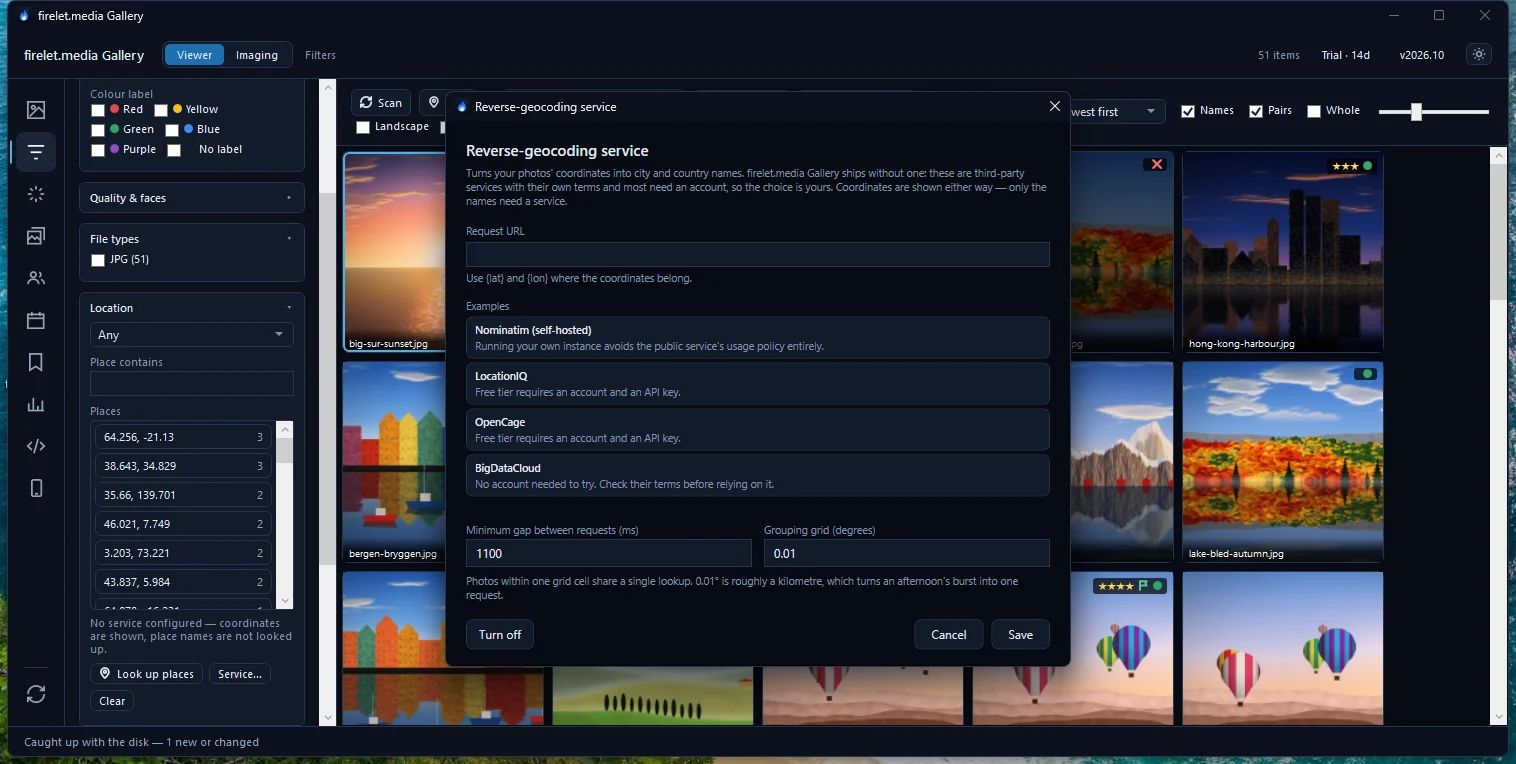
Changing a photo's location clears the name looked up for it, so press Look up places again afterwards. Clear forgets all looked-up names. The map works the same way: located photos are always plotted, but the background map appears only once you pick a tile provider. See seeing your photos on a map and the "No map tiles configured" message.
Finding photos with no location
In Filters → Location, choose No location to show only photos without GPS, then work through them day by day. Has location shows the opposite. In the Advanced query panel (Alt+9), the line has!=gps does the same job and can be combined with others, such as year=2019. More on filters in sorting and filtering photos.
A location you set is a correction in the gallery's library. It reaches another program only through an XMP sidecar, when you right-click and choose Write metadata to XMP. If the dates are out too, fix the dates the same way. To keep this from happening next time, the blog explains turning on location in your camera or phone.
Questions people ask
Can I copy a location between photos?
Yes. Right-click a photo that has one and choose Date, place and copyright → Copy location, then select the others and choose Paste location from the same menu.
How do I find photos without GPS?
Open Filters → Location and choose No location, or type has!=gps in the Advanced query panel.
Does setting a location change my photo file?
No. It is stored as a correction in the gallery's library. The file keeps whatever it had, and the new location reaches an .xmp sidecar only if you write XMP.
Was this article helpful?
Thank you — that is counted, and nothing else about you is. Still stuck? Ask a person.