Turn on photo location now, thank yourself later
A photo with GPS can be found on a map years later. When to turn location on in your phone's camera, when to leave it off, and how to share photos without it.
On this page
Turn on location for photos in your phone's camera settings, and every picture quietly records where it was taken. Years later that's what lets firelet.media Gallery put your photos on a map, filter them by place and draw the route of a trip, all on your own PC. Keep location on for your library, and strip it from the copies you share.
It costs nothing at the moment you press the shutter, and it's the one detail you can't easily remember later. Here's what it gives you, how to switch it on, and how to stay private.
What GPS in a photo gives you
With location on, the camera writes the coordinates into each photo file, next to the date and the camera settings. firelet.media Gallery reads them from photos and videos when it scans your folders, and from then on:
- The map (Map on the toolbar) plots every photo that has a location. Cluster groups nearby pins, Heatmap shows where you take the most photos, and Trail joins the photos in date order, so a trip draws its own route.
- Select area on the map lets you drag a rectangle round a place and filter the grid to what's inside it: every photo from a town, a park, a stretch of coast.
- Filters → Location shows only the photos that have a location, or only those that don't.
- The viewer shows a location link under each photo, which opens that spot on Google Maps in your browser when you click it. Right-click the picture for Open in OpenStreetMap instead.
A photo without GPS can still be dated and described, but it can't do any of the above. That's the whole case for switching it on.
How to turn on location for photos in your camera app
The setting lives in two places on most phones:
- Your phone's location must be switched on, and the camera app must be allowed to use it. On Android this is in the phone's settings, under location and app permissions.
- The camera app's own setting, usually in its settings menu, with a name such as "Location tags" or "Save location". The wording differs from one phone maker to another.
To check it's working, take a photo, copy it to your PC and open it in firelet.media Gallery. Press I in the viewer: the Place line in the info panel shows where it was taken.
Many dedicated cameras have no GPS at all. That's fine: see "Adding locations to old photos" below for a quick way to borrow the location from your phone's photos of the same day.
When the free Android companion is available (it's coming soon), its Places tab will show your phone's photos on a map too, and its share options include Share without location.
Privacy: share without it
The location in a photo is only a privacy question when the file leaves your hands. In your own library it's yours, and firelet.media Gallery never uploads your photos.
When you share, send copies without the coordinates:
- Select the photos in the grid and press Ctrl+E.
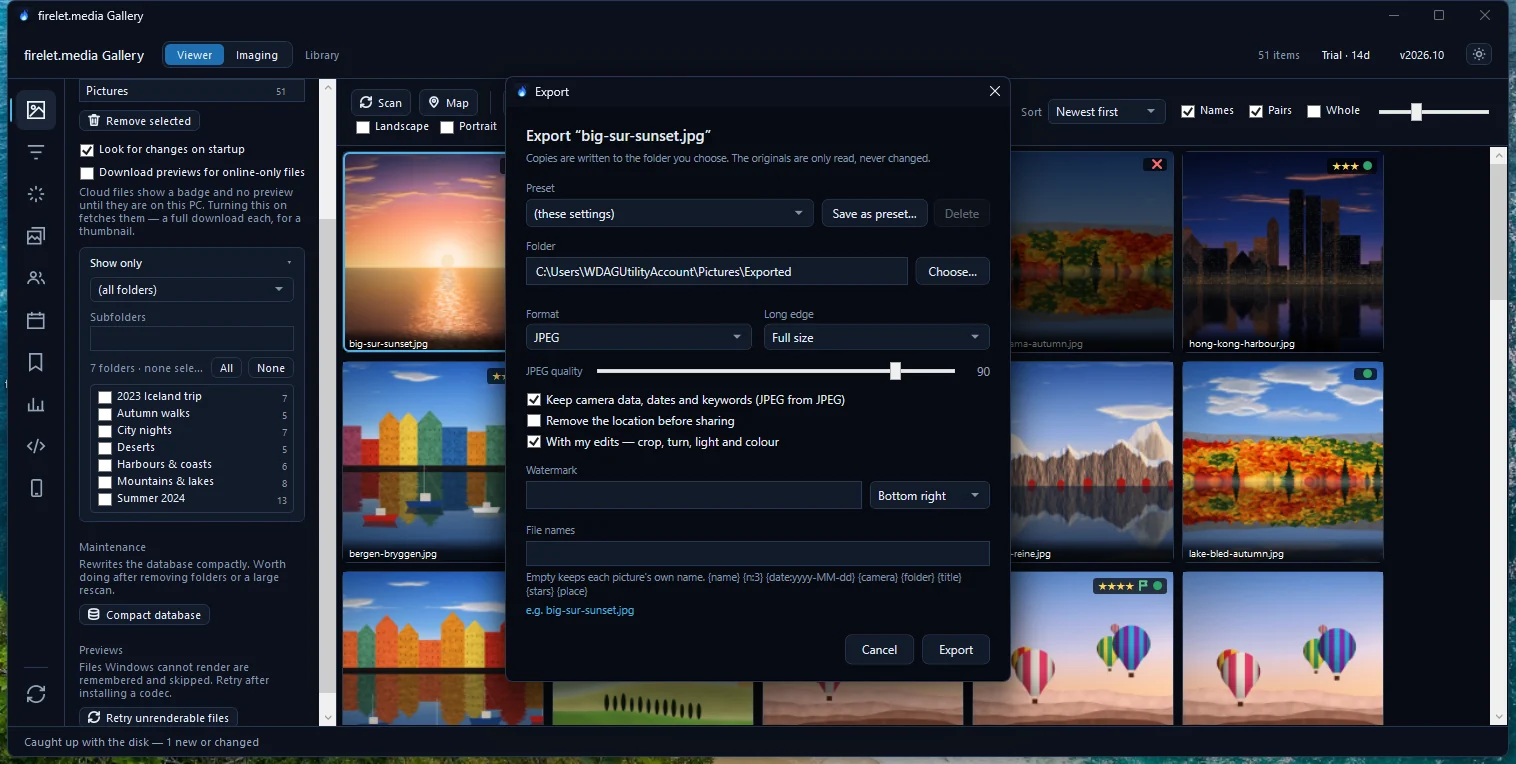
- Choose the Web — 1080 px JPEG, no location preset, or tick Remove the location before sharing with Format set to JPEG.
- Choose a Folder and press Export.
The copies carry no GPS; the originals are only read, never changed, so your map keeps working. How to remove location data from photos before you share them covers the details, including the cases (videos and Original files, unchanged) where the location stays.
Adding locations to old photos
For photos taken with location off, or on a camera without GPS, you can add a location afterwards. First find them: Filters (Alt+2) → Location → No location.
- Select the photos taken in one place.
- Press Ctrl+Shift+L to open Location.
- Type coordinates, such as
41.9028, 12.4964, or paste a link copied from Google Maps or OpenStreetMap. - Press Set.
There's an even quicker way when your phone was with you. Right-click one of the phone's photos from that day and choose Date, place and copyright → Copy location, then select the camera's photos and choose Paste location.
The location you add is stored in the gallery's library; the files themselves aren't changed. It's written into XMP sidecars only if you ask for XMP, and Back to the file's in the Location window undoes it. How to add or change a photo's location has the full steps.
Finding photos by place later
With locations in place, finding "everything from that weekend in the mountains" is a map job.
- Press Map on the toolbar. Your photos appear as pins.
- Press Fit to zoom to everything plotted.
- Press Select area and drag a rectangle round the place. The grid now shows only what's inside it.

The first time you open the map you'll see your pins on a plain background and a note saying "No map tiles configured". That's deliberate: map tile services restrict use by apps like this, and most need an account and a key, so you choose one with Tile provider…. Map says "No map tiles configured" walks through it, and how to see your photos on a map covers the rest of the map.
City and country names work the same way. There's no built-in place-name database, so set up a service under Filters → Location → Service…, then press Look up places. Your photos' coordinates, rounded to about 1 km, are sent to the service you chose, only when you press the button; the names are then stored in your library, and typing "Lisbon" in the search box finds every photo taken there.
Questions people ask
Is it safe to keep location on?
Keeping locations in your own library is fine: firelet.media Gallery keeps them on your PC. Remove them from the copies you share, with Remove the location before sharing in the Export window.
Can I add a location later?
Yes. Select the photos, press Ctrl+Shift+L and type coordinates or paste a map link, or copy the location of another photo and paste it onto them.
Was this post helpful?
Thank you — that is counted, and nothing else about you is. Still stuck? Ask a person.