How to remove location data from photos before you share them
Photos can carry GPS coordinates that reveal your home. Export copies with Remove the location before sharing ticked, and your originals stay untouched.
On this page
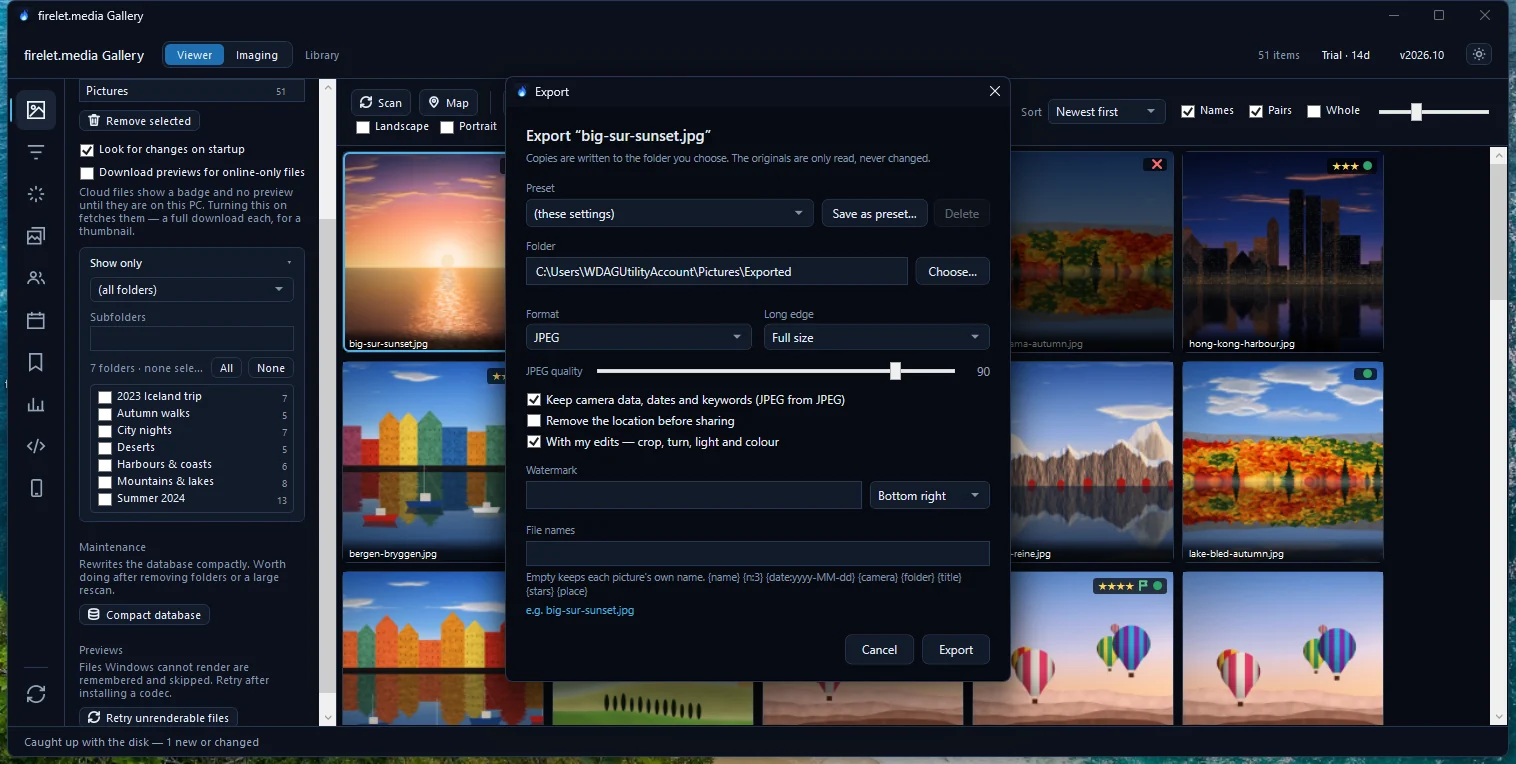
To remove location from photos before you share them, don't send the originals: send copies made without the GPS data. In firelet.media Gallery, select the photos, press Ctrl+E, tick Remove the location before sharing and export. The copies carry no coordinates, while your originals keep theirs for your own map, untouched.
That's the whole answer for most people. The rest of this post explains what location data is, how to see which of your photos have it, and a few details that decide whether a copy really is clean.
Why location data matters
Most phones, and some cameras, can write GPS coordinates into every photo they take. They sit in the file's metadata, invisible in the picture itself, and any photo program can read them back and show the spot on a map.
In your own library that's a gift: years later you can find every photo from a trip, or see where a picture was taken. Shared with strangers, it's different. A photo of your children in the garden, taken at home, can carry your home's coordinates. So can a picture of something you're selling online.
Some apps and sites remove location data when you upload, and some don't, and it isn't always easy to tell which. The only way to be sure is to send a copy that never had it.
Check which photos have a location
Before you share, it helps to know what you're dealing with.
- For the whole library: open Filters (Alt+2), expand Location and choose Has location. The grid now shows only photos with GPS data. No location shows the rest.
- For one photo: open it in the viewer and press I for the info panel. The Place line shows its location if it has one.
- On the map: press Map on the toolbar. The header says how many of your items have a location, for example "Map — 50 of 50 items have a location".
If you like typing, the Advanced query panel (Alt+9) accepts has=gps and has!=gps for the same two lists.
Remove location from photos: export clean copies
Export makes new files in a folder you choose. Here is the routine:
- Select the photos you want to share in the grid. (Export isn't available from inside the viewer, so close it first.)
- Press Ctrl+E, or right-click and choose Export….
- Pick the preset Web — 1080 px JPEG, no location, or set Format to JPEG and tick Remove the location before sharing yourself.
- Under Folder, press Choose… and pick where the copies should go. It must be a different folder from the originals.
- Press Export.
The status bar confirms how many were exported and where to. Open the folder and send those copies.
What happens to the metadata depends on one more tick box, Keep camera data, dates and keywords (JPEG from JPEG):
| Keep camera data… | Remove the location… | What the exported JPEG carries |
|---|---|---|
| Ticked | Ticked | The original's camera details, date and keywords, without the GPS coordinates |
| Ticked | Not ticked | Everything the original JPEG carried, location included |
| Not ticked | Either | No metadata at all: just the picture |
Metadata is only carried over from JPEG originals. Copies of HEIC, PNG or other files, and any export in PNG format, contain no metadata at all, so no location either.
In the macOS and Linux builds (being finished), Remove the location before sharing also removes all camera data from the copy. For every option in the window, see how to export photos.
Keep your originals' location for your own map
Export only ever reads your originals, so there's no need to strip anything from them. Keeping the location in your own library is what makes the map, the Location filters and a trip's route possible. You can see how that works in how to see your photos on a map.
There's one trap worth knowing. In the Location window (Ctrl+Shift+L), the Remove button changes only what the gallery shows: its tooltip says "These pictures have no location — their files keep theirs". It's useful for hiding a wrong location from your map, but it doesn't clean the file. A copy exported afterwards with camera data kept would still carry the original GPS. For sharing, always use Remove the location before sharing.
Your library itself stays on your PC. firelet.media Gallery never uploads your photos; it contacts firelet.media only for licence and update checks. What data is sent lists every connection it makes, and private photo storage on your PC covers the wider picture.
Other metadata to consider
Location is the big one, but a shared file can say more than you intend:
- Camera data and dates. With Keep camera data, dates and keywords (JPEG from JPEG) ticked, the copy keeps the camera model, lens, exposure settings, capture date and any keywords already inside the original JPEG. Untick it to share the picture and nothing else.
- What the gallery knows stays in the gallery. Your stars, keywords, captions, people's names and corrected dates are never embedded into exported copies.
- XMP sidecars. If you have written XMP sidecars, the
.xmpfile beside each photo holds its keywords, people's names and location. When you share a folder, leave the sidecars out. - File names. A name like
IMG_20240712_083015.jpggives away the date and time. Type a pattern in the Export window's File names box, such asholiday {n:3}, to number the copies instead. - The picture itself. A house number, a school badge or a street sign in the background can say as much as GPS does. That one is down to your eye.
When the free Android companion is available (it's coming soon), its share options include Share without location for photos sent straight from the phone.
Questions people ask
Does it remove the location from my original?
No. Export writes new copies to a folder you choose; the originals are only read, never changed, so your own library keeps its locations for the map.
How do I see which photos have GPS?
Open Filters, then Location, and choose Has location. For one photo, open it in the viewer and press I: the Place line shows where it was taken.
Was this post helpful?
Thank you — that is counted, and nothing else about you is. Still stuck? Ask a person.