How to export photos: resize, convert and remove location
Select photos in the grid and press Ctrl+E (or right-click → Export…), then pick folder, format, size, quality, watermark and names. Originals never change.
On this page
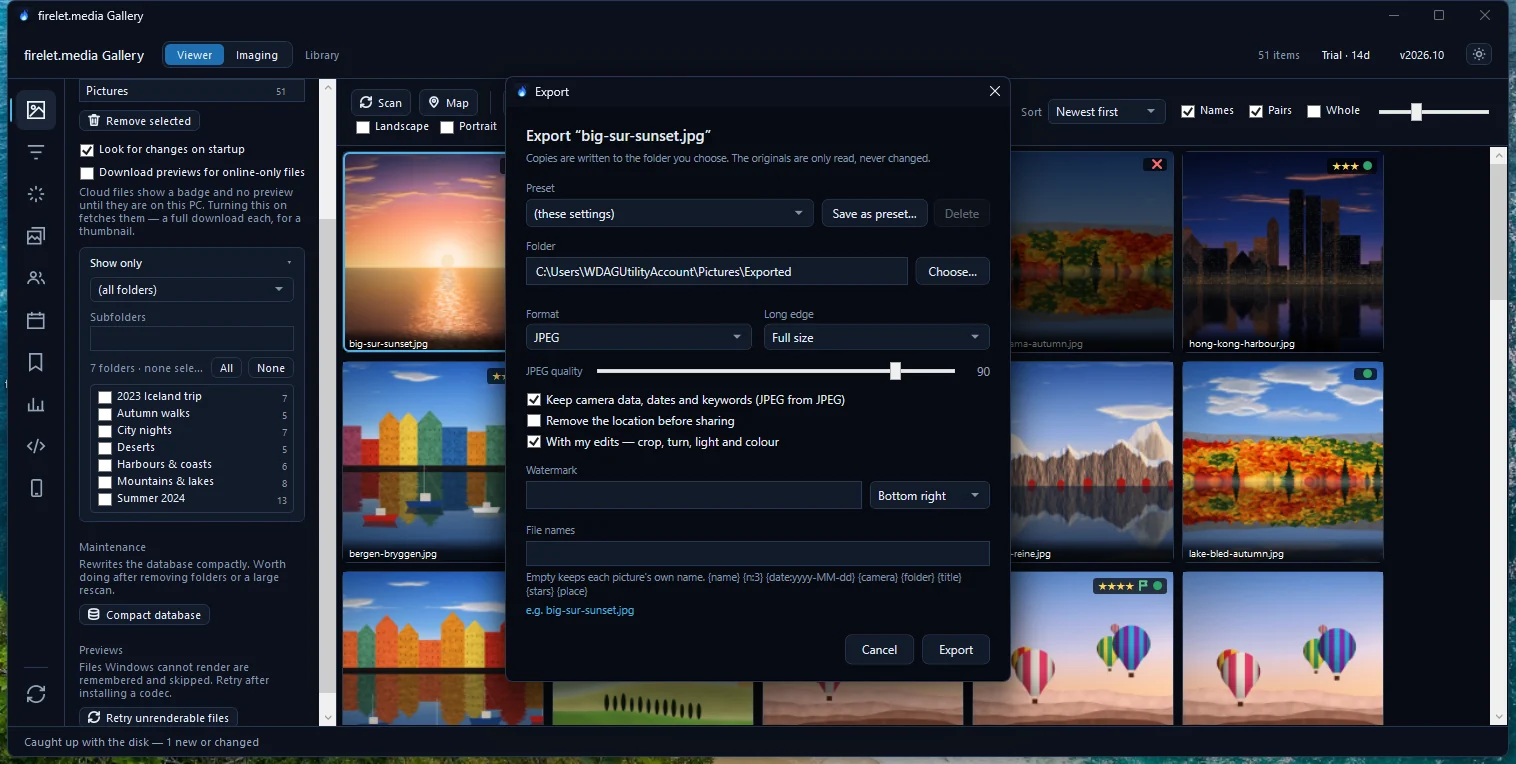
To export photos and resize them in firelet.media Gallery, select them in the grid and press Ctrl+E (or right-click → Export…). In the Export window choose a folder, a format (JPEG, PNG or the original files), a long-edge size, JPEG quality, and whether to keep your edits, remove the location, add a watermark or rename the copies. Then click Export. Your originals are never changed.
What Export does (writes copies)
Export makes new files from your pictures and leaves the originals exactly as they were. The window says it at the top: "Copies are written to the folder you choose. The originals are only read, never changed."
Use it whenever you need a different version of a picture:
- smaller copies for email, a website or a messaging app
- JPEGs made from PNG, HEIC or other formats
- copies with your edits from the Adjust panel applied
- copies without GPS data, so nobody can see where they were taken
- a set of full-size originals on another drive
Steps: select and open Export…
- Select the pictures in the grid (click, then Ctrl-click or Shift-click to add more; Ctrl+A selects all).
- Press Ctrl+E, or right-click one of them and choose Export….
- Pick a Preset, or set the options below by hand.
- Click Choose… beside Folder and pick where the copies go.
- Click Export.
Export works from the grid only; it isn't available while the viewer is open, so close the viewer first. The folder defaults to Pictures\Exported and must be different from the folder the originals are in.
Resize and convert: format, long edge and JPEG quality
| Option | Choices | Notes |
|---|---|---|
| Format | JPEG, PNG, Original files, unchanged | The third copies the files as they are, byte for byte |
| Long edge | Full size, 3840 px (4K), 2560 px, 2048 px, 1600 px, 1080 px (web) | Sets the size of the longer side; the shape stays the same |
| JPEG quality | 40 to 100 (90 by default) | Lower means smaller files |
Original files, unchanged ignores size, edits and watermark, because it doesn't re-save anything; it is handy for copying a selection to another drive. Videos are always copied unchanged, whatever the format.
Keep camera data or remove the location
Two tick boxes control the information inside JPEG copies (they apply when the format is JPEG):
- Keep camera data, dates and keywords (JPEG from JPEG) carries over the details already stored inside a JPEG original, such as the camera, the date taken and keywords written by other software.
- Remove the location before sharing strips the GPS position, so the copy doesn't reveal where it was taken.

With my edits, watermark and file names
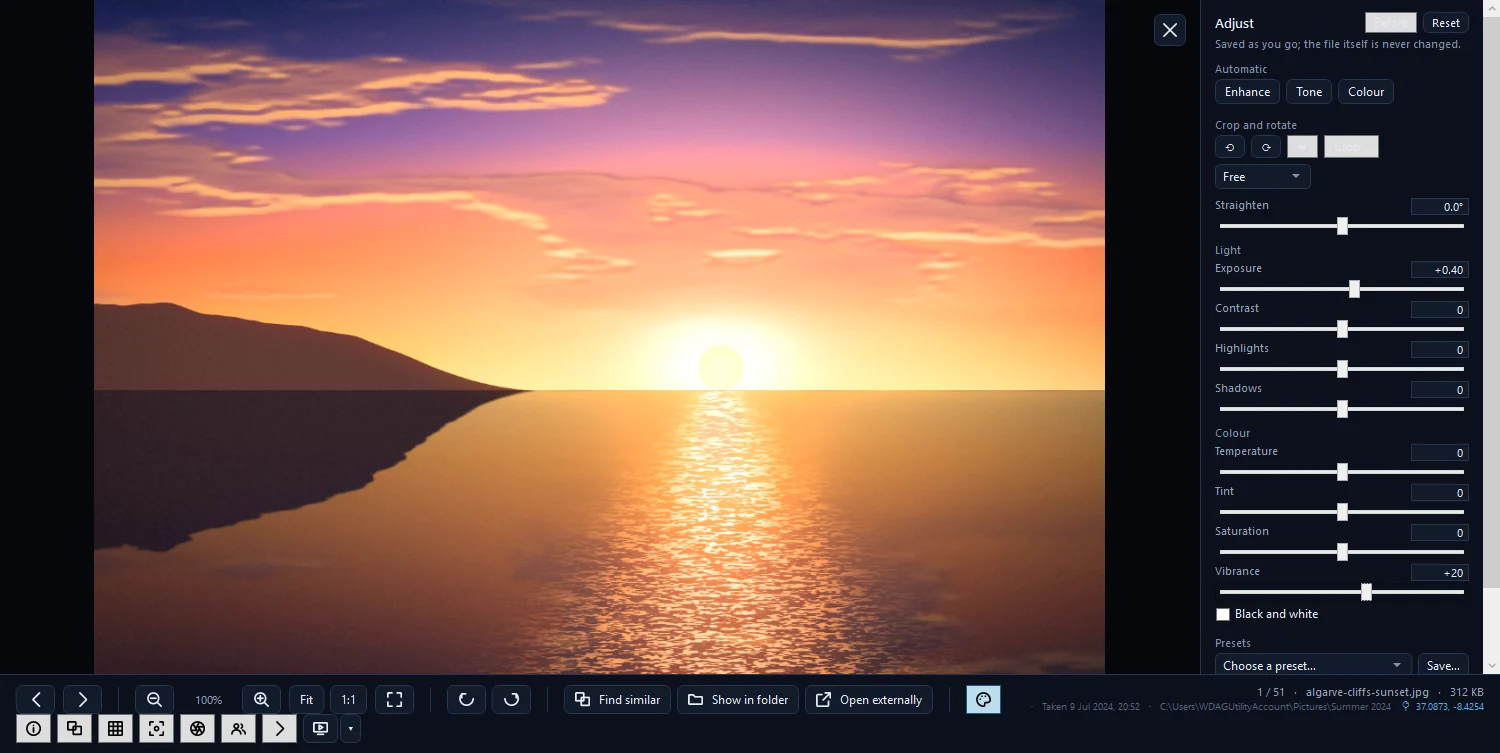
- With my edits — crop, turn, light and colour applies everything you did in the Adjust panel. Leave it unticked for copies of the untouched originals. How to edit a photo without changing the original explains where edits live.
- Watermark: type the text (the hint suggests something like "© 2026 Ann Example"; leave it empty for none) and choose Bottom right, Bottom left, Top right, Top left or Centre.
- File names: leave it empty to keep each picture's own name, or build a pattern from
{name},{n:3},{date:yyyy-MM-dd},{camera},{folder},{title},{stars}and{place}. For example,{date:yyyy-MM-dd} Rome {n:3}numbers the copies in order.
Save as preset
Two presets come built in:
| Preset | What it does |
|---|---|
| Web — 1080 px JPEG, no location | 1080 px long edge, JPEG quality 85, location removed |
| Full size JPEG | Full size, JPEG quality 95 |
To keep your own mix of settings, set everything up and click Save as preset… ("Keep these settings under a name"). Your preset then appears in the Preset list; Delete ("Forget this preset") removes one of yours.
Print and other ways to share
- Print: press Ctrl+P in the grid or viewer. Choose one, two or four pictures a page, or a Contact sheet — 20 pictures, whole or cropped to fill, with an optional caption, then Print… opens the Windows print dialog.
- Copy picture and Open with… are under right-click → Share and print, for pasting into another app.
- Send to phone sends copies to a paired Android phone once the free companion app is available (it's coming soon).
There is no built-in sharing service: no links, no uploads and no social posting. Export copies and share them however you like.
Questions people ask
Does Export change the originals?
No. Copies are written to the folder you choose; the originals are only read, never changed.
How do I remove GPS data before sharing?
Choose JPEG as the format and tick Remove the location before sharing in the Export window. The built-in Web preset does this for you.
Are my stars and keywords included in the exported copies?
No. Export keeps only metadata already inside a JPEG source. Write XMP sidecars if other apps need your stars and keywords.
Was this article helpful?
Thank you — that is counted, and nothing else about you is. Still stuck? Ask a person.