Coming soon: the Wi-Fi link between your Android phone and PC
The Windows app already has the PC side of a private Wi-Fi link; the free Android companion is coming soon. What it will do: browse, copy both ways, auto-sync.

On this page
firelet.media Gallery for Windows now includes the PC half of a private Wi-Fi link between your Android phone and your computer. The free Android companion that completes it is coming soon. Once it's out, you'll pair the two once with a code, then browse, copy photos both ways and auto-sync new pictures, with nothing passing through the internet.
What the Wi-Fi photo link between phone and PC is
Getting photos from a phone to a PC usually means one of two things: a cable, or a detour through a cloud account. The phone link is a third way. It's a direct, encrypted connection between the gallery on your PC and the companion app on your phone, over your own Wi-Fi. There's no cloud, no cable and no account.
The companion is a free Android app for Android 10 and later, on phones and tablets. It's a full offline gallery for the phone's own photos in its own right, with a library, albums, a map and a viewer, and it's the phone end of the link.
What is ready today (the Devices panel in Windows 2026.10)
The PC side is finished and ships in the Windows app, version 2026.10. You'll find it in the Devices panel, opened with Alt+0. Its hint says what it's for: phones paired with this computer over Wi-Fi, with no cloud, no cable and no internet.
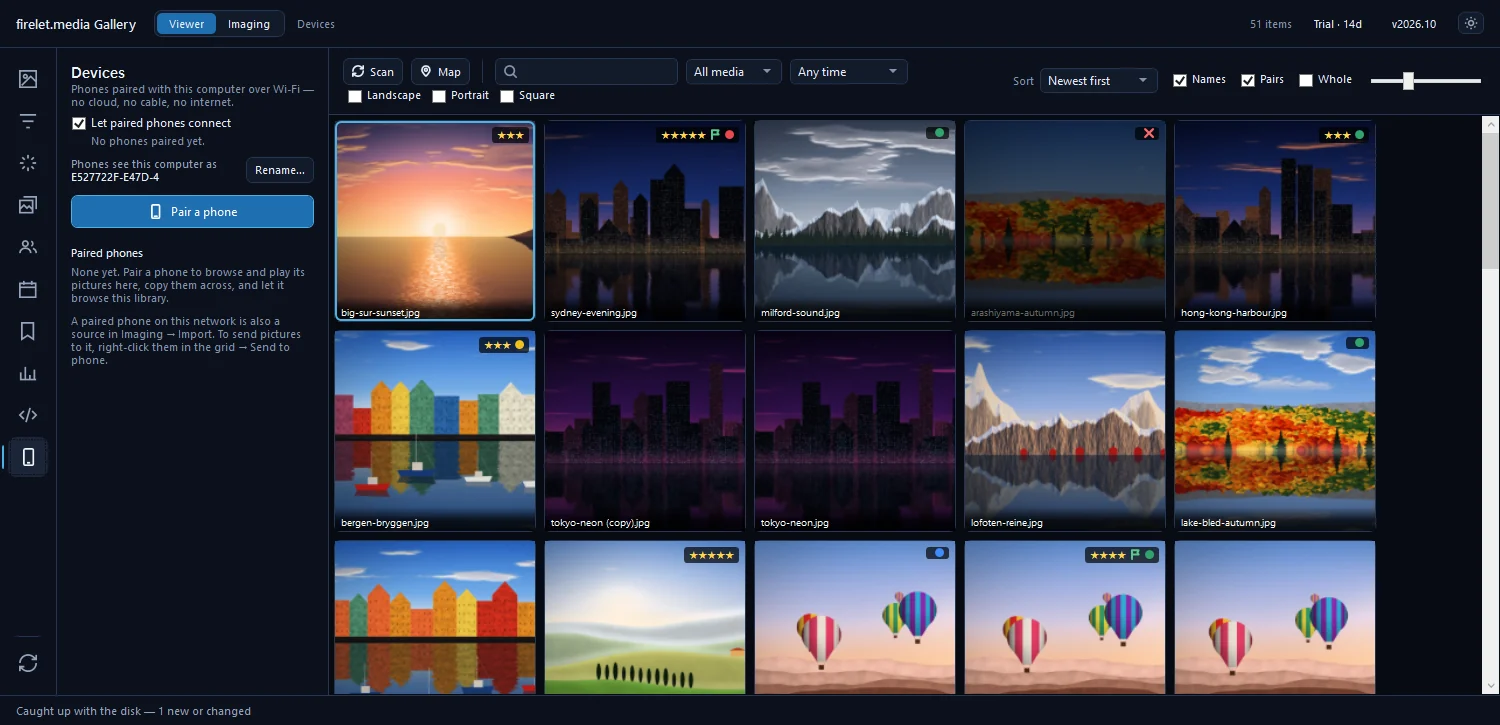
The panel has:
- Let paired phones connect, on by default, which you can switch off at any time.
- The name phones will see this computer as, with Rename… to change it.
- Pair a phone, which starts pairing.
- Paired phones, which lists each phone with its status, Browse and Settings…. Until you pair, it says "None yet".
No network port is opened until a phone is actually paired, so having the panel there changes nothing until you use it.
Pair once with a code
Pairing takes under a minute and only happens once per phone.
- On the PC, open Devices and click Pair a phone. A window shows a QR code and a 12-character code in the form
XXXX-XXXX-XXXX. - On the phone, open the companion's Devices tab and choose Pair with a computer.
- Point the phone at the QR code. Or choose Type it instead, pick your computer under "Which computer?", enter the code and tap Pair.
- Keep the PC window open until the phone says "Paired with" and your computer's name.
The code works once and expires after 10 minutes. After five wrong attempts the window closes, and New code makes a fresh one whenever you need it.
Both devices must be on the same Wi-Fi network (or the PC on Ethernet at home). The first time the link listens on a per-user install, Windows may ask whether the gallery can use the network: allow it on private networks. A guest Wi-Fi that keeps devices apart, mobile data and VPNs all block the link. How to pair your Android phone with your PC over Wi-Fi has the full walk-through, and phone can't find your PC covers the usual fixes.
Browse, copy both ways and auto-sync
Once paired, the link works in both directions.
| From the PC | From the phone |
|---|---|
| Browse the phone's photos and videos, and play them | Browse the whole PC library |
| Copy to this PC, or use the phone as a source in Imaging → Import | Save to this phone |
| Right-click pictures in the grid → Send to phone | Send to PC, from the selection bar or the share sheet |
| Delete on phone…, which the phone's owner confirms (Android 11+) | Move PC pictures to the Recycle Bin, if that phone is allowed to |
For the PC to see the phone's pictures, the phone needs Visible to your computers switched on. It's off by default, and while it's on the phone shows a notification with a Stop button, so you always know.
Auto-sync is the part many people will use most. It's set per phone, in Devices → Settings…, and it's off until you tick Copy new photos and videos to this computer whenever the phone is on this network. From then on the PC checks every five minutes while the phone is visible on the same Wi-Fi, and copies anything new into dated folders under your import folder (or Pictures\Firelet Link, in a folder named after the phone). You can limit it to chosen albums, and decide whether to include the pictures already on the phone. The PC does the fetching and never changes anything on the phone. How to copy new phone photos to your PC automatically explains every setting.
A licensed PC, or one within its 14-day trial, also unlocks the companion's pro features while the phone is paired with it: describe-it AI search, similar photos, the editor, exact duplicates, bursts and culling, and quality ranking. The rest of the companion is free regardless. What does the free Android companion app do? lists it all.
Private by design
The link was built so your pictures never need to leave your home.
- Local only. The phone finds the PC on your network, and pictures travel directly between the two. Nothing goes through the internet, and nothing passes through firelet.media.
- Encrypted. Each device has its own keys, the connection uses pinned TLS, and each pairing has its own token. On the PC, the secrets are sealed with Windows' own data protection.
- Nothing open until you pair. No port listens for phones until one has been paired.
- The companion never contacts firelet.media. It has no account and no cloud. It does load OpenStreetMap map tiles when you open its Places tab, and it only contacts other services if you turn on its optional place names or AI search.
It also means the link can't reach your PC when you're away from home. That's deliberate: it's a home link, not a cloud.
How to hear when the Android app lands
The simplest way to know is to ask. Go to Email me when it's ready on firelet.media and leave your address, and you'll get a message when the companion is out. There's no date until it's ready, and no store page to link to until there is one.
In the meantime, you can already get phone photos onto the PC with Imaging → Import, from the phone's memory card or the phone itself over USB. Back up phone photos to your PC without the cloud covers that route today and the Wi-Fi route when it arrives.
Questions people ask
When is the Android app available?
It is coming soon, with no date announced. Use Email me when it's ready on firelet.media to hear as soon as it is out.
Does it use the internet?
No. Pictures travel only between your own devices on the same Wi-Fi, encrypted, and nothing goes through the internet.
Was this post helpful?
Thank you — that is counted, and nothing else about you is. Still stuck? Ask a person.