What does the free Android companion app do?
The free Android companion (coming soon) is an offline phone gallery that pairs with your PC over Wi-Fi to browse, copy and auto-sync photos. No cloud.

On this page
The firelet.media Gallery Android app is a free companion for your phone, coming soon. It is a full offline gallery for the photos on the phone, and it pairs with firelet.media Gallery on your PC over your own Wi-Fi so the two can browse each other's pictures, copy them across and auto-sync new phone photos to the PC. There is no account and no cloud.
Availability: coming soon
The companion is being finished and is not on Google Play yet. There is no release date. To hear when it's ready, use Email me when it's ready.
The PC side is already there: firelet.media Gallery 2026.10 for Windows has the Devices panel (Alt+0) that the phone will pair with. The app will run on Android 10 and later, on phones and tablets, with an English interface.
What the firelet.media Gallery Android app is for
Most people want two things from a phone gallery: to find their photos quickly on the phone, and to get them onto the computer without a cable or a cloud account. The companion does both.
- On the phone, it is a gallery in its own right, working entirely offline.
- With your PC, it is the other end of the Wi-Fi link: pictures travel directly between your own devices, encrypted, and never through the internet.
What works on its own
These work without a PC, straight after you choose which photos to share with the app on first launch (Android 14's partial photo access is supported, so you can share just some):
- Library: your photos newest first, in 2 to 6 columns, with search by name and filters. Long-press to select, then share (also without location, or smaller), delete, rate, pick or reject, label, compare, run a slideshow or add to an album.
- Viewer: swipe and pinch to zoom, motion photos from Google and Samsung phones (including HEIC motion photos), Ultra HDR on Android 14 and later, and overlays for the histogram, thirds, clipping and focus peaking.
- Video player: skip 10 seconds, loop, speed from 0.25× to 2×, rotation lock and picture-in-picture ("Float").
- Albums: On this day, Events, Calendar and a Bin, your own albums, and the phone's folders.
- Places: your photos on a map, with Places, Heat and Trail views.
- Settings: System, Light or Dark theme, wallpaper colours on Android 12 and later, and an "On this day" home-screen widget.
Pro features: unlocked by a licensed or trial PC
Six extras are marked pro:
- search by describing a photo (AI)
- more like this, similar colours, groups and unique photos
- the editor (crop, light, colour and presets, saved as a new copy)
- exact duplicates
- bursts and culling
- quality and beauty ranking
They unlock while the phone is paired with a PC whose firelet.media Gallery is licensed (and has been seen in the last 30 days) or is in its 14-day free trial. Until then the app says: "Pair with firelet on your PC to unlock — Works with a licensed PC, or one in its 14-day free trial." There is nothing extra to buy on the phone.
Pairing and syncing
Pairing takes about a minute, and you do it once.
- On the PC, press Alt+0 to open Devices and click Pair a phone. A QR code and a 12-character code appear.
- On the phone, open Devices → Pair with a computer and tap Scan the code.
- Point the phone at the QR code, or tap Type it instead, pick the computer under Which computer?, enter the code and tap Pair.
- Wait until the phone shows that it is paired with your computer.
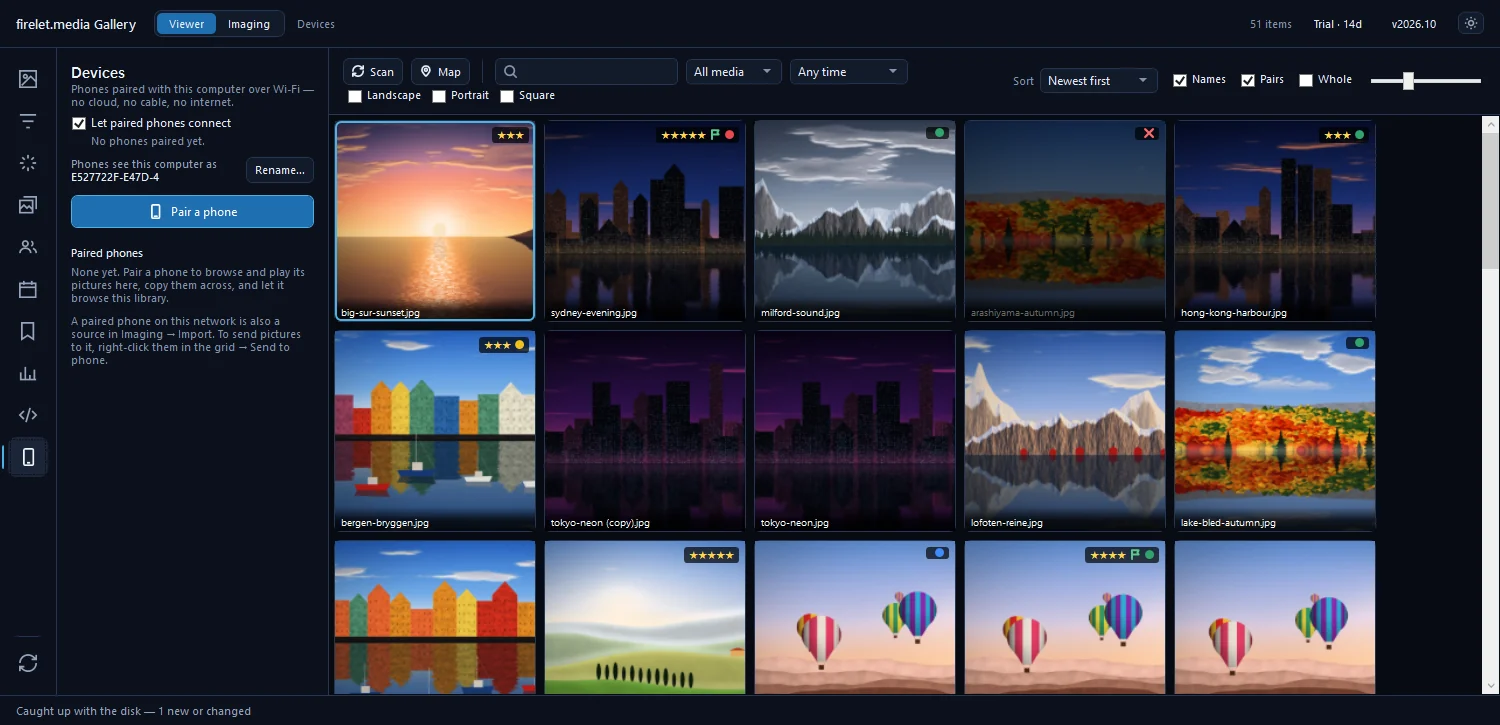
Once paired:
| From the phone | From the PC |
|---|---|
| Browse the whole PC library, open pictures and play videos | Browse the phone's pictures and videos |
| Save to this phone (into Pictures/Firelet and Movies/Firelet) | Copy to this PC, or use the phone in Imaging → Import |
| Send pictures to the computer, or use Send to computer in Android's share sheet | Right-click pictures → Send to phone |
| Delete on the computer (to the PC's Recycle Bin, if the PC allows it) | Delete on phone… (you confirm on the phone; Android 11 and later) |
| Auto-sync: copy new phone photos to the PC automatically |
For the PC to see the phone (to browse it or auto-sync), turn on Visible to your computers in the app. It is off by default and shows a notification while it's on. How to copy new phone photos to your PC automatically explains auto-sync, and how to pair your Android phone has the full pairing guide.
What it does not do (no faces, OCR, XMP or iPhone)
- No faces or people, and no text reading (OCR). Those stay on the PC.
- No keywords or XMP sidecars. Albums on the phone are its own lists.
- No favourites button.
- No iPhone version; it is Android only.
- No cloud backup and no account. It doesn't back the phone up to the internet.
- No reaching the PC from outside your home network. The link works on the same Wi-Fi only, never over mobile data or a VPN. If they can't find each other, see the Wi-Fi link troubleshooting guide.
Privacy
The companion never contacts firelet.media, and it needs no account. What it does connect to:
- OpenStreetMap for the map tiles when you open the Places tab.
- api.bigdatacloud.net, only if you turn on Look up place names (off by default).
- Hugging Face and Google Play, only if you turn on Search photos by description (a pro feature, off by default), to fetch a download of about 30 MB and a 156 MB model.
- Your paired PCs, on your local network only.
Your photos go only where you send them: to your own PC over your own Wi-Fi.
Questions people ask
Is the Android app free?
Yes. It is free, and its pro features unlock while it is paired with a PC whose gallery is licensed or in its 14-day trial.
Does the app need an account?
No. It pairs directly with your PC on your own Wi-Fi and never contacts firelet.media.
Is there an iPhone app?
No. The companion is for Android 10 and later only.
When will it be available?
It is being finished and is not on Google Play yet. There is no date; use Email me when it's ready on firelet.media to hear when it is.
Was this article helpful?
Thank you — that is counted, and nothing else about you is. Still stuck? Ask a person.

