How to play videos and motion photos
Double-click a video and it plays in the viewer, with Space to pause and M to mute. On Windows, Google and Samsung motion photos play their clip with the L key.
On this page
To play a video in firelet.media Gallery, double-click its tile. It opens in the viewer and starts playing, with Space to pause, M to mute and a bar to seek. To play motion photos on Windows (the short clip hidden inside Google and Samsung motion photos), open the photo and press the Motion button or L. The clip plays once, muted, over the still picture.
Finding videos: All media or Videos only
Videos sit in the grid alongside your photos. To see them on their own, use the media box on the toolbar:
- All media: photos and videos together (the default).
- Photos only.
- Videos only.
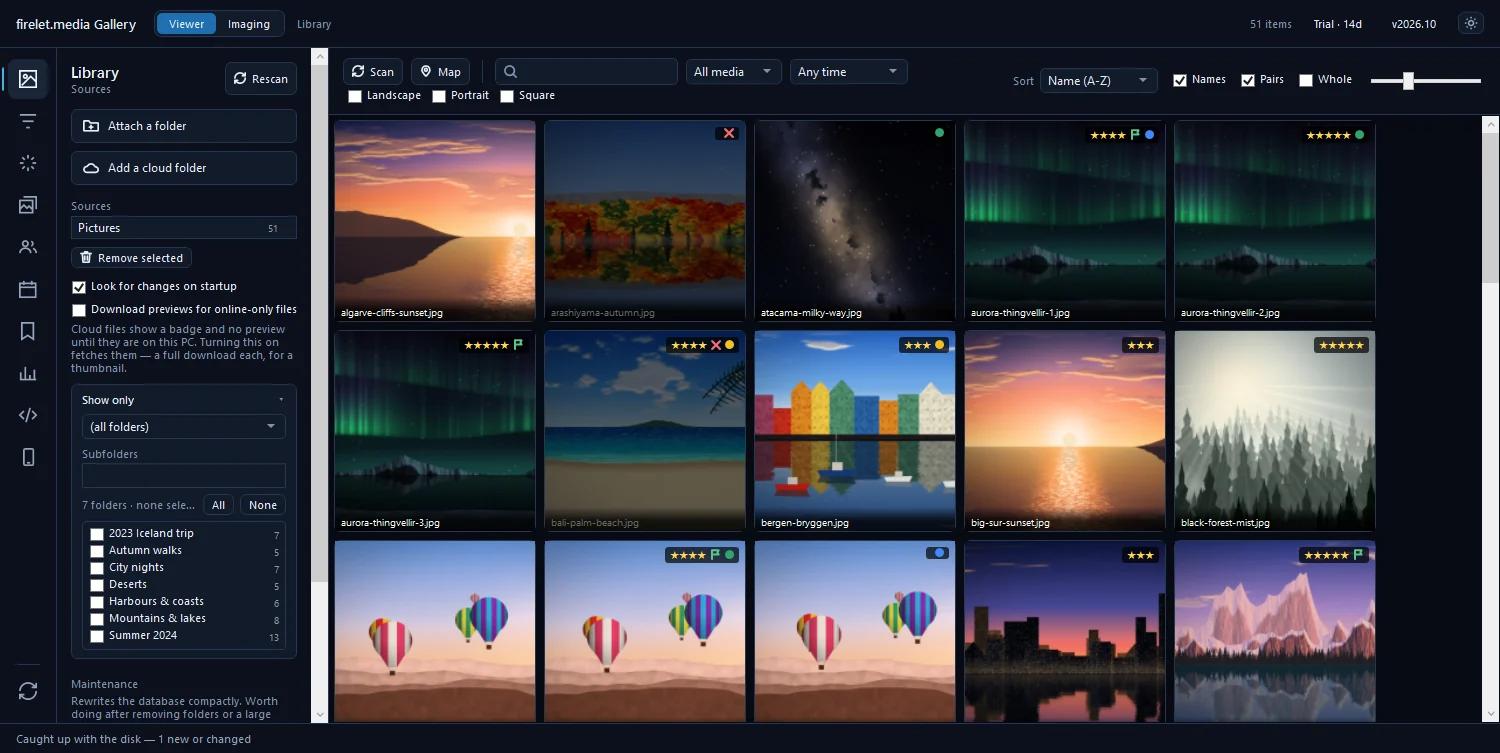
Hover over a video tile and a muted preview starts playing after a moment, so you can tell clips apart without opening them. The gallery indexes .mp4, .mov, .avi, .mkv, .webm, .m4v, .wmv and .3gp files.
Steps: play a video in the viewer
- Choose Videos only in the media box, or just find the video in the grid.
- Double-click the tile, or select it and press Enter.
- The video starts on its own. Press Space (or Play) to pause and resume.
- Drag the seek bar, or press , and . to jump back or forward 5 seconds. Hold Shift with them for 30 seconds.
- Press M to mute, and ↑ or ↓ to change the volume.
- Press → for the next item, or Esc to close the viewer.
The caption line under the picture shows the video's length, size and when it was taken. F goes fullscreen. When a video ends, it rewinds to the start and stops. The photo viewer guide covers the rest of the viewer.
Play motion photos on Windows
Many Android phones can save a second or two of video inside the photo. The Windows build plays two kinds, both saved as JPEG:
- Google motion photos (Motion Photo and MicroVideo, including Top Shot).
- Samsung Motion Photo.
To play one:
- Open the photo in the viewer.
- Look for the Motion button in the toolbar. It appears only on a photo that carries a clip.
- Press Motion, or L. The clip plays once, without sound, over the still.
Duration filters and sorting by length
To find the long clips eating your disk, or the two-second accidents:
- Sort the grid by Longest first or Shortest first.
- Open Filters (Alt+2) → Duration (video) and type a minimum and maximum, in seconds.
- Type
kind=videoin the Advanced query panel (Alt+9) to combine videos with any other condition. - Open Statistics (Alt+8) for the total video running time and the longest video in the library.
More ways to narrow the grid are in sorting and filtering photos.
What the player does not do
The Windows viewer is built for watching, not editing. It has no loop, no speed control, no trimming and no frame export. For any of those, press Open externally in the viewer's toolbar to play the file in another app, or right-click the tile and choose Share and print → Open with…. The Android companion's own player (coming soon) has loop, speed and picture-in-picture, but those are phone features, not PC ones.
If a video shows no preview, or the viewer says it can't be played, Windows needs a codec for it. Follow videos show no preview or won't play.
macOS and Linux: FFmpeg
The macOS and Linux builds are being finished. There, videos play in the app's built-in browser engine, and the free FFmpeg tool is optional: it supplies each video's length, dimensions and preview frame. Without it, videos are still listed with their name, size and date. Installing FFmpeg does not make HEVC, AVI or WMV files play inside the app. Motion photos are not supported in those builds.
The blog looks at the Windows side in more depth in motion photos on Windows.
Questions people ask
Are iPhone Live Photos supported?
No. Motion photos means Google and Samsung motion photos saved as JPEG, and they play in the Windows build only.
How do I show only videos?
Choose Videos only in the media box on the toolbar. All media brings the photos back.
Can the player loop a video or change its speed?
Not on the PC. The viewer plays, pauses, seeks and mutes; for looping or speed control, use Open externally to play the file in another app.
Was this article helpful?
Thank you — that is counted, and nothing else about you is. Still stuck? Ask a person.