Does firelet.media Gallery change my original photos?
No. Edits, stars, keywords and albums are saved in the gallery's library, not in your files. A file changes only when you rename, move or delete it yourself.
On this page
No. firelet.media Gallery never writes into your photos. Everything you do in it (edits, stars, flags, colour labels, titles, keywords, albums, people, corrected dates and places) is saved in the gallery's own library database, and the picture files stay exactly as they were. It is a non-destructive photo organiser: a file changes on disk only when you rename, move or delete it yourself.
What is stored in the library, not in your files
The library is a single database file on your PC: %LOCALAPPDATA%\PictureGallery\gallery.db. When you attach a folder, the gallery reads your pictures and records what it knows about them there. From then on, your own work lives in that file too:
- stars, Pick and Reject flags, and colour labels
- titles, captions and keywords
- albums, which are lists of pictures (no files are copied)
- people and the face data behind them
- edits made in the Adjust panel
- corrected dates and times, and corrected or added locations
- the AI search index and any text read from your pictures
Even removing a folder from the library leaves the disk alone. The confirmation says it plainly: "The files on disk are not touched — only what the gallery knows about them." Uninstalling the program also keeps gallery.db, so a reinstall picks up where you left off.
Edits are non-destructive: a photo organiser that never rewrites the file
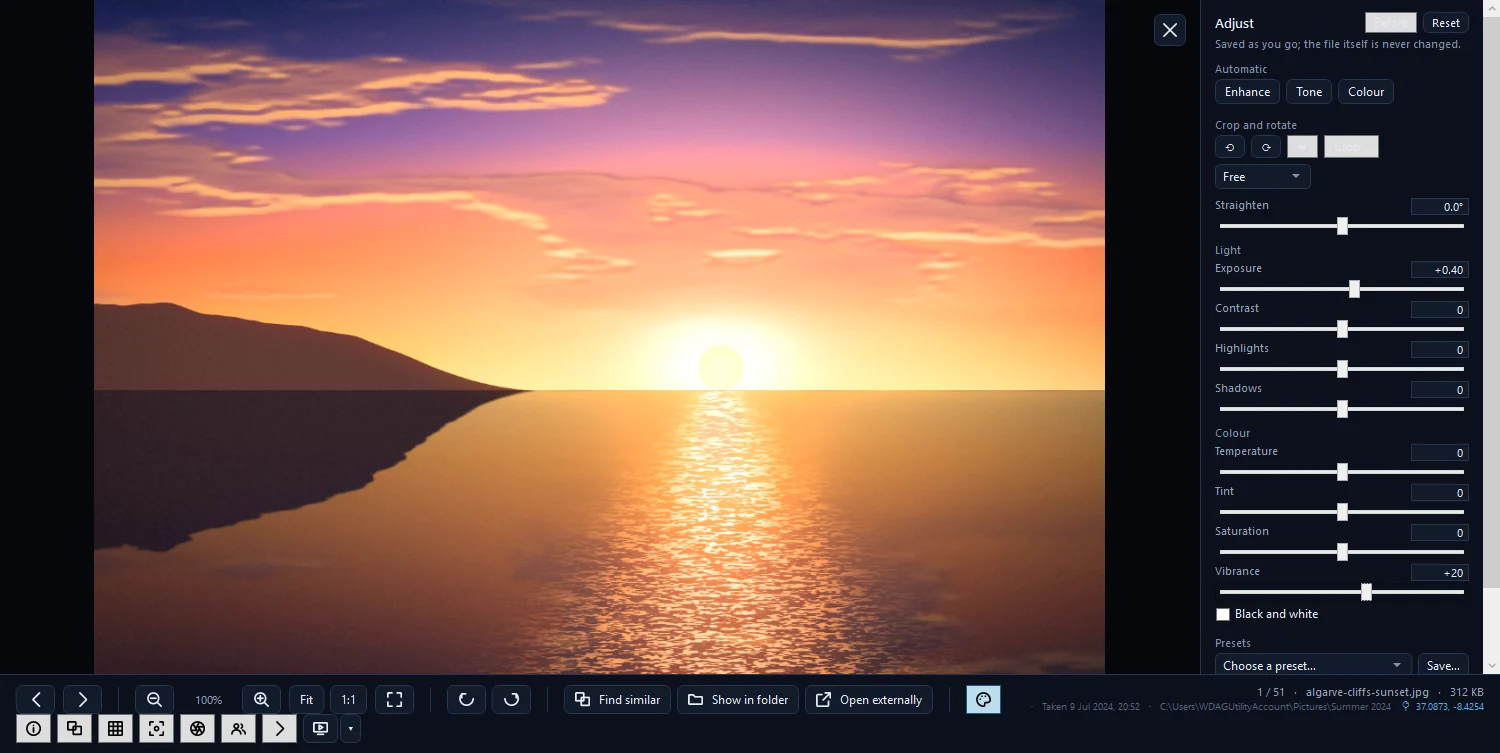
Press E in the viewer, or the Adjust button, and the editor opens with the header "Saved as you go; the file itself is never changed." Every slider, crop and turn is stored as a setting in the library and applied when the gallery shows the picture. Nothing is baked into the JPEG.

That has three practical effects:
- Reset takes a picture straight back to the original, because the original was never touched.
- Other programs, and Windows itself, still see the unedited file.
- The viewer's own Rotate left and Rotate right buttons only turn the view on screen. To keep a rotation, use Turn left or Turn right in the Adjust panel, which is saved like any other edit.
How to edit a photo without changing the original walks through the editor.
Actions that do touch files: move, rename, Recycle Bin
A handful of commands exist precisely to change files on disk. Each one only runs when you choose it.
| What you do | Where | What happens on disk |
|---|---|---|
| Rename | F2, or right-click → Rename… | The file is renamed. "Stars, keywords, albums, faces and everything else the gallery knows move with each file. Extensions never change." |
| Move | Right-click → Move to ▸ | The files move to the folder you pick (inside a library folder). Sidecars move with them. |
| Delete | Del, or right-click → Move to Recycle Bin | After a confirmation, the file and its sidecar go to the Recycle Bin. |
| Import | Imaging → Import | Copies are made in the folder you choose and checked with SHA-256. Nothing is deleted from the card or phone. |
One more case to know about: when the free Android companion (coming soon) is paired, a phone can move pictures on this PC to the Recycle Bin if that phone's setting Let this phone move pictures on this computer to the Recycle Bin is ticked. It is on by default; untick it under Devices → the phone's Settings… if you would rather it could not.
XMP sidecars: written beside, never inside
If you use other photo software, the gallery can share your stars, labels, rejects, titles, captions, keywords and people with it through XMP sidecars. These are small .xmp files written next to each picture. The XMP sidecars section of Albums & keywords (Alt+4) says: "The pictures themselves are never changed."
- Sidecars are written only when you ask: Write changed pictures, Write the selection, or right-click → Write metadata to XMP.
- An existing sidecar is merged, never replaced.
- A sidecar is named after its picture, for example
IMG_0412.xmp, orIMG_0412.HEIC.xmpif two names would clash. - Pick flags are not written; a Reject is written as −1.
- Corrected dates and locations reach a sidecar only when you write XMP. Until then they stay in the library.
Export always writes copies
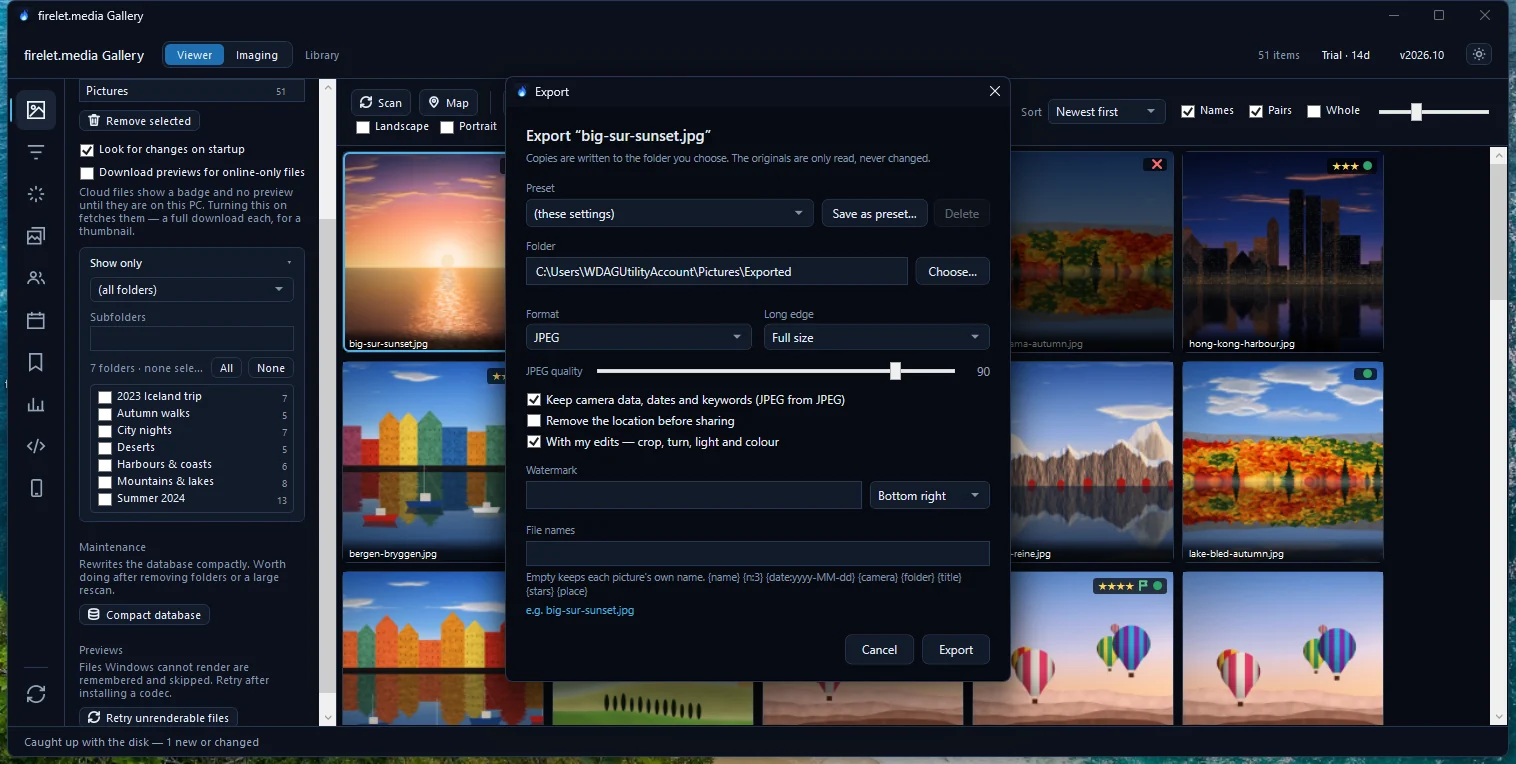
When you need a file with your edits, a smaller size or no location, Export makes a new copy and leaves the original alone. The dialog's own words: "Copies are written to the folder you choose. The originals are only read, never changed."
- Select the pictures in the grid.
- Press Ctrl+E, or right-click and choose Export….
- Tick With my edits — crop, turn, light and colour if you want your adjustments applied.
- Click Choose… and pick a folder other than the one the originals are in.
- Click Export.
The copies do not carry the gallery's own stars, keywords or corrected dates; only metadata already inside a JPEG source can be kept. See how to export photos for every option.
Questions people ask
Are edits saved into the photo file?
No. The editor says so itself: saved as you go; the file itself is never changed. Use Export with 'With my edits — crop, turn, light and colour' ticked to create an edited copy.
Does writing XMP change my photos?
No. XMP sidecars are separate .xmp files written beside the pictures, and only when you ask. The pictures themselves are never changed.
Are corrected dates and locations written into the file?
No. They are stored as corrections in the library and reach .xmp sidecars only when you choose to write XMP.
Was this article helpful?
Thank you — that is counted, and nothing else about you is. Still stuck? Ask a person.