How to add OneDrive, Dropbox, Google Drive or iCloud folders
Press Library → Add a cloud folder to attach a sync folder already on your PC. Online-only files show a cloud badge; previews download only if you allow it.

On this page
To add a OneDrive folder to firelet.media Gallery, or a Dropbox, Google Drive or iCloud one, press Alt+1 for Library, click Add a cloud folder, tick the folders it finds and press Add selected. The gallery reads the sync folder your provider's own app already keeps on this PC. It never signs in to your cloud account and uploads nothing.
How cloud folders work
OneDrive, Dropbox, Google Drive for desktop and iCloud for Windows each keep an ordinary folder on your PC and sync it in the background. The gallery treats that folder like any other: it indexes the photos in place and leaves the syncing to the provider's app.
- No sign-in, no cloud access. There is no connection to your cloud account. In the gallery's own words: "These are ordinary folders your sync app keeps on this machine, so nothing is uploaded and no account is needed."
- The provider's app must be installed and signed in, because that is what creates the folder.
- Why a special button? Each provider puts its folder somewhere different. Add a cloud folder finds OneDrive, Dropbox, Google Drive for desktop, and iCloud Photos or iCloud Drive for you.
How to add a OneDrive, Dropbox, Google Drive or iCloud folder
- Press Alt+1 to open the Library panel.
- Click Add a cloud folder.
- In the Add cloud folder window, tick one or more folders under Cloud folders on this PC.
- Press Add selected. The folders join Sources and a scan starts straight away.

If the gallery says "No cloud folders were found on this PC", install the provider's desktop app and sign in, then try again. If yours syncs to an unusual place, press Attach a folder instead and choose the folder yourself; it works exactly the same. There's more on attaching in adding photo folders.
The gallery doesn't watch folders live. Photos that sync in later are picked up when the app starts (Look for changes on startup is on by default) or when you press Rescan.
Online-only files and the cloud badge
Most sync apps can keep files "online only" to save disk space: the name is on your PC but the picture itself stays in the cloud. The gallery respects that.
- An online-only file shows a cloud badge ("Online only — stored in the cloud, not on this PC") and no preview.
- It is never downloaded automatically, not to scan it and not to draw its tile.
- AI indexing skips online-only files, so they won't turn up in a described search until they are on the PC. See indexing your library for AI search.
To make a folder fully available, use your sync app's own option to keep it on this device, then press Rescan.
Download previews for online-only files
If you'd rather see thumbnails for everything, tick Download previews for online-only files in the Library panel. It's off by default for a good reason: drawing a tile from a cloud file downloads the whole file. On a large library that can mean many gigabytes of downloading and disk space.
Identical copies never downloads to compare
Cloud folders often hold second copies of photos you also have elsewhere. AI → Identical copies finds byte-for-byte duplicates, but "Online-only files are never downloaded to be compared". An online-only duplicate therefore isn't matched until it's on this PC. Keep the folder on this device first if you want it included. The full routine is in finding and removing duplicate photos.
Good to know
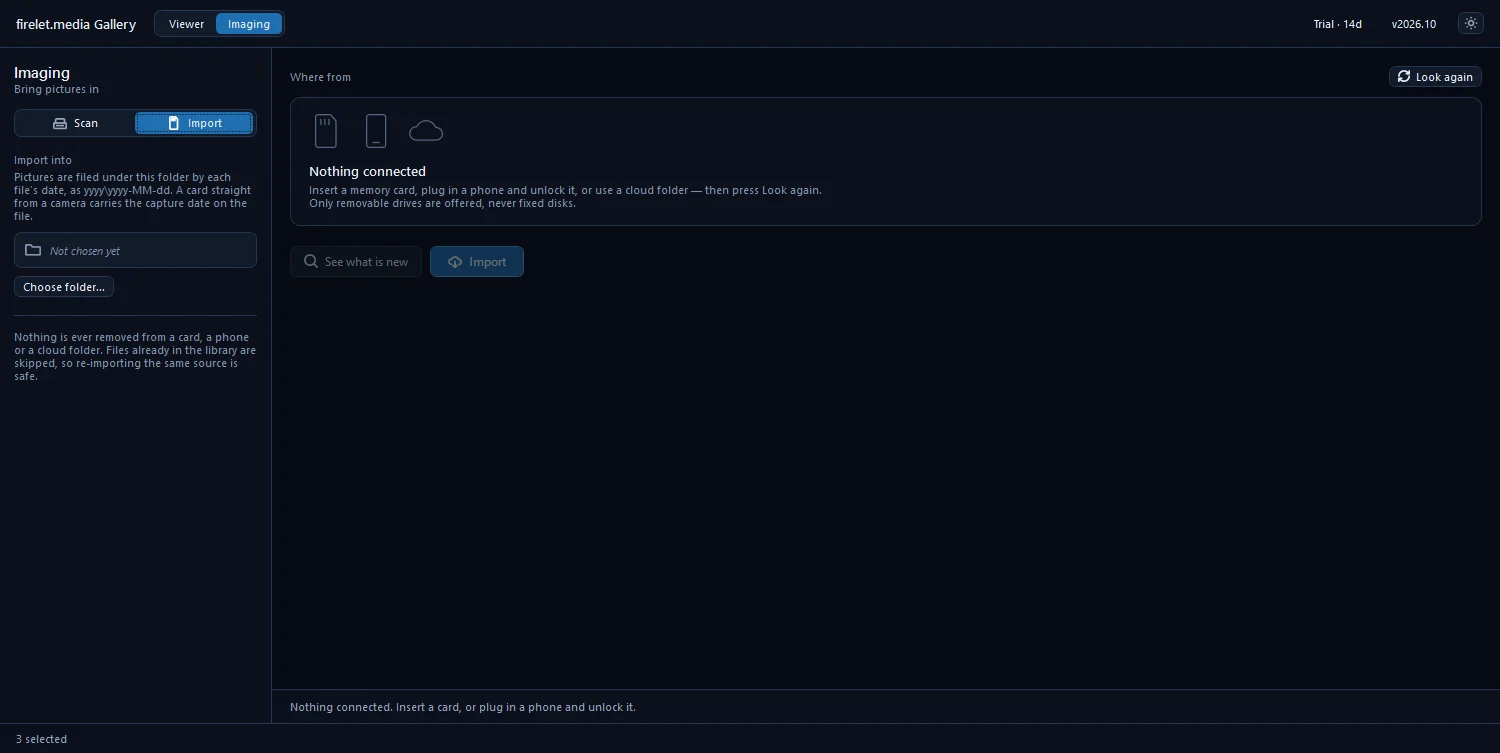
- Attaching is not importing. Imaging → Import can also use a cloud folder as a source, but it copies every file into your import folder, downloading each one. Attach the folder if you want the photos indexed where they are. See importing from a card or camera.
- Changes in a synced folder sync. Renaming, moving or deleting a photo from the gallery changes the file on disk, and your sync app treats that like any other change. It usually does the same in the cloud.
- Removing is safe. Remove selected takes a folder out of the library only. "The files on disk are not touched — only what the gallery knows about them."
Pulling photos together from several drives and clouds is covered on the blog in photos scattered across drives. For exactly what the app does and doesn't send anywhere, see what data is sent.
Questions people ask
Does firelet.media Gallery sign in to my cloud account?
No. It reads the sync folder the provider's own app keeps on your PC. It has no access to your cloud account and uploads nothing.
Why do some tiles show a cloud icon and no preview?
Those files are online only. Turning on Download previews for online-only files fetches each one, which is a full download per file.
My cloud folder isn't found. What now?
Make sure the provider's desktop app is installed and signed in. If it syncs to an unusual place, use Attach a folder and choose the folder yourself.
Was this article helpful?
Thank you — that is counted, and nothing else about you is. Still stuck? Ask a person.