How to search the text in your photos: receipts, signs and screenshots
Find the photo of a receipt, a street sign or a whiteboard by the words on it. Text recognition runs on your PC, then the normal search box finds it.

On this page
To search the text in your photos, the words first have to be read out of the pictures. In firelet.media Gallery, one click on Read text runs the text recognition built into Windows over your photos, on your own PC. After that, the ordinary search box finds a receipt, a street sign or a whiteboard by the words written on it, and nothing is uploaded.
Why text in photos is hard to find
A surprising share of any photo library is really paperwork. There are receipts you photographed for a warranty, the parking level at the airport, a recipe from a cookbook, a slide from a talk, a train timetable, and hundreds of screenshots.
To your computer, all of those are just pictures. The words are pixels, not text. Search by file name and you get IMG_7730.jpg. Search by date and you have to remember when. Even AI description search, which is brilliant at "dog on a beach", can only tell you that a picture shows "a receipt". It can't tell you it's the receipt from the hardware shop.
Text recognition (often called OCR) solves this by reading the letters in each picture and storing them as real, searchable text.
It isn't only paperwork, either. A runner's race number, the name over a shop front, a wine label, the title on a museum placard or the name of a boat in a harbour can all be the one detail you remember. Once the words are readable, any of them can bring the picture back.
Read text once
Reading is a one-off job for each photo. The gallery keeps what it read, so later runs only handle new pictures.
- Open the AI panel with Alt+3.
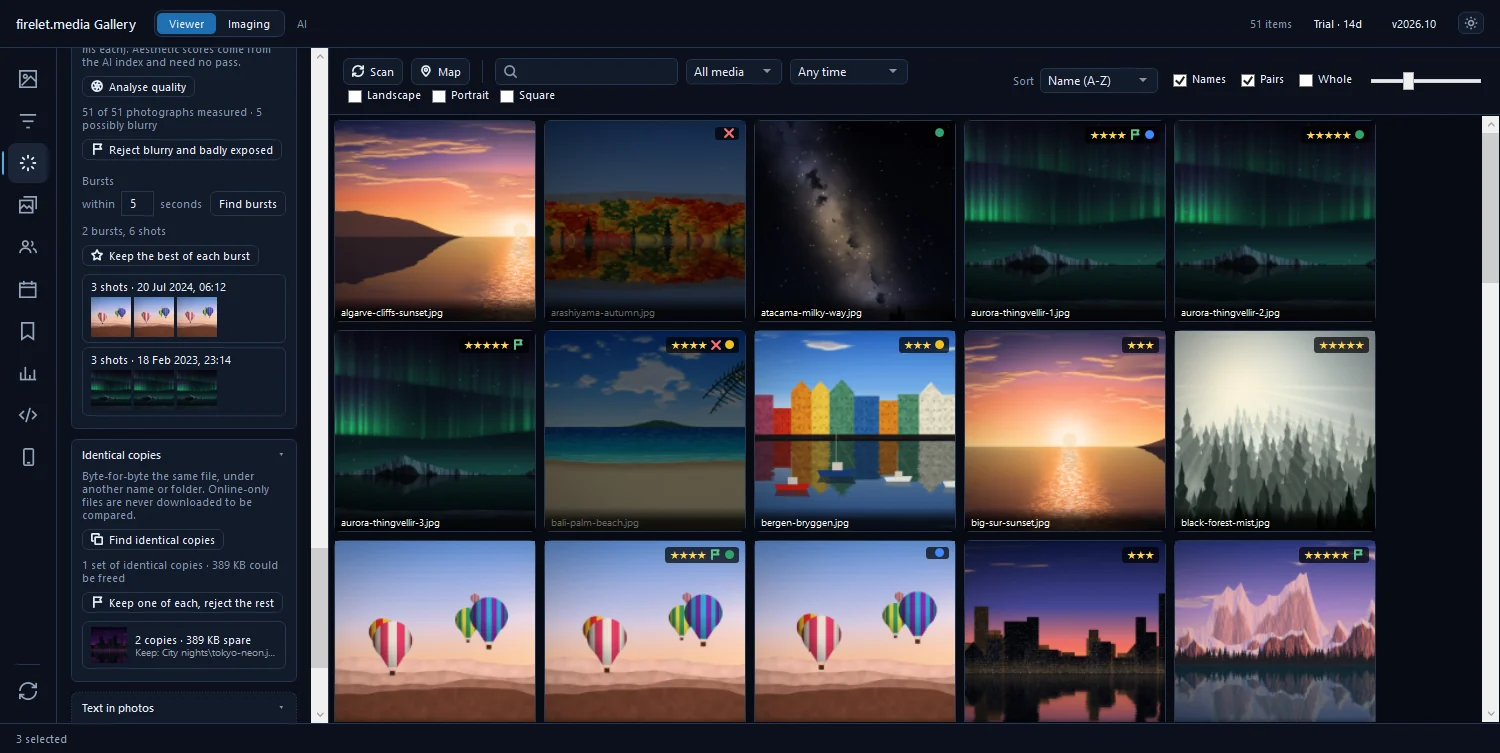
- Expand Text in photos.
- Click Read text.
- Let it work. The panel counts progress, then reports how many photos were read and how many had text.
A few things to know:
- Photos only. Videos aren't read.
- No AI download needed. Unlike description search, text reading doesn't use the 438 MB AI model. It uses what Windows already has.
- Stopping is safe. Press Stop in the status bar and everything read so far is kept. Click Read text again later to carry on.
- Online-only cloud files are skipped. They aren't downloaded just to be read.
When you add new photos, click Read text again. It skips everything it has already read. If the panel says Windows has no text-recognition language installed, add a language under Settings › Time & language › Language in Windows, then try again.
Search text in photos by the words on them
Once the text is read, you don't need a special tool. The search box on the toolbar already looks in the recognised text, along with names, folders, keywords, people, albums and places.
- Click the search box on the toolbar.
- Type a word you remember from the picture, such as
warranty,platform 9orsourdough. - Press Enter, or pick one of the suggestions with Down.
Every word you type must appear somewhere, and matching ignores capitals. There are no quotes or operators to learn. If a search is too broad, add another word you remember. Shop name plus product usually narrows a receipt down to one.
Filter: pictures with text
Sometimes you don't know the words, only that the picture had writing in it. The filters can show every photo with text, or hide them all.
- Open Filters with Alt+2.
- Expand Quality & faces.
- Set Text in the picture to Has text, or to No text to clear documents out of the way.
Combine it with the date range on the toolbar ("pictures with text from last March") and the list gets short quickly.
For more precise searches, the Advanced query panel (Alt+9) takes one condition per line:
| Query | Finds |
|---|---|
has=text |
Every photo with recognised text |
text~invoice |
Photos whose text contains "invoice" |
kind=screenshot |
Screenshots |
year=2024 |
Anything from 2024 |
Put kind=screenshot and text~booking on two lines to find the screenshot of a booking reference. How to find screenshots, receipts and documents among your photos has more recipes like this.
Languages and accuracy
On Windows, the gallery uses the text recognition that comes with Windows, in the languages installed on your PC, and falls back to English. That's why the website lists "many languages" for Windows. If you want another language recognised, add it in Windows' language settings.
How well it reads depends on the picture:
- Printed text reads best. Receipts, signs, labels, book pages, slides and screenshots are all good candidates.
- Sharp, straight and well lit helps. A receipt photographed flat on a table beats one crumpled in a hand at an angle.
- Small or distant text may be missed. A street sign across a busy square may not be legible to the recogniser even if you can make it out.
- Don't rely on handwriting. Treat anything written by hand as a bonus if it's found, not something to count on.
If a picture's text wasn't found, try searching a different word from it. Recognisers often get most of a line right and one word wrong. For pictures you'll need again, add a keyword or a caption yourself.
Private by design
Photos with text are often the most sensitive in a library: bank letters, ID cards, medical forms, passwords scribbled on a whiteboard. They're exactly the pictures you don't want analysed on someone else's server.
On Windows, text recognition in firelet.media Gallery happens entirely on your PC, using the recognition built into Windows. Nothing is downloaded to do it, and neither the pictures nor the text read from them is sent anywhere. The recognised text is stored in the gallery's library on your computer, alongside your stars and albums.
The gallery's only regular traffic is its licence and update checks, which carry nothing from your library. What firelet.media Gallery sends over the internet lists every connection. To combine text search with finding pictures by what they show, read how to find a photo by describing what's in it. The step-by-step help guide is how to find photos by the text in them.
Questions people ask
Does text recognition send my photos anywhere?
No. On Windows it uses the text recognition built into Windows; nothing is downloaded and nothing is sent.
Which languages work?
On Windows, the languages whose text recognition is installed in Windows. The macOS and Linux builds, when available, read English.
Was this post helpful?
Thank you — that is counted, and nothing else about you is. Still stuck? Ask a person.