How to install firelet.media Gallery on Linux
Pick the .deb for Ubuntu, Debian or Mint, the .rpm for Fedora, or the AppImage for any distribution. Install, open it, and the 14-day trial starts.
On this page
firelet.media Gallery for Linux comes in three files on the download page: a .deb for Ubuntu, Debian and Linux Mint, an .rpm for Fedora, and an AppImage that runs on most other distributions without installing. Install the one that suits your system, open firelet.media Gallery from your app menu, and the 14-day free trial starts with every feature on.
What you need before you start
- A 64-bit (x86-64) Linux desktop. There is no ARM build. It was tested on Ubuntu 24.04 and Fedora 42.
- About 125 MB for the .deb or .rpm download (about 210 MB for the AppImage), and about 580 MB of disk once installed. The AI model (438 MB) and face models (39 MB) are only downloaded later, if you ask for them.
- Internet for the download. After that the gallery only goes online to activate a licence, check in about once a month, check for updates and download the AI models when you press the button.
The full list, including what works differently on Linux, is in firelet.media Gallery system requirements.
Install on Ubuntu, Debian or Mint: the .deb
- Open the download page and click Download .deb. The file is
firelet-media-gallery-2026.11.1-amd64.deb. - Open a terminal in your Downloads folder.
- Run
sudo apt install ./firelet-media-gallery-2026.11.1-amd64.deband enter your password. The./matters: it tells apt to install the file and fetch the libraries it needs. - Open firelet.media Gallery from your app menu.
On Ubuntu 23.10 and later, the .deb also installs a small AppArmor profile that lets the app's built-in browser engine start its sandbox. That is why the .deb is the best choice on Ubuntu.
Install on Fedora: the .rpm
- Click Download .rpm on the download page. The file is
firelet-media-gallery-2026.11.1-x86_64.rpm. - In a terminal in your Downloads folder, run
sudo dnf install ./firelet-media-gallery-2026.11.1-x86_64.rpm. - Open firelet.media Gallery from your app menu.
Run the AppImage on any distribution
- Click Download AppImage on the download page. The file is
firelet-media-gallery-2026.11.1-x86_64.AppImage. - Mark it as executable: in your file manager, open its Properties and allow it to run as a program, or run
chmod +x firelet-media-gallery-2026.11.1-x86_64.AppImage. - Double-click it, or run
./firelet-media-gallery-2026.11.1-x86_64.AppImage.
An AppImage needs FUSE 2, which some distributions no longer install by default. If it doesn't open, install it: sudo apt install libfuse2t64 on Ubuntu 24.04 (libfuse2 on older Ubuntu and Debian), or sudo dnf install fuse fuse-libs on Fedora. You can also start it with --appimage-extract-and-run, which needs no FUSE.
First launch: what you will see
The window opens with an empty grid and the title bar text "No images yet — add a folder to begin". Press Alt+1 for Library and click Attach a folder to begin. How to add your photo folders walks through it.
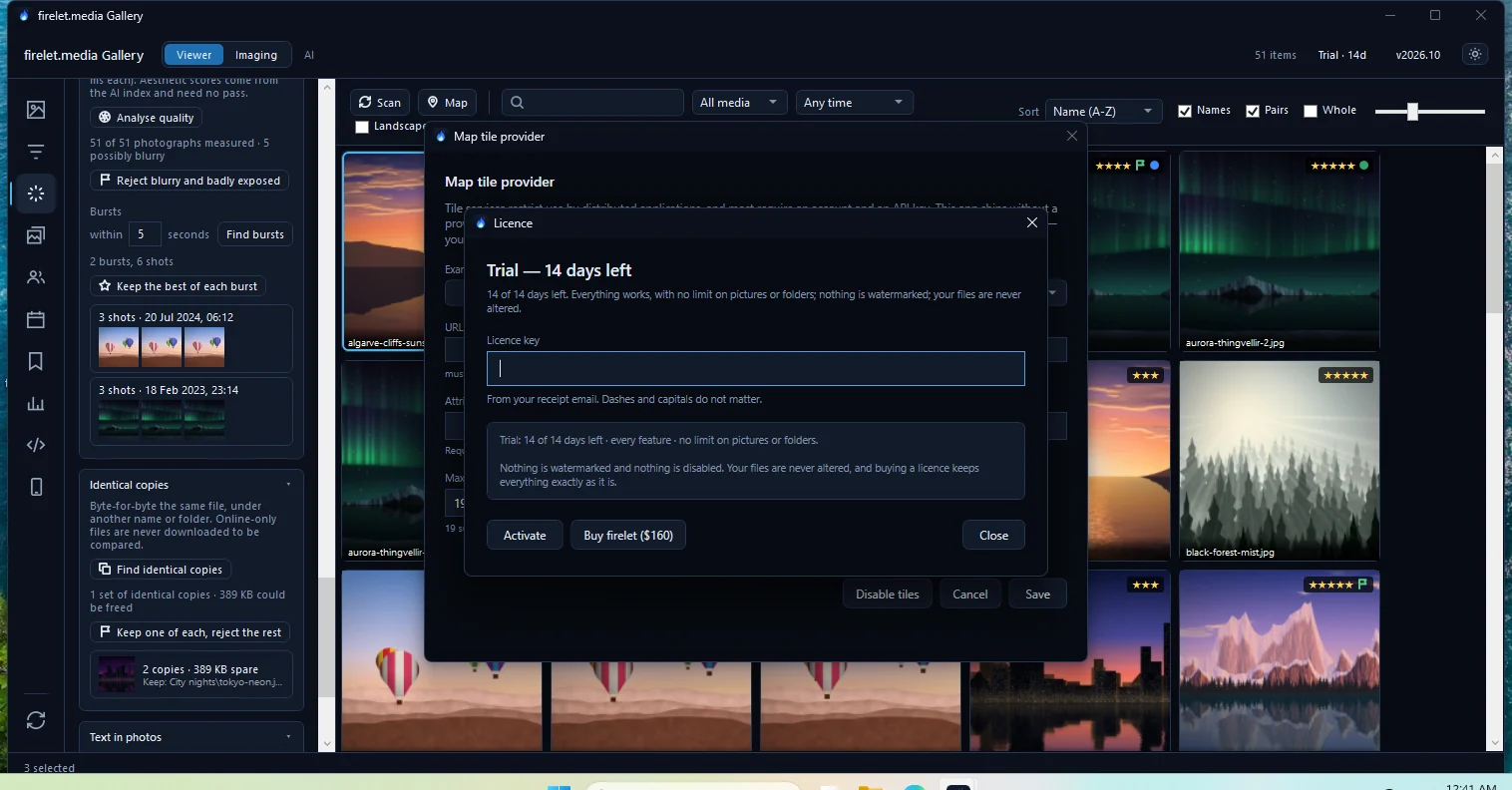
At the top right of the title bar you will see Trial · 14d. Your 14-day free trial has started, with every feature on and no limits. Click that label to open the Licence window, where you can activate a licence key. The same key works on Windows and Linux.
Your library and settings live in ~/.config/firelet.media Gallery/. The licence is kept there too, sealed with a key held by your desktop's keyring (the Secret Service, as in GNOME Keyring, or KWallet).
A few things work differently on Linux
Everything you read in this help centre applies, with these differences:
| On Linux | |
|---|---|
| Video previews and length | Install FFmpeg from your distribution's packages, then restart the gallery. Without it, videos are listed with their name, size and date |
| HEIC photos | Grid tiles need the libheif tools (heif-convert). The full-size viewer offers Open in default app |
| Scanner | Through SANE: install it, and scanners appear in Imaging (Ctrl+2) |
| Text in photos | English. Press Download English text model (about 3 MB) once |
| AI indexing | Runs on the processor: the same results, slower the first time |
| Motion photos | Don't play; they show as still photos |
| Import | From cards and drives, cloud folders and phones paired over Wi-Fi; not from a phone on a USB cable |
Updating and uninstalling (your library is kept)
Updating. The gallery checks for a new version when it starts and every 24 hours, and shows a strip at the top of the window when one is out. Click Download: your browser fetches the new file. Install it the same way as the first one (the .deb or .rpm over the old version, or replace the AppImage). Your library and licence are kept.
Uninstalling. Run sudo apt remove firelet-media-gallery-electron (.deb) or sudo dnf remove firelet-media-gallery-electron (.rpm), or delete the AppImage file. Your library folder in ~/.config/firelet.media Gallery/ stays, so a reinstall picks up the same library; delete that folder too only if you want to start over. Your photos are never touched.
If the gallery doesn't open at all, what to do when the app won't start lists the usual causes and where the logs are.
Questions people ask
Which Linux distributions does it run on?
64-bit (x86-64) desktops. The .deb is for Ubuntu, Debian, Linux Mint and their relatives, the .rpm for Fedora and its relatives, and the AppImage runs on most others. It was tested on Ubuntu 24.04 and Fedora 42. There is no ARM build.
Is there a Flatpak or Snap?
No. Linux comes as an AppImage, a .deb and an .rpm.
Does it update itself?
No. It checks for a new version when it starts and every 24 hours, and shows a strip when one is out. Download opens your browser; install the new file over the old one, and your library and licence are kept.
Does the same licence key work on Linux?
Yes. One key works on Windows and Linux, one computer at a time per seat, and the trial is the same 14 days with every feature on.
Was this article helpful?
Thank you — that is counted, and nothing else about you is. Still stuck? Ask a person.